No articles match that search
Try a shorter word, or contact support.
Getting started
Create an account, activate a purchase, and learn where everything lives.
Getting started2 min read
Welcome to Quizyai
Quizyai turns material you already have — a PDF, a slide deck, a chapter of notes, an article, a lecture recording — into a ready-to-use quiz, then helps you deliver it and see how people did.
What makes the questions trustworthy
Every answer key is quoted from your source. Questions that can't be traced back to your material are discarded rather than guessed at.
A second AI model checks the answers. A different vendor's model answers each question blind; only matching answers earn the Verified badge.
Every question carries an explanation, written from the quoted passage.
Read through, fix any wording, drop questions you don't want. Edit questions →
Deliver
Share a link, embed it on your site, assign it to a class, or host it live. Share & deliver →
Measure
See every response and which questions are doing their job. View responses →
✓
Want to see it work before signing up? The free generator makes a real quiz from up to 5 pages with no account.
Getting started3 min read
Create an account and sign in
Signing up and signing in happen on the same page. Enter your email first and Quizyai works out which one you need.
Go to the sign-in page
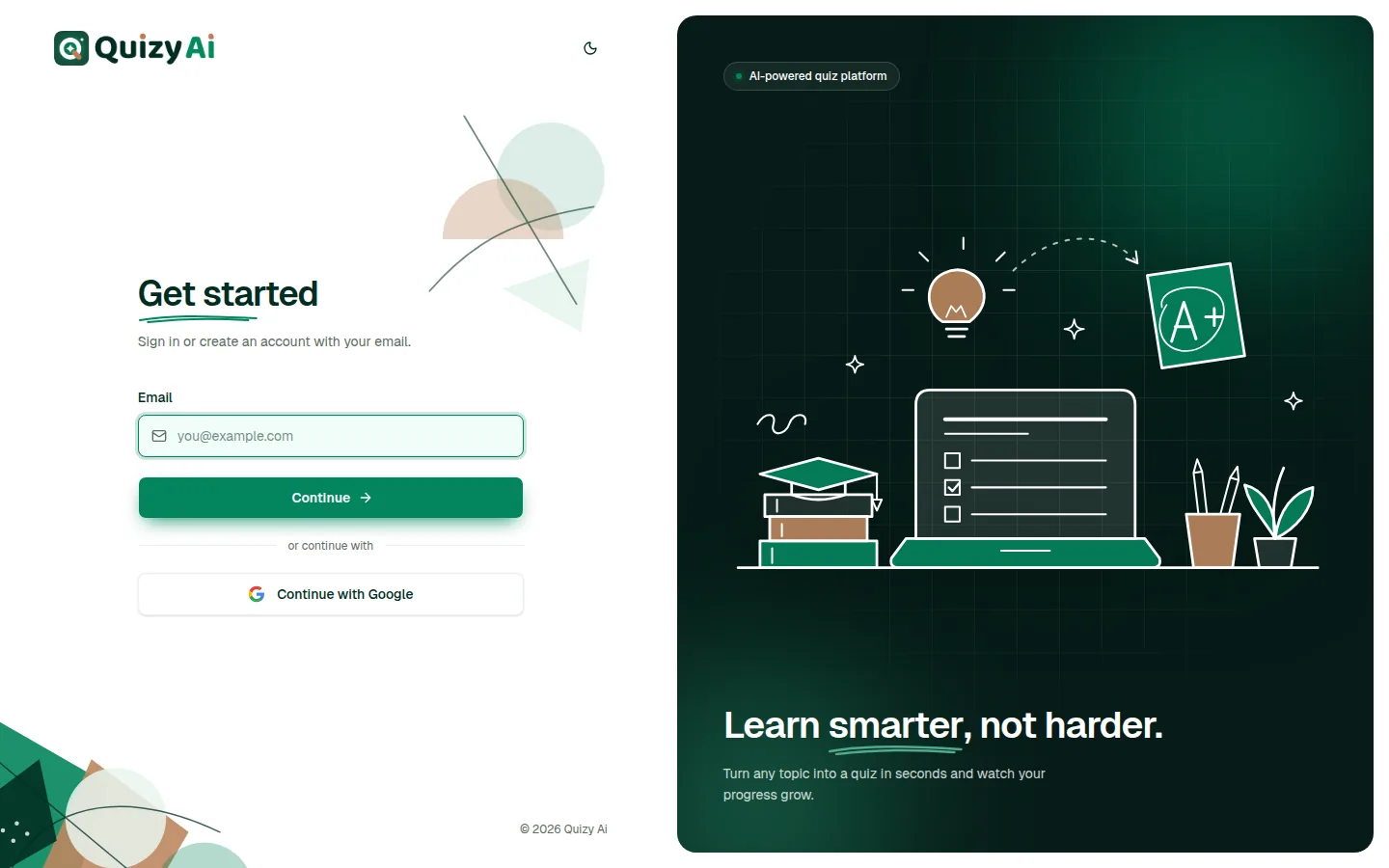
Open app.quizyai.com/login. The first step is headed Get started.
Enter your email and press Continue
If you already have an account you'll see Welcome back with a password field. If you don't, you'll see Create your account with Full name, Password and Confirm.
Finish
Press Sign in or Create account.
Verify your email
New email-and-password accounts land on Verify your email. Open the link in the message we send. Lost it? Press Resend verification email.
Signing in with Google
Continue with Google appears at every step. It skips the verification screen entirely, because Google has already confirmed the address. If you previously signed up with that same email and a password, Google sign-in links to that existing account rather than creating a second one.
i
Invited to an organization or class? The invitation email takes you to the sign-in page with your address already filled in. Sign in — or create your account — with that email address and your access is waiting.
app.quizyai.com/login
SHOT 01
The “Get started” step: email field, Continue, “or continue with” divider, Continue with Google
Save as screenshots/01-signin.png · 1440×900 · signed out, use a dummy email
One page handles both signing up and signing in.
Getting started4 min read
Activate your account after a purchase
If you bought a plan from the website without being signed in, your account exists but needs activating. It takes two steps and about a minute.
Open the email we sent
Look for “Payment received — activate your {plan} account” and press Activate your account. That link is personal to you and expires after 7 days.
Step 1 — Verify your email
On the Activate your account page, check your name and email (you can correct the email here), then press Send verification code. Type the 6-digit code into Enter verification code and press Verify code & continue.
Step 2 — Set a password
Choose a password, confirm it, and press Activate account & continue. You land on your subscription page with “Account activated. Welcome aboard!”
Situation
What happens
You already had an account with that email
The code alone unlocks it — there's no password step, your existing password still works.
You bought while signed in
No activation needed at all. The plan is applied to your account immediately.
The code didn't arrive
Codes last 15 minutes. You can resend once every 60 seconds — the button counts down as “Resend in {n}s”.
The activation link expired
It's valid for 7 days. After that, contact support and we'll send a fresh one.
!
Until activation is finished, the rest of the app stays locked. If you find yourself bounced back to this page, you still have a step to complete.
app.quizyai.com/checkout/setup
SHOT 02
“Activate your account” with the Step 1 / Step 2 chips and the 6-digit code box
Save as screenshots/02-activate.png · 1440×900 · crop out the right-hand illustration panel — it contains sample figures, not real account data
Verify first, then set a password.
Getting started3 min read
Find your way around
The sidebar is your main navigation. Here's what each item is for.
Sidebar item
What's there
Overview
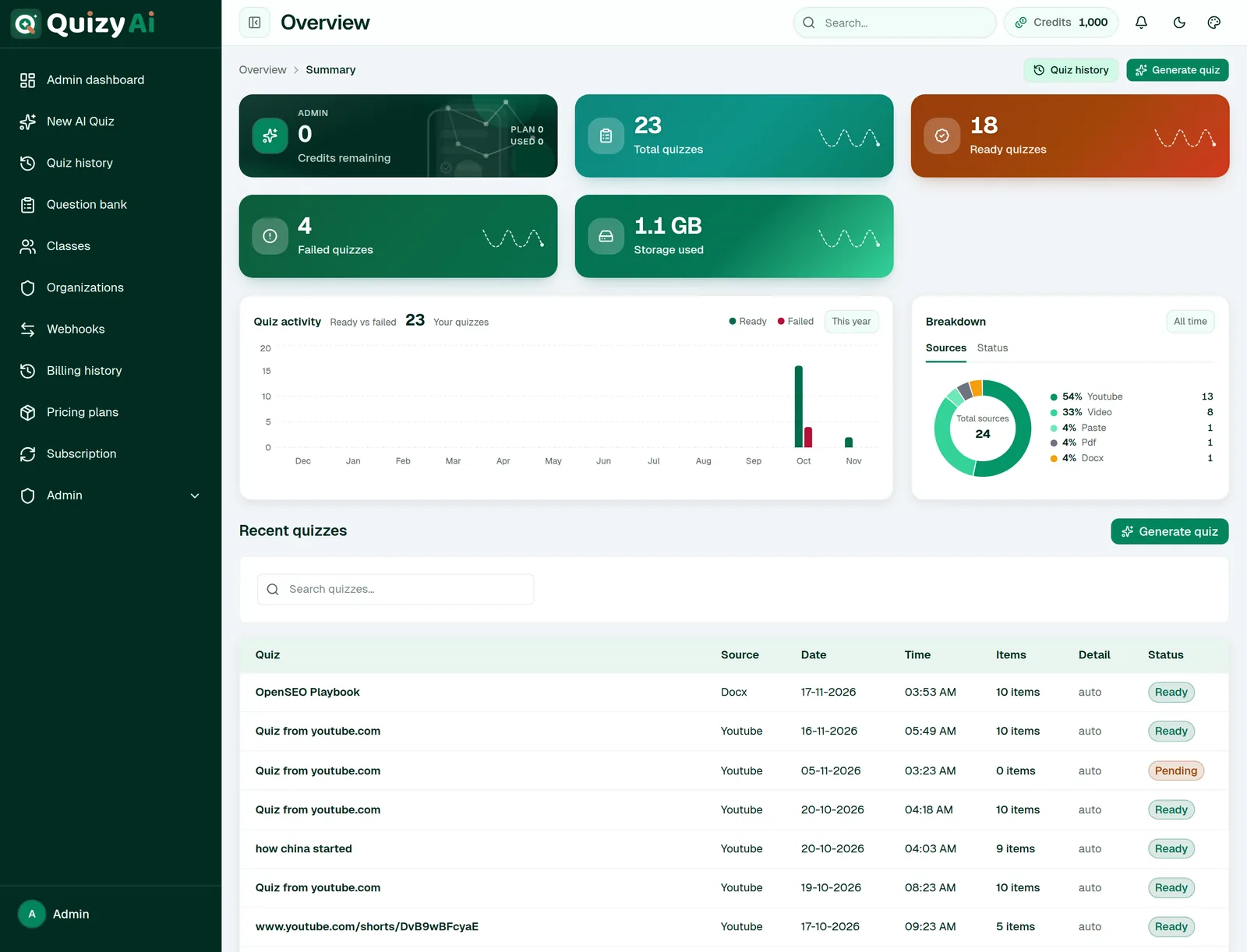
Your credit balance and plan, total / ready / failed quizzes, storage used, a quiz-activity chart and your recent quizzes.
New AI Quiz
The generator. Your starting point for everything. Guide →
Quiz history
Every quiz you've made, with status badges and a Retry button on anything that failed.
Signed HTTP callbacks when a quiz finishes. Guide →
Billing history
Your payments and invoices, with View and Download.
Pricing plans
Upgrade, buy lifetime access, or resume a cancelled plan.
Subscription
Your active plans, credits, and cancel / resume. Guide →
The top bar
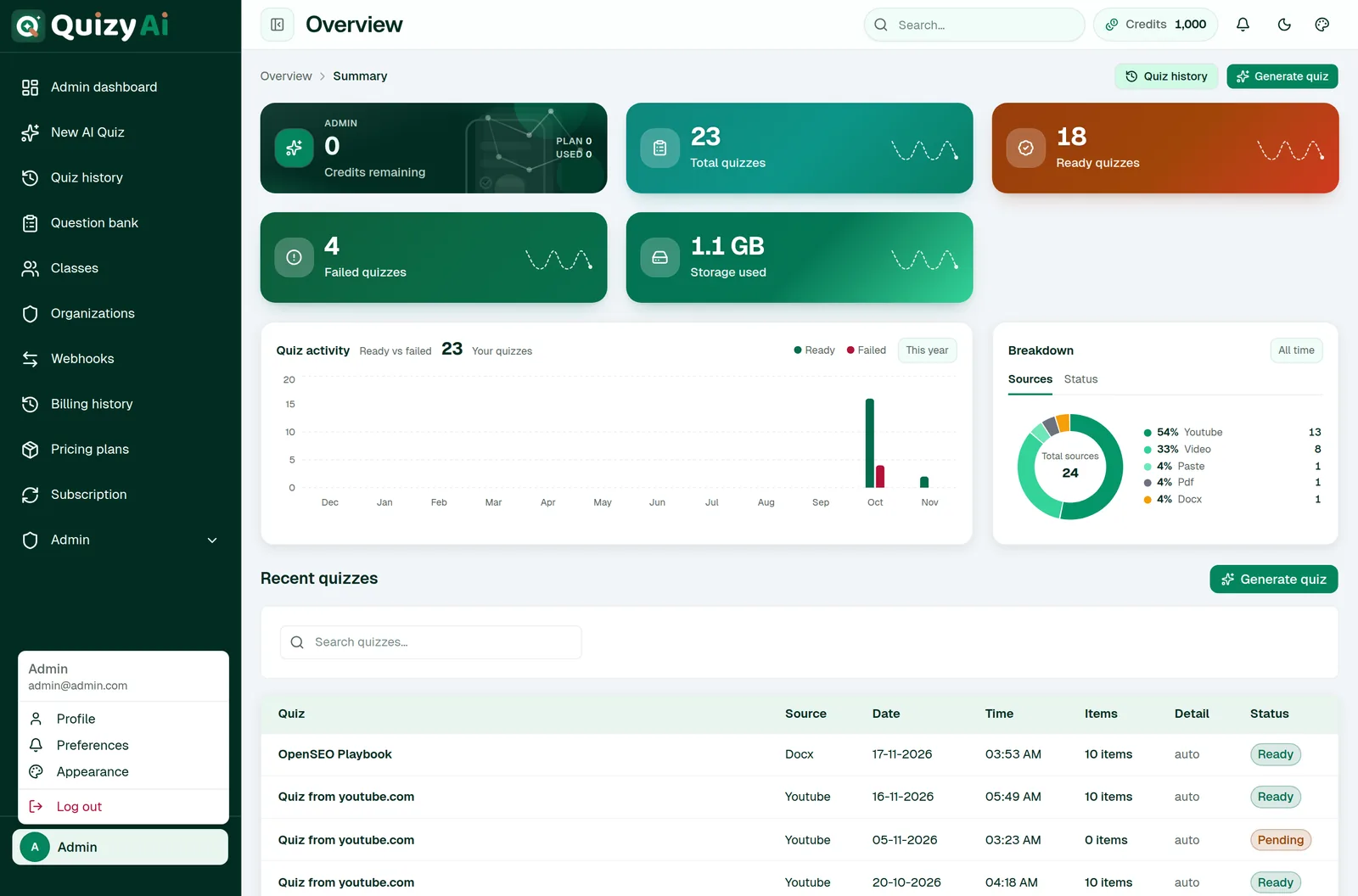
Your Credits chip sits in the top bar. It turns amber below 50 credits and red at zero, and clicking it takes you to your subscription. Your avatar menu holds Profile, Preferences, Appearance and Log out.
app.quizyai.com/overview
SHOT 03
Overview: hero with “Credits remaining” and “Plan”, the Total / Ready / Failed quizzes cards, the Quiz activity chart, Recent quizzes table
Save as screenshots/03-overview.png · 1440×1100 · use an account with a few real quizzes
Overview answers “what have I made and what have I got left”.app.quizyai.com — sidebar & top bar
SHOT 04
Sidebar with every nav item visible, plus the top bar Credits chip and the open avatar menu
Save as screenshots/04-sidebar.png · 600×900 (tall crop) · open the avatar menu first
Profile, Preferences, Appearance and Log out live under your avatar.
Create a quiz
Quizyai reads your material, writes the questions, and quotes the source behind every answer key.
Create a quiz3 min read
What you can turn into a quiz
The generator has four source tabs. Pick the one that matches what you have — you only ever need one source per quiz.
MP4, MPEG, MOV, AVI, FLV, WebM, WMV, 3GP, MP3, WAV, M4A, OGG, FLAC, AAC, or a public video link
2 GB (500 MB / 30 min recommended)
A note on legacy Office files
Old .doc and .ppt files are rejected with “Legacy .doc is not supported. Save as .docx and upload again.” Open the file in Word or PowerPoint, save it as .docx / .pptx, and upload again.
Uploading several files at once
You can drop up to 10 files. Readable text files are merged into one source (80,000 characters per file, 200,000 in total). Mixing in PDFs or images works, but a single PDF or DOCX always gives the best extraction — a binary file inside a multi-file batch is only noted as an attachment, not fully read.
✓
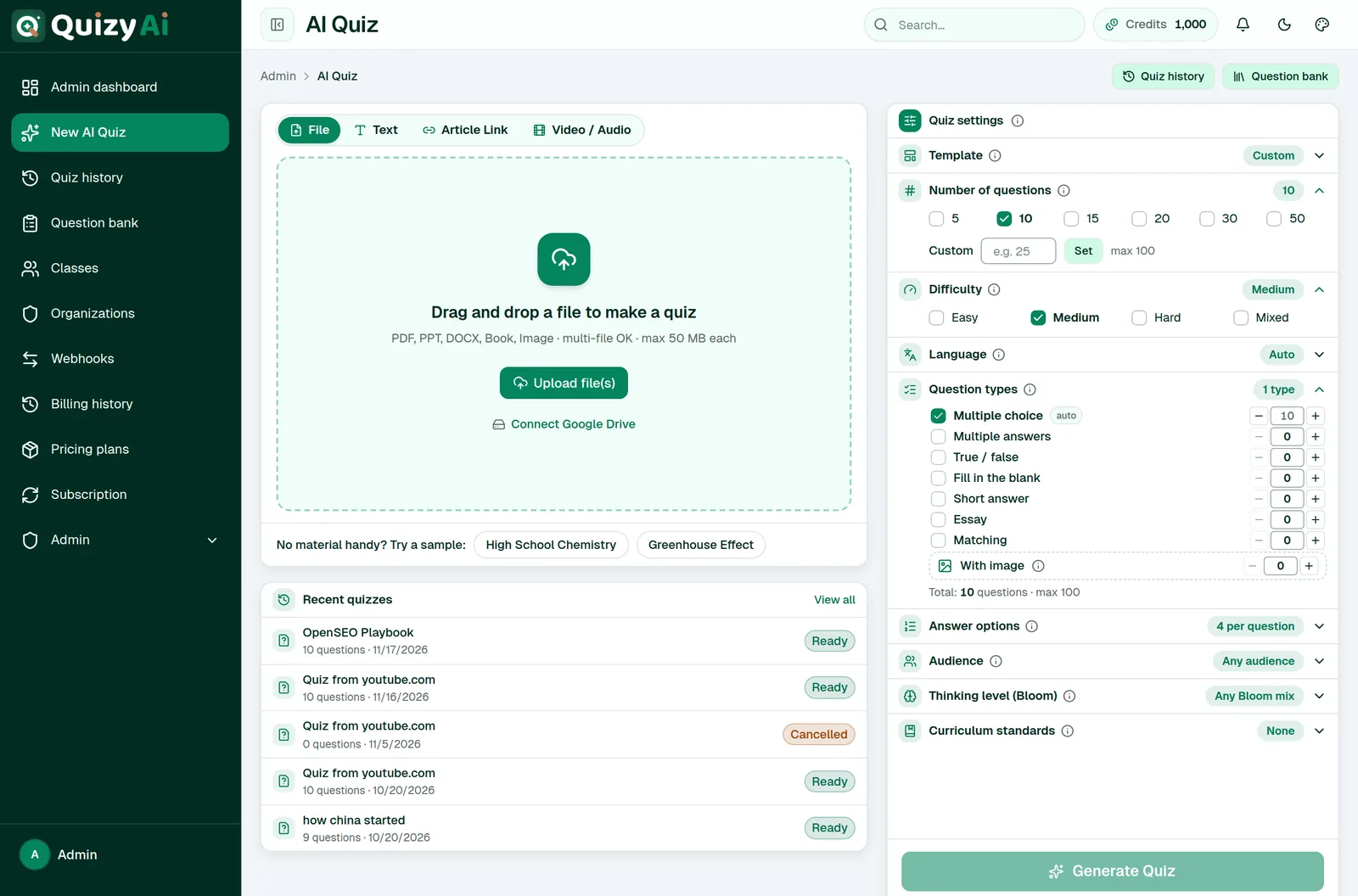
No material handy? On the Text tab, under “No material handy? Try a sample:”, use the High School Chemistry or Greenhouse Effect starter to see how grounding works before you upload anything real.
app.quizyai.com/ai-quiz — source panel
SHOT 05
The four source tabs with the File tab active and the drop zone visible
Save as screenshots/05-source-tabs.png · 1440×900 · crop to the source card
File, Text, Article Link and Video / Audio — the drop zone changes with the tab.
Create a quiz4 min read
Generate your first quiz
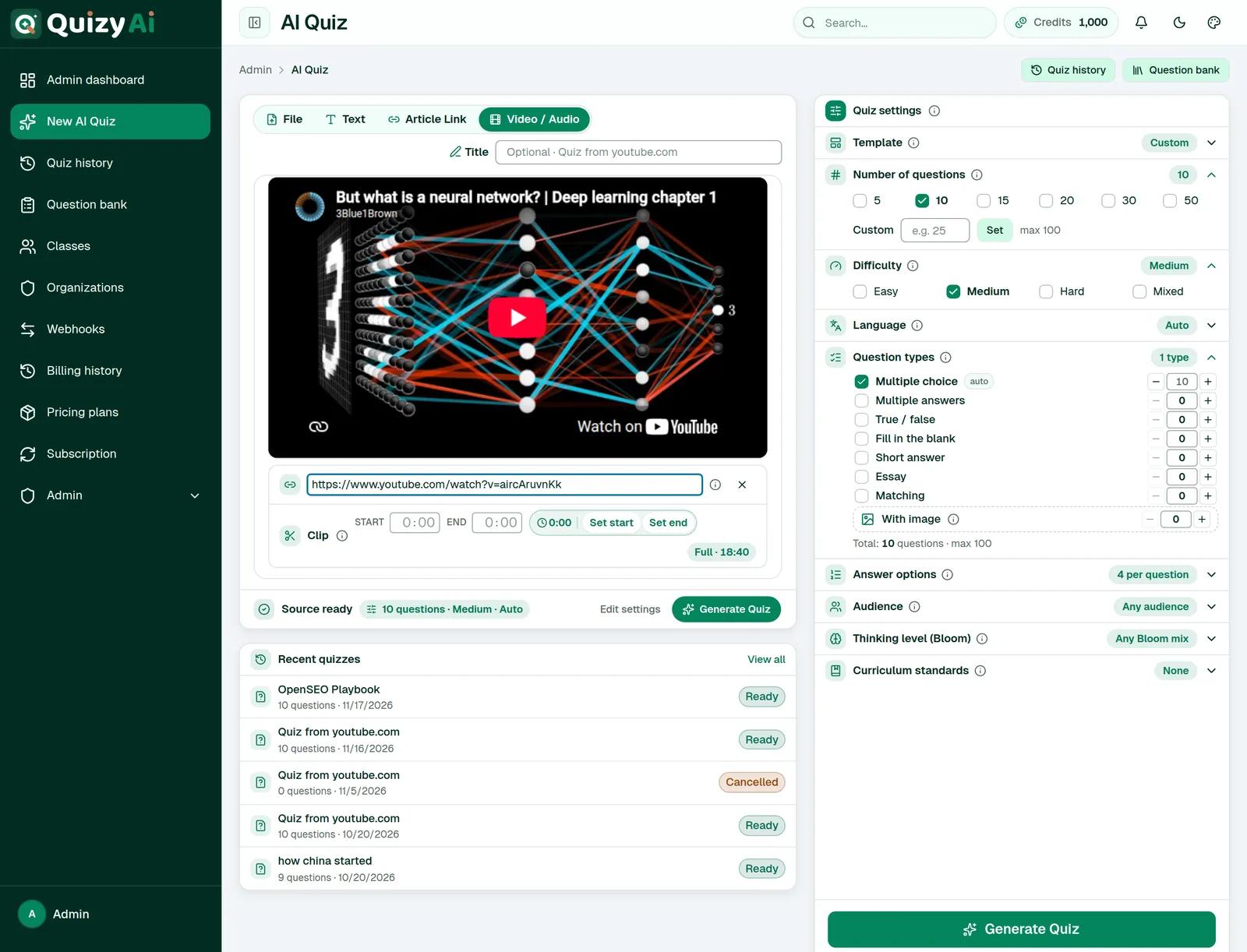
From a signed-in account, a quiz takes four clicks: add a source, check the count, press Generate, wait.
Open the generator
Go to New AI Quiz in the sidebar (/ai-quiz), or use Generate quiz at /ai-quiz/create. Both show the same form.
Add your source
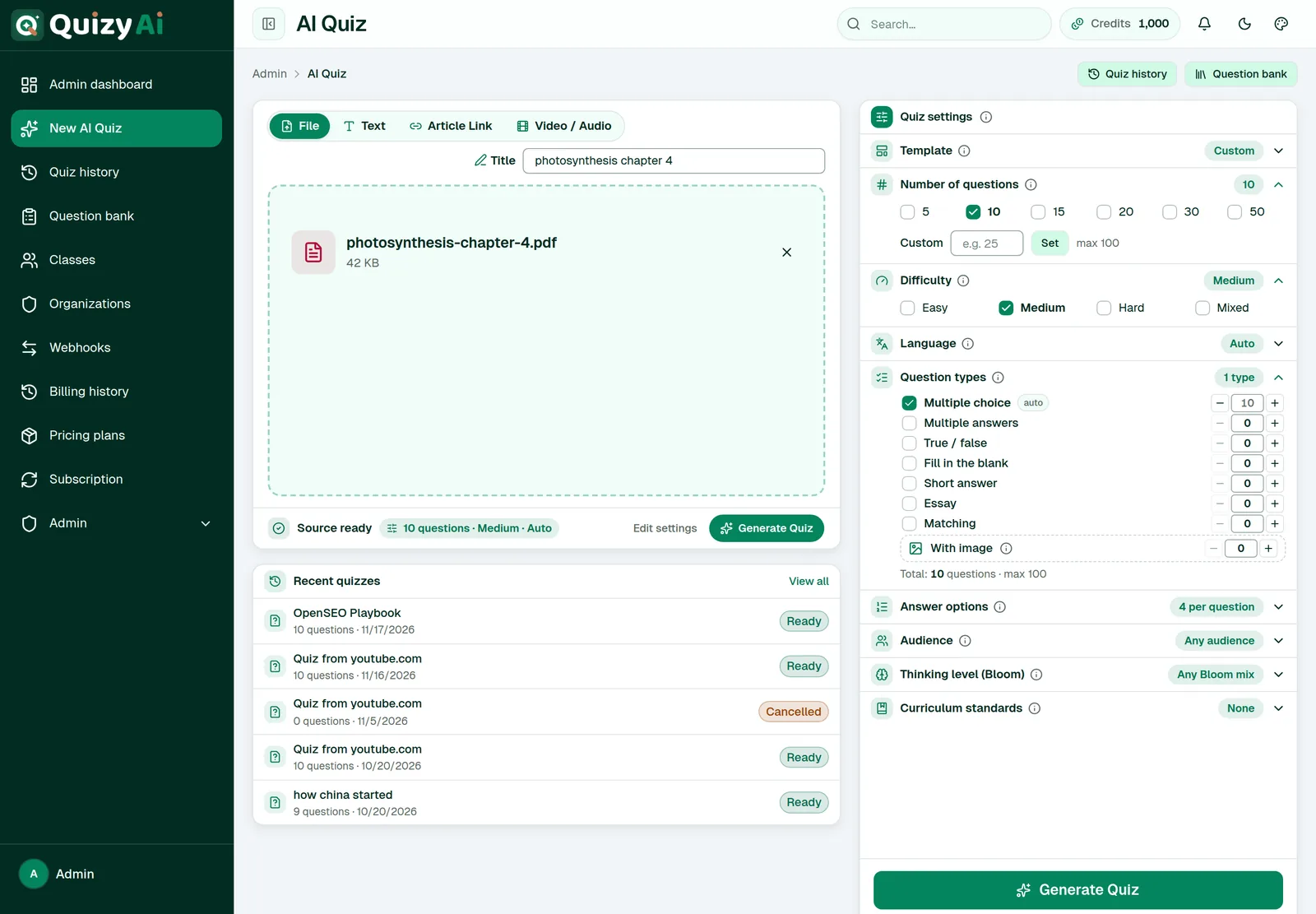
Drag a file onto the drop zone, or switch tabs to paste text, an article link, or a video. When the source is accepted you'll see a Source ready strip with a summary of your current settings.
Set the count and the question types
Under Quiz settings, Number of questions and Question types are open by default. The default is 10 multiple-choice questions. The total is split across whichever types you tick.
Give it a title (optional)
Leave Title blank and Quizyai names the quiz after your file or source.
Press Generate Quiz
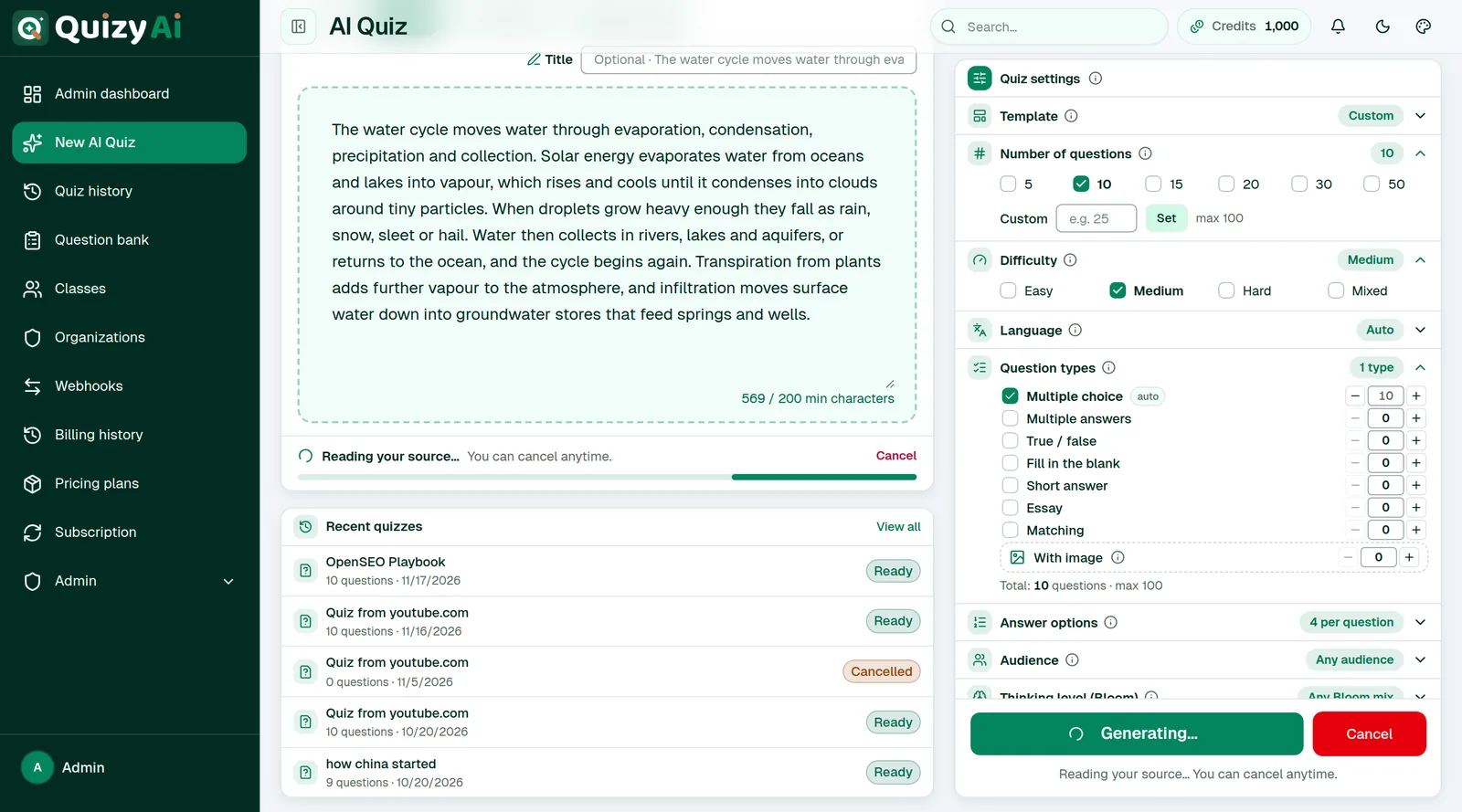
Stay on the page while the source uploads. You'll see the stage line move through “Reading your source…”, “Writing questions…” and “Double-checking answers…”, and you can press Cancel at any time. When it finishes you land on the quiz page.
i
Each quiz costs 1 credit, shown under the button as “1 credit per quiz · N left · refunded if generation fails”. Cancelled and failed generations are refunded, so a failure never costs you anything. More about credits.
app.quizyai.com/ai-quiz — source ready
SHOT 06
A PDF loaded, “Source ready” strip, settings summary chip, Edit settings and Generate Quiz
Save as screenshots/06-generate.png · 1440×900 · full generator, both columns
The Generate button only activates once a source is attached and at least one question type is ticked.
Create a quiz6 min read
Quiz settings explained
Every section of the Quiz settings panel in order, with what it does and what it defaults to.
Setting
What it does
Options
Default
Template
Starts from a saved bundle of settings
Custom, plus four built-in templates
Custom
Number of questions
Total questions, split across your chosen types
1–100 (chips for 5, 10, 15, 20, 30, 50)
10
Difficulty
How demanding the questions are
Easy, Medium, Hard, Mixed
Medium
Language
Language the questions are written in
Auto (follows your source) + 135 languages
Auto
Question types
Which formats to generate, with an optional fixed count per type
Any Bloom mix, Balanced, Remember-, Understand-, Apply-, Analyze-, Evaluate-, Create-heavy
Any Bloom mix
Curriculum standards
Codes each question should align to; questions are tagged with them
Free text codes, up to 64 characters each
None
Prompt settings
Limits generation to part of a video (video tab only)
Clip start / end
Full video
How the per-type split works
Tick the types you want and the total is divided equally between them. Type a number on a single type to pin its share — the rest is split across the others. Reset to equal split clears any pinned numbers.
!
There is no “include explanations” switch, because every question always gets one. The explanation is a required part of each generated question and is grounded in the quoted source text.
Pictures on questions
From file pulls the picture out of your own material — the uploaded image, the PDF page, the slide graphic, or a frame from an uploaded video. It is not available for YouTube links or audio-only sources. AI-generated draws a new picture (maximum 5 per quiz) and costs 1 extra credit.
app.quizyai.com/ai-quiz — Quiz settings
SHOT 07
Quiz settings panel, Number of questions + Difficulty + Question types expanded, per-type counts visible
Save as screenshots/07-settings.png · 1440×1100 · crop to the settings column; scroll so “With image” is in frame
Each section carries an info icon that explains itself in place.app.quizyai.com/ai-quiz — Language picker
SHOT 08
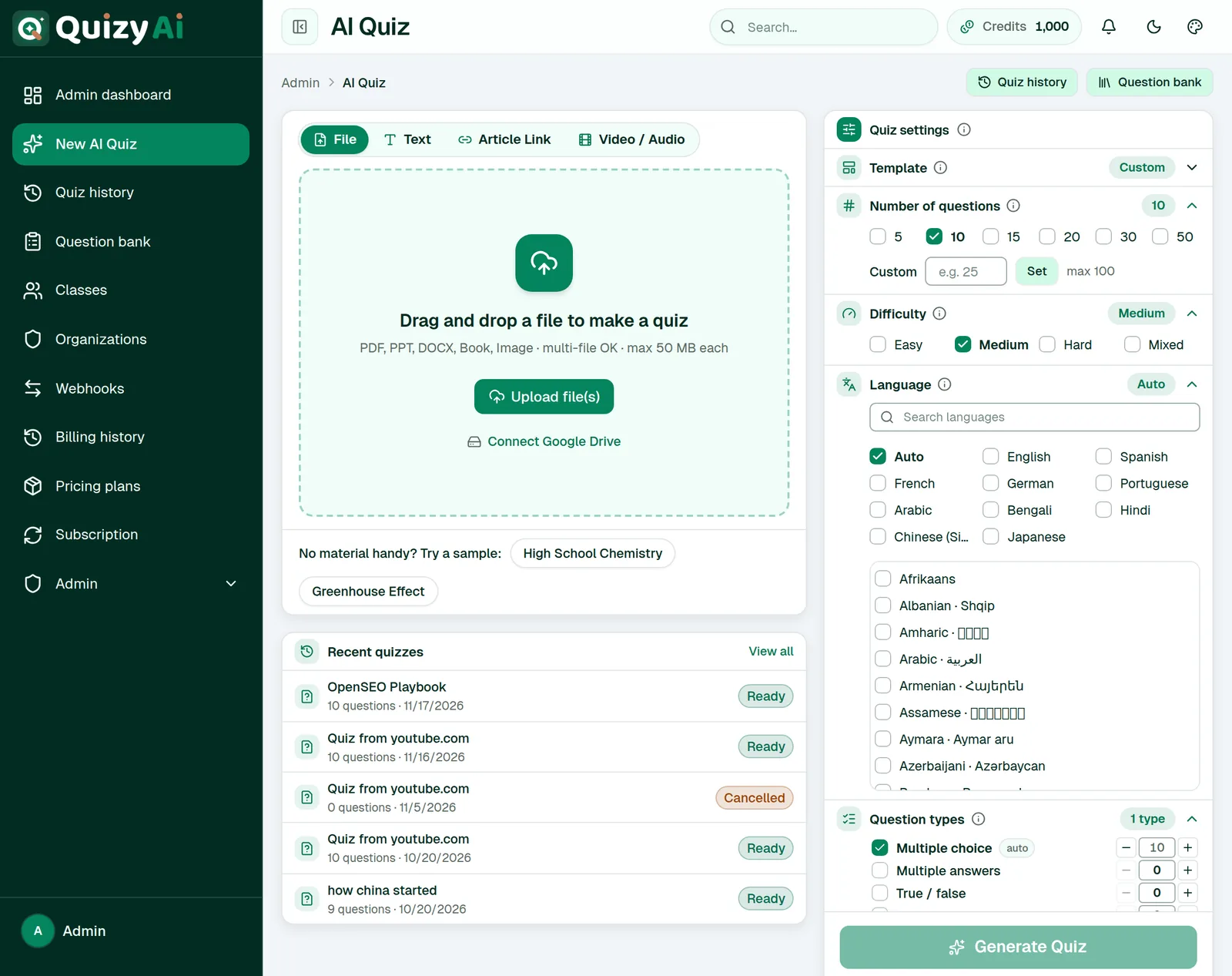
Language section open: “Search languages” box, Auto, popular chips, full list with native names
Save as screenshots/08-languages.png · 900×700 · crop to the open picker
135 languages, with Auto following whatever your source is written in.
Create a quiz5 min read
Quizzes from video, audio and YouTube
Upload a recording or paste a public video link. For YouTube, Quizyai reads the captions when it can, which is much faster than processing the video itself.
Open the Video / Audio tab
Then either press Upload media, or paste a link into Video URL (YouTube, TikTok, Instagram, Facebook, X, Vimeo and more).
Optional: pick a clip
Open Prompt settings and set a clip range so only part of the video is used. The fields are minutes:seconds — typing a bare 5 means 5 minutes. With a YouTube link, Set start and Set end read the playhead straight off the preview player, and Clear clip range resets it.
Generate as usual
Long media takes noticeably longer than a document, because the file has to be uploaded and processed before any questions are written.
Supported links
Beyond YouTube, public links from TikTok, Instagram, Facebook, X/Twitter, Threads, Reddit, LinkedIn, Snapchat, Pinterest, Bluesky, Vimeo, Dailymotion, Twitch, Kick, Rumble, Bilibili, VK, Loom, Streamable and TED are downloaded server-side. The link must be public — anything behind a login or a region block cannot be fetched.
Constraint
Value
Maximum media size
2 GB
Recommended
Under 500 MB and under 30 minutes
Hard duration cap
None for signed-in accounts — but use a clip range for anything long
Free tool
100 MB, and any 3-minute window of a longer video
✓
A 90-minute lecture rarely makes a good 10-question quiz. Clip the 10–15 minutes that cover the material you're actually testing and the questions get noticeably sharper.
app.quizyai.com/ai-quiz — Video / Audio tab
SHOT 09
Video / Audio tab with a YouTube link pasted, preview player, and Prompt settings open showing Set start / Set end
Save as screenshots/09-video.png · 1440×1000 · use a public lecture video
Set start and Set end read the playhead from the preview, so you don't have to type timestamps.
Create a quiz2 min read
Import from Google Drive
Generate straight from a file in your Drive instead of downloading it first.
Connect Google Drive once
On the File tab, press Connect Google Drive and approve access. The same single grant also covers creating Google Forms.
Browse your files
The link becomes Browse recent Drive files and opens Google Drive files — your 15 most recently modified PDFs, text files and documents. Use Refresh if you've just added something.
Pick a file
Choosing one downloads it and starts generation with your current count, question types and language.
i
Quizyai asks for the narrow drive.file permission, so the dialog lists only files this app created or that you have opened with it — that's the meaning of “Only Drive files this app has access to are listed here.” It cannot browse your whole Drive, by design.
app.quizyai.com/ai-quiz — Google Drive files dialog
SHOT 10
“Google Drive files” dialog with a list of recent files and the Refresh button
Save as screenshots/10-drive.png · 900×700 · blur real document names if needed
One Google connection powers both Drive import and Google Forms export.
Create a quiz2 min read
Start from a template
A template is a named bundle of generator settings — count, question types, difficulty, audience and Bloom focus. It carries no questions of its own.
Open the Template section at the top of Quiz settings and pick one. The settings below update immediately, and you can still change anything afterwards. Choosing Custom leaves your current settings alone.
Template
Questions
Types
Difficulty
Pitched at
Quick check (5 MCQ)
5
Multiple choice, True / false
Easy
Recall
Standard classroom (10 mixed)
10
Multiple choice, True / false, Short answer, Fill in the blank
Medium
Grades 9–12, balanced Bloom
College exam (20)
20
Multiple choice, Multiple answers, Short answer, Essay
Hard
College, analysis
Professional training
12
Multiple choice, True / false, Short answer
Medium
Professional, application
!
These four built-in templates are the only ones available today. There is no screen for saving your own template yet.
Create a quiz3 min read
While your quiz generates
Generation runs in four stages. You can leave the tab for a signed-in quiz, but staying on the page is the safest way to catch an upload problem early.
Stage
What's happening
Queued
Your job is waiting for a worker.
Reading source
The file, article or media is being parsed into text (or captions, for YouTube).
Generating
Questions are being written and grounded against your source.
Verifying
A second AI model answers each question blind to check the answer key.
Cancelling
Press Cancel while a quiz is generating. You'll see “Generation cancelled. You can retry from Your quizzes.” and your credit is refunded. A late model response can't sneak through — the workers re-check for cancellation before saving anything.
Retrying
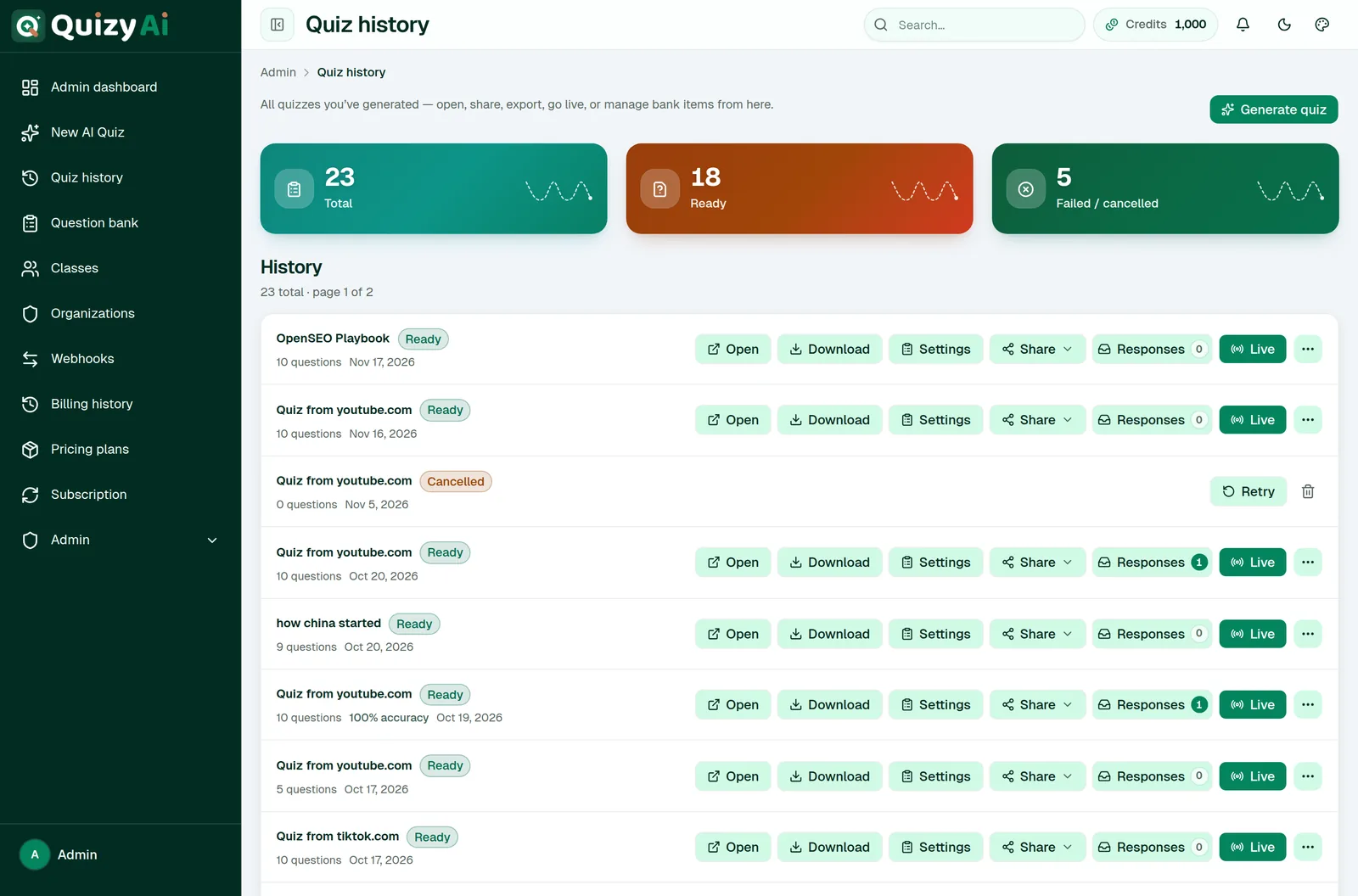
Failed and cancelled quizzes keep a Retry button on their card in Quiz history. Retry re-runs the same source with the same settings and charges 1 credit again. Only failed or cancelled quizzes can be retried.
i
Documents and articles are usually quick. Uploaded video and audio are the slow case, because the media has to be uploaded and processed first. A YouTube link with usable captions is much faster than the same video processed frame by frame.
app.quizyai.com/ai-quiz — generating
SHOT 11
Mid-generation: rotating status line (“Writing questions…”), “You can cancel anytime.”, progress bar, red Cancel button
Save as screenshots/11-progress.png · 1440×700 · catch it during the Generating stage
The status line rotates through the stages; Cancel refunds the credit.app.quizyai.com/ai-quiz/history
SHOT 12
Quiz history: metric tiles (total / ready / in progress) and quiz cards with status badges, including one Failed card showing Retry
Save as screenshots/12-history.png · 1440×900
Retry lives on the card of any failed or cancelled quiz.
Create a quiz3 min read
Try it free, without an account
The public generator at quizyai.com makes a real quiz with no signup. It's the same engine as the paid app, with smaller limits.
Free tool
Limit
Document length
5 pages (PDF pages, slides or document pages)
Pasted text
About 15,000 characters (5 pages' worth)
Document size
20 MB
Audio / video
100 MB, and any 3-minute window
Questions
Up to 10
Question types
Multiple choice, True / false, Fill in the blank, Short answer
Generations
10 per hour from the same network
Link lifetime
72 hours
Longer video is clipped, not rejected
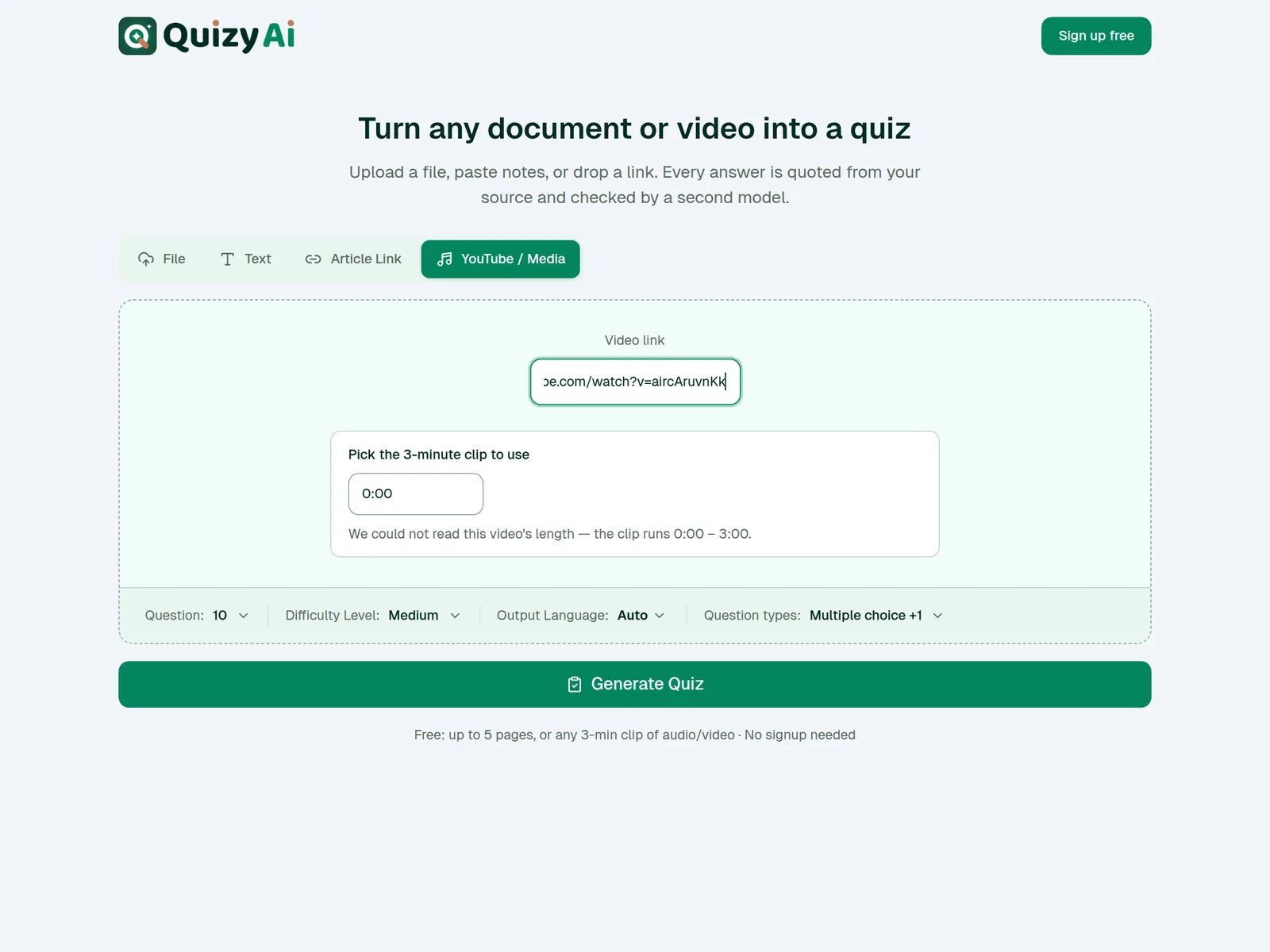
Drop in a 40-minute recording and the free tool doesn't refuse it — you get a slider labelled “Pick the 3-minute clip to use” and choose which window to quiz on.
What you can do with a free quiz
Download it as PDF, Word, CSV or Text. Editing, sharing, deleting and live sessions need an account — those buttons are visible but locked.
Keeping a free quiz
Press Save to my account on the result. If you're signed in, the quiz moves to your account immediately. If not, you'll be asked to sign in and the quiz is waiting on the other side. After 72 hours the link expires with “This quiz link has expired. Generate a new one.”
quizyai.com — free generator
SHOT 13
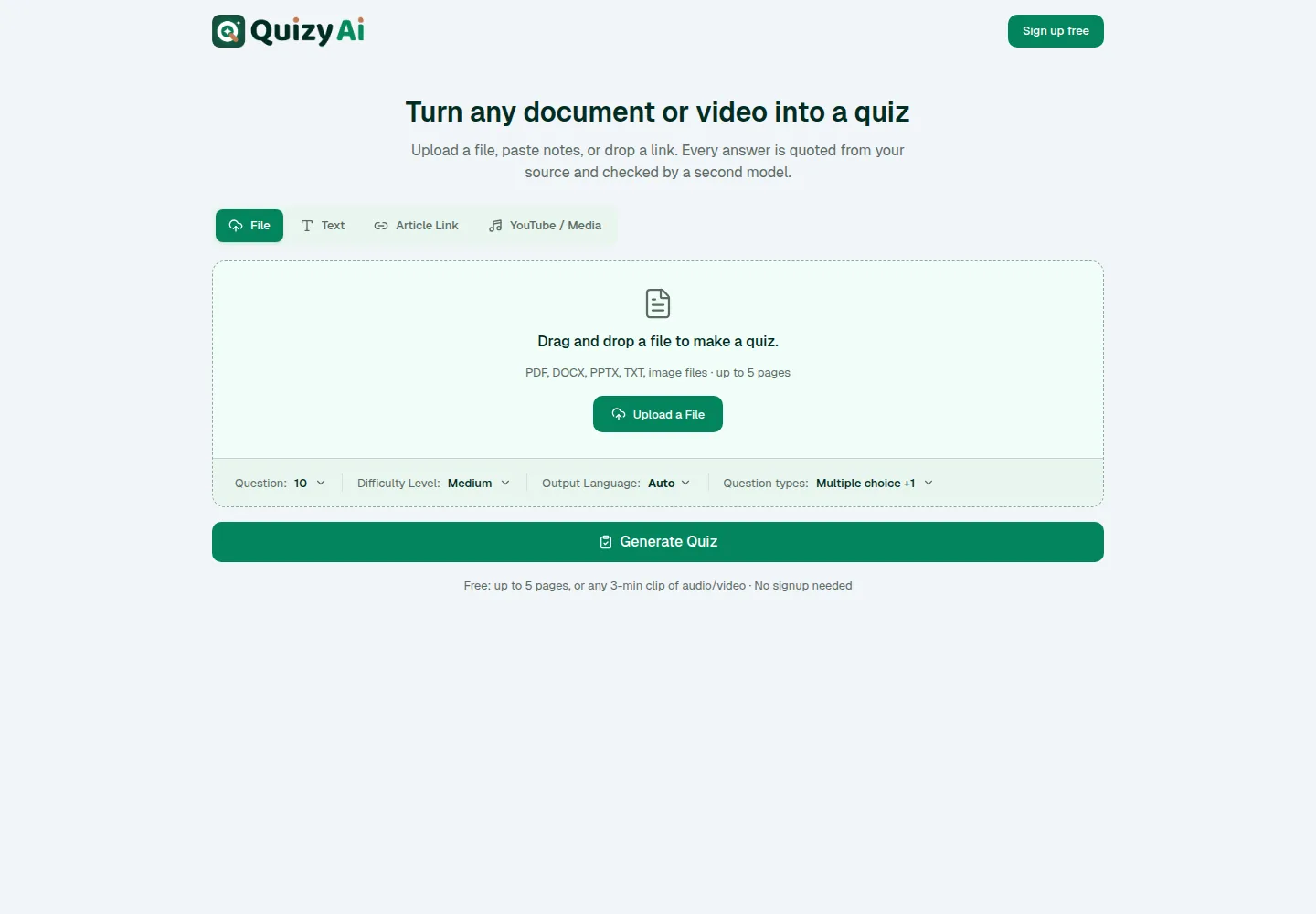
The free tool: headline, four source tabs, inline settings bar (Question / Difficulty Level / Output Language / Question types), Generate Quiz
Save as screenshots/13-free-tool.png · 1440×900 · logged out, no account
Everything on one screen — no settings panel to open.quizyai.com — clip picker
SHOT 14
“Pick the 3-minute clip to use” slider with “Using 0:00 – 3:00 · drag to move the window.”
Save as screenshots/14-free-clip.png · 900×500 · paste a video longer than 3 minutes
Long video is clipped on the free tool rather than refused.
Edit & review
Generated questions are a strong first draft. This is how you make them yours.
Edit & review4 min read
The quiz page
Everything you do with a finished quiz happens at /quizzes/{id} — reviewing, editing, sharing, exporting and tracking.
The action bar
Button
What it does
Download
Opens the Download Quiz dialog with all eight file formats. Guide →
Response settings
Controls what respondents are asked and how they can answer. Guide →
Share
Public link, website embed, or Google Form. Guide →
Starts a hosted live session with a join code. Guide →
More actions (…)
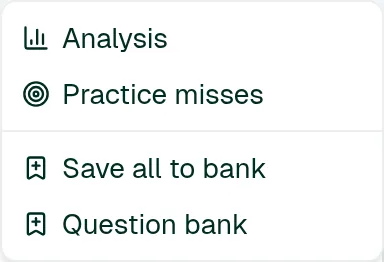
Analysis, Practice misses, Save all to bank and Question bank.
The sidebar
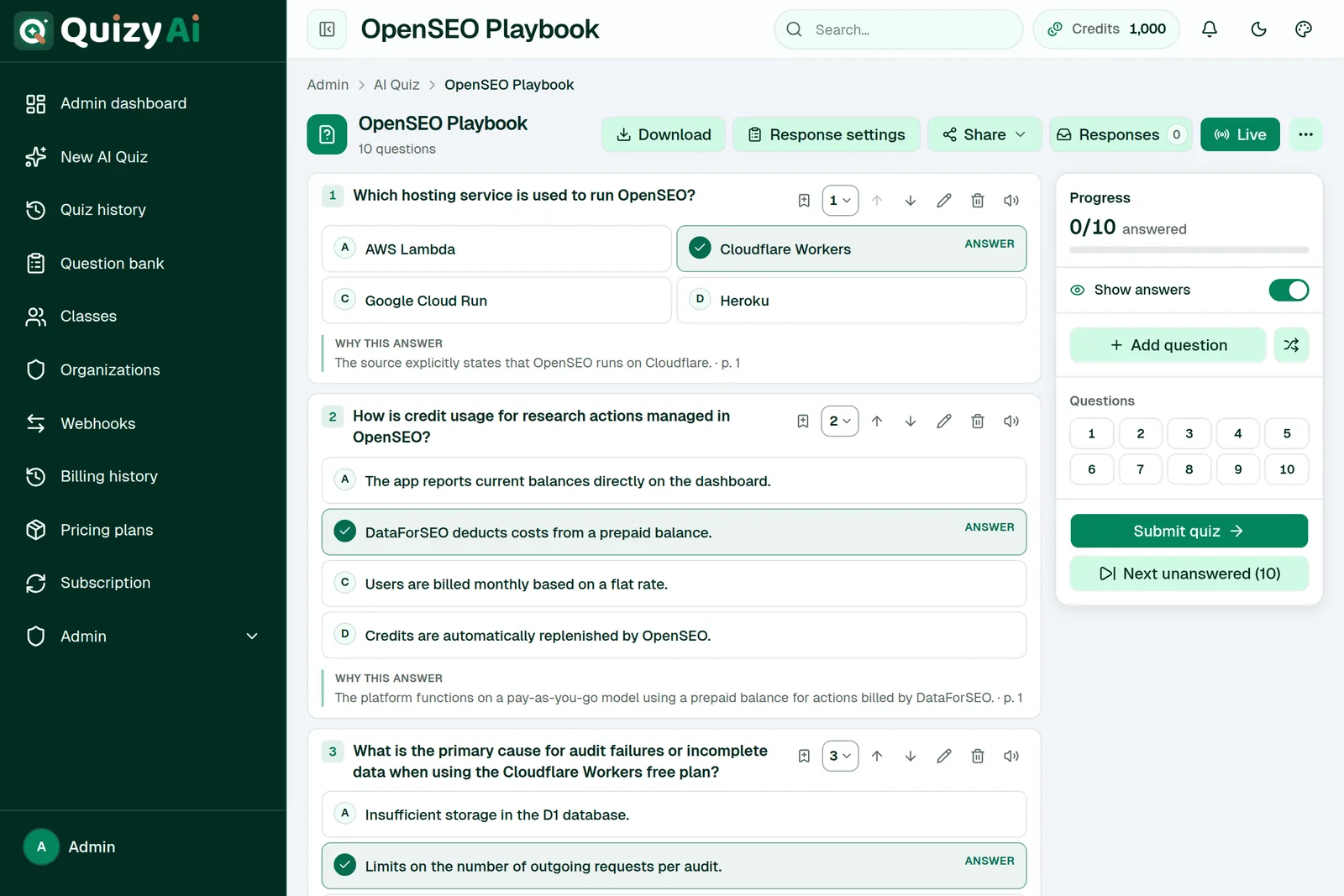
On the right you'll find a Progress rail, a Show answers toggle, Add question, a numbered question grid for jumping around, Unanswered / Next unanswered, and Submit. Once you've unsaved edits, a Save changes button appears with the note “You have unsaved changes.”
Taking your own quiz
You can answer your own quiz on this page and press Submit. Afterwards you get review filters — All, Correct, Incorrect, Skipped — plus Export with answers and Retake. Your own runs show up in Responses marked “You (practice)”, and they're what feeds Practice misses.
i
This page only opens for quizzes that finished generating. A failed or cancelled quiz sends you back to the quiz list with a prompt to use Retry on its card.
app.quizyai.com/quizzes/{id}
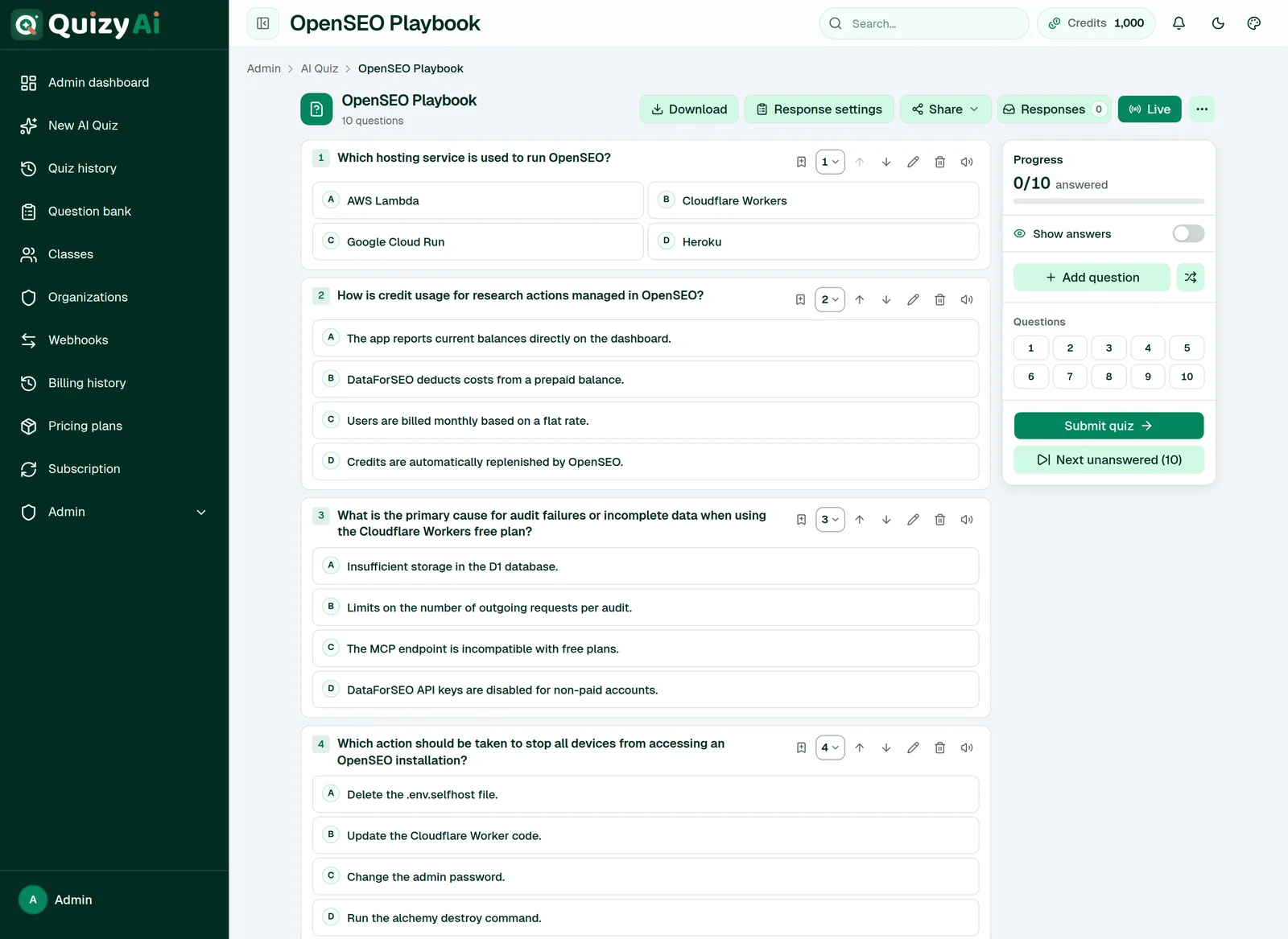
SHOT 15
Full quiz page: title, question count, the whole action bar (Download, Response settings, Share, Responses, Live, …), two or three question cards, right sidebar
Save as screenshots/15-quiz-page.png · 1440×1000 · use a 10-question quiz
The action bar is the hub for everything you do with a finished quiz.
Edit & review5 min read
Edit, add, reorder and delete questions
Edits are held locally until you press Save changes, so you can rework several questions and commit them in one go.
!
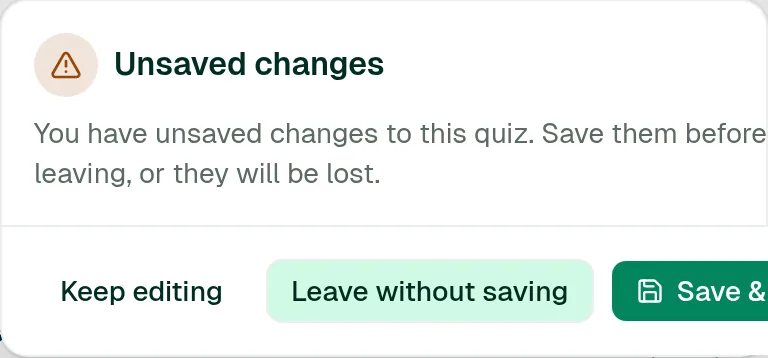
Nothing is saved until you press Save changes. If you try to leave with unsaved work you'll get an Unsaved changes dialog offering Keep editing, Leave without saving or Save & leave.
The per-question controls
Hover or focus a question card and a row of icon buttons appears on the right:
Icon
Does
Save to bank
Copies the question into your reusable question bank.
Move or swap position
Opens Move to position and Swap with question submenus listing every question.
Move up / Move down
Shifts the question one place.
Edit question
Opens the inline editor.
Delete question
Asks to confirm, then leaves an undo strip.
Read aloud
Reads the question out using your browser's speech voice.
Above the list, Shuffle questions randomises the whole order in one press.
Editing a question
Press the pencil and the card becomes a form with these fields:
Answer options — 2 to 6. Tick every correct answer for a multiple-answers question, or pick one for multiple choice.
Correct answer — for typed-answer questions. Separate accepted alternatives with a pipe: photosynthesis | photo-synthesis. On an essay this field is labelled Model answer / key points.
Explanation — optional, shown to respondents under Why this answer.
Curriculum standards — optional codes, up to 20, press Enter after each.
Press Apply to keep the change, or Cancel to drop it. Apply is not a save — you still need Save changes.
Adding a question
Press Add question, choose a type, then set Add to → Top of quiz or Bottom of quiz. A new multiple-choice draft starts with four blank options.
Deleting a question
You'll be asked to confirm with Delete question N?. The question is replaced by a dashed Deleted: … strip with an Undo button, and it is only really removed when you save. Single edits can also be stepped back with the contextual Undo / Redo buttons — one step each way.
!
Two current limitations: Matching questions can't be created from Add question, and their pairs can't be edited — you'll see “Matching pairs can't be edited here yet.” You can still change their question text and explanation. There's also no button to regenerate a single question; delete it and add a replacement by hand.
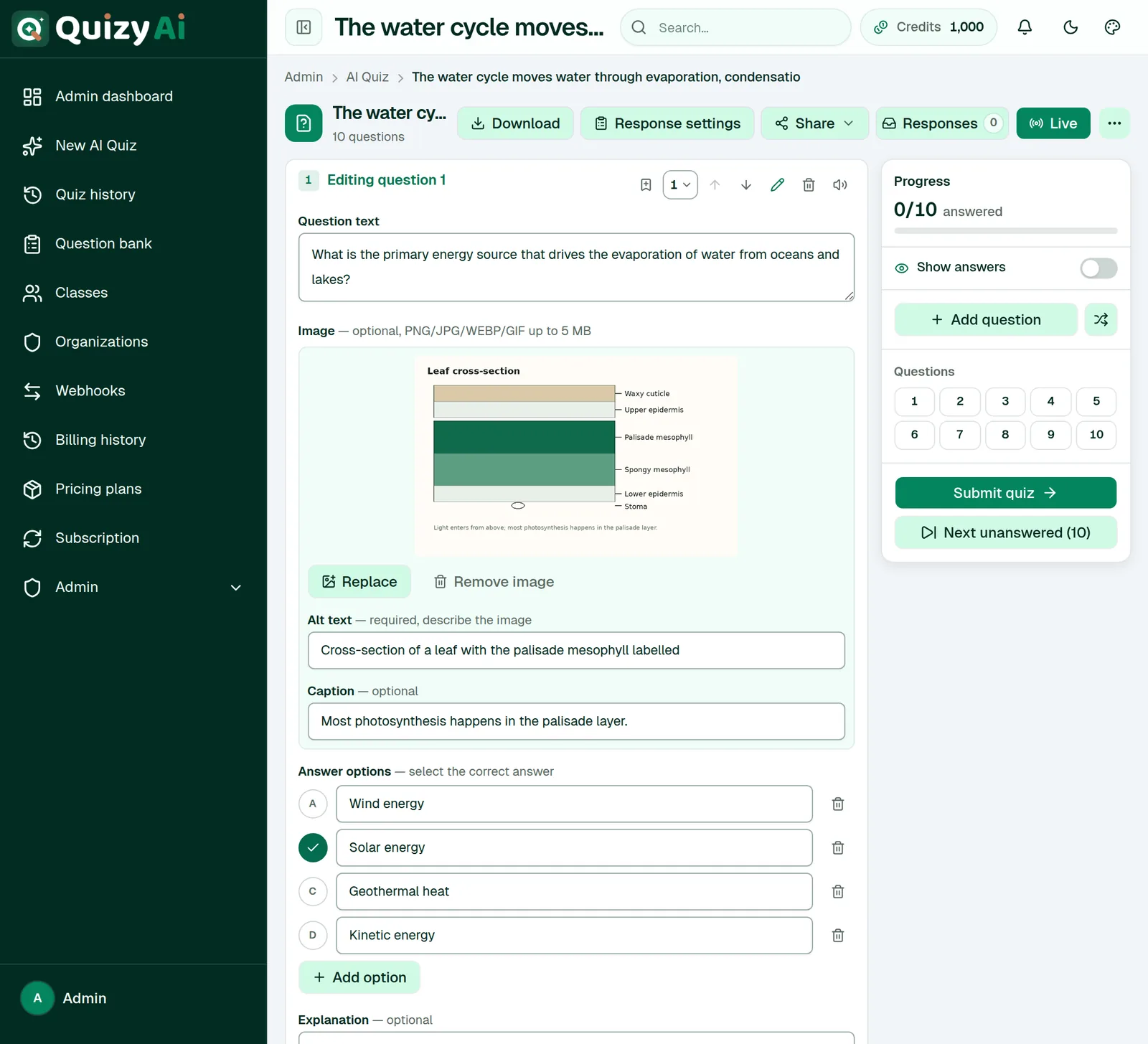
app.quizyai.com/quizzes/{id} — editing a question
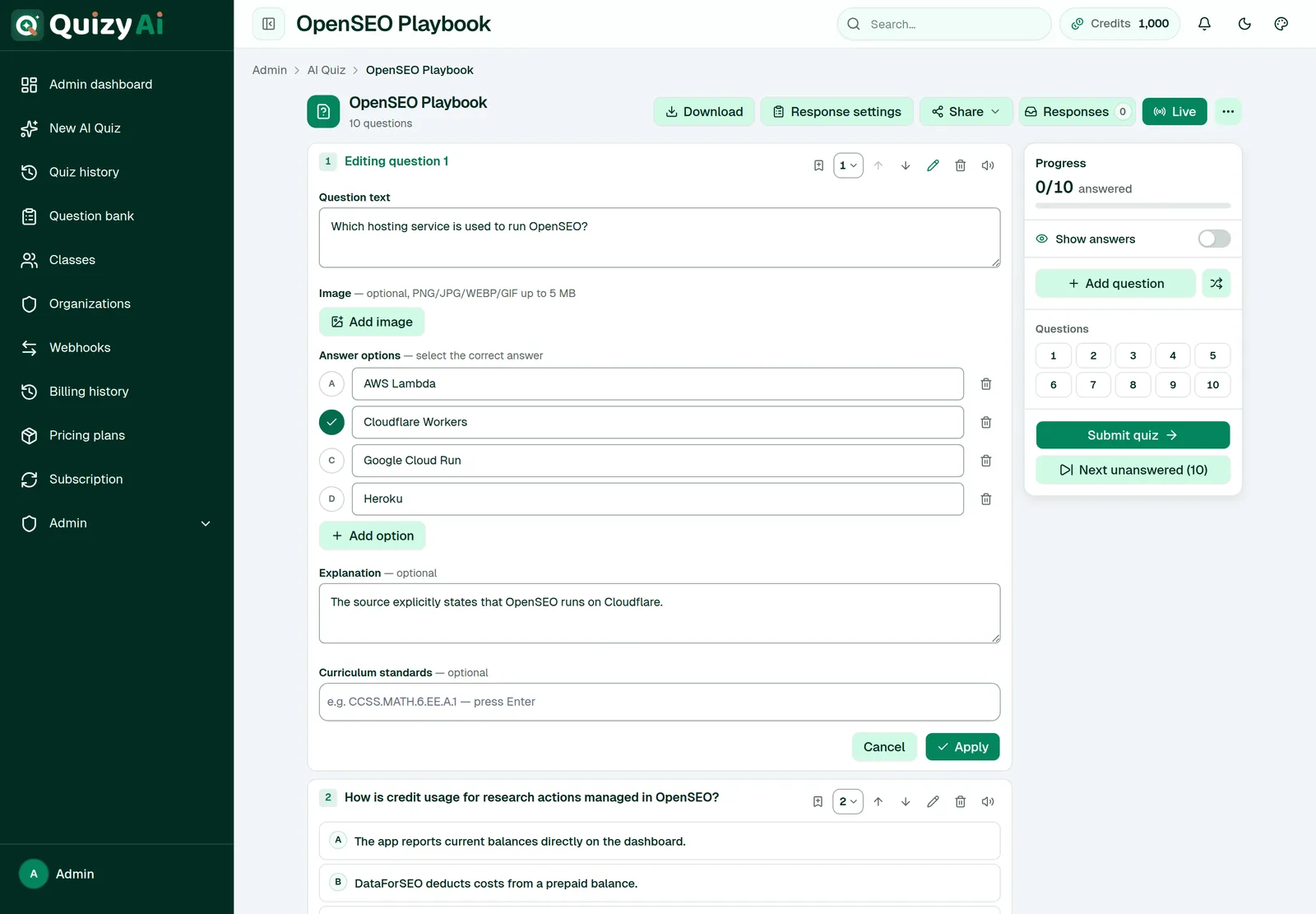
SHOT 16
One question expanded as “Editing question N”: Question text, Image row, Answer options with the correct one marked, Explanation, Curriculum standards, Cancel / Apply
Save as screenshots/16-editor.png · 1100×900 · crop to the single card
The whole question is editable in place.app.quizyai.com/quizzes/{id} — Add question
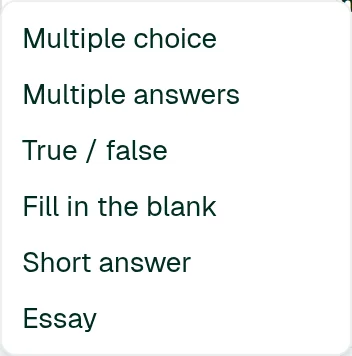
SHOT 17
The Add question dropdown open with its six type options
Save as screenshots/17-add-question.png · 700×600
Six of the seven types can be added by hand.app.quizyai.com/quizzes/{id} — Unsaved changes
SHOT 18
The Unsaved changes dialog
Save as screenshots/18-unsaved.png · 700×400 · edit a question, then click a sidebar link
The leave guard means a stray click can't cost you your edits.
Edit & review2 min read
Add an image to a question
Questions can carry one picture each — a diagram, a map, a slide graphic, a specimen photo.
Open the question for editing
Press the pencil icon on the question card.
Press Add image
Choose a PNG, JPG, WEBP or GIF up to 5 MB.
Write alt text
Alt text is required — it's what screen-reader users hear in place of the picture. Describe what matters: “Cross-section of a leaf with the palisade layer labelled”, not “image1.png”.
Add a caption (optional)
Captions appear under the picture for everyone. Both fields allow up to 300 characters.
Apply, then Save changes
To change a picture later use Replace; to drop it use Remove image. Respondents can click any question image to open it full size in a new tab.
i
If you asked for pictures at generation time with With image, they're already attached. “From file” pulls them out of your own material; “AI-generated” draws new ones, up to 5 per quiz, for 1 extra credit.
app.quizyai.com/quizzes/{id} — image fields
SHOT 19
Question editor with an image attached: Replace / Remove image, the Alt text field and Caption field
Save as screenshots/19-image.png · 900×650 · crop to the image block
Alt text is required; captions are optional and public.
Edit & review3 min read
Question types
Seven types, and a few differences worth knowing before you build a quiz around one of them.
Type
What it is
Auto-graded
Add by hand
Google Forms
Multiple choice
One correct option out of 2–6
Yes
Yes
Yes
Multiple answers
Several correct options; the answer must match exactly
Yes
Yes
Yes
True / false
Two fixed options
Yes
Yes
Yes
Fill in the blank
A typed word or phrase
Yes
Yes
Yes
Short answer
A typed sentence
Yes, plus AI grading on shared links
Yes
Yes
Essay
An open written response
AI-graded on shared links
Yes
No — skipped
Matching
Pairs to connect
Yes, when every pair matches
No
No — skipped
Accepting more than one wording
For Fill in the blank and Short answer, put alternatives in the Correct answer field separated by a pipe. H2O | water | dihydrogen monoxide accepts all three.
How written answers get marked
On quizzes taken through a share link or embed, short answers and essays are scored by AI on a 0–1 scale. In your Responses view an essay counts as correct at 0.5 or above. A written answer with no answer key at all shows as Not graded.
✓
Exporting to an LMS or to Google Forms? Stick to Multiple choice, Multiple answers, True / false, Fill in the blank and Short answer. Essay and Matching are the two types that get dropped or need manual work on the way out.
Edit & review3 min read
Source quotes and the Verified badge
Two independent checks run on every generated quiz. Here's what each one actually proves.
Source-quoted
Each question is generated alongside a quote from your material, and that quote is matched back against the source text. Questions whose quote can't be located are thrown away rather than kept — so what survives is anchored in your document, not in the model's general knowledge. Where the source has page or slide structure, the reference (for example p. 12) is attached to the explanation.
Verified
A different AI vendor's model is then given the question and the source passage, with no access to the answer key, and asked to answer it. Only when its answer matches does the question earn Verified. It's a genuine second opinion rather than the same model re-checking itself.
i
Verification is best-effort. If the second provider is unavailable, your quiz still completes normally — the questions simply don't carry the badge. An unbadged question isn't a wrong question.
Where you see the badges
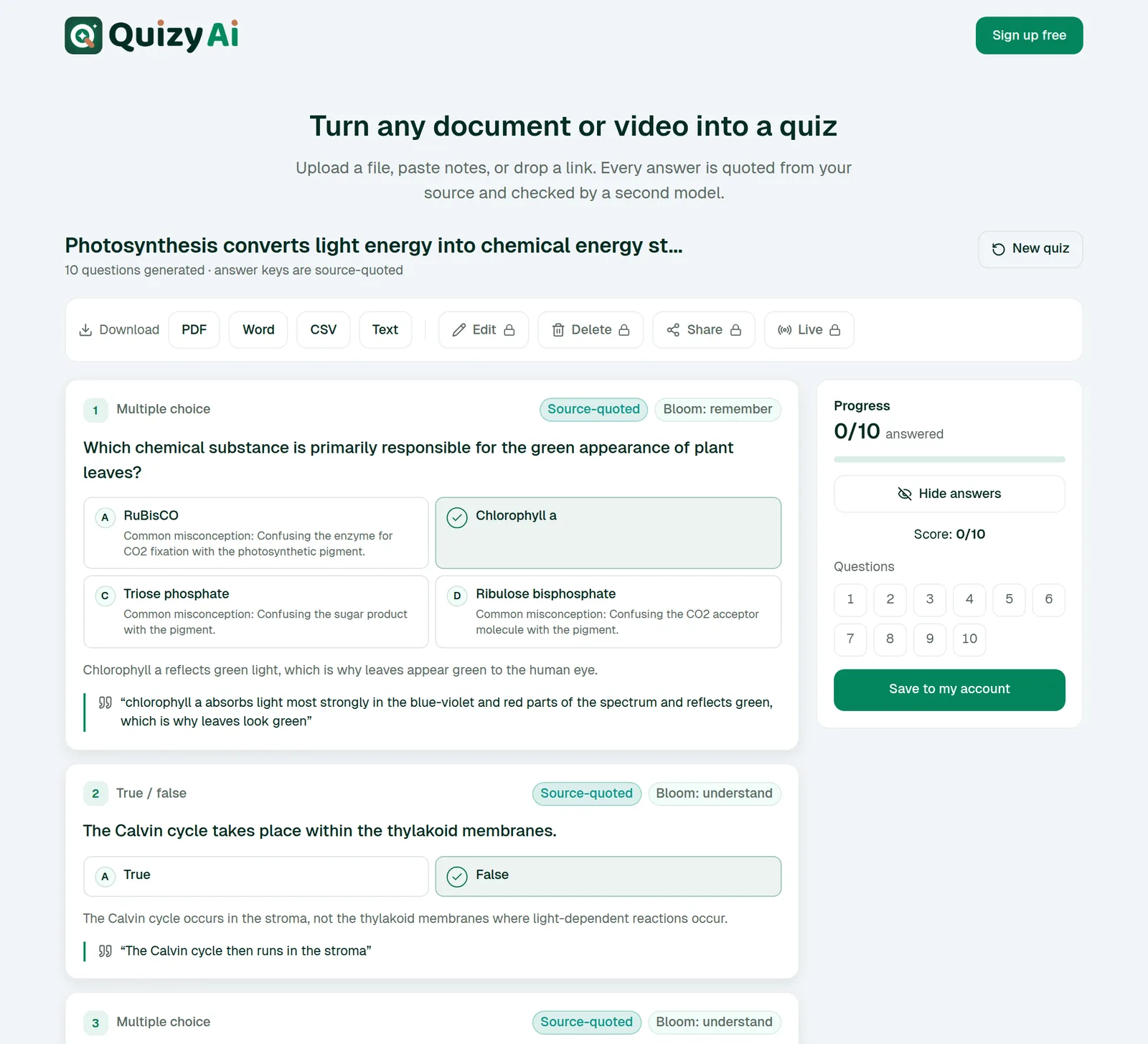
Today the Verified, Source-quoted and Bloom badges are displayed on the free tool's result screen. On your signed-in quiz page you get the same underlying information in a different form: the Why this answer block on each question, carrying the explanation and the quoted passage it came from.
✓
Spot-check 2–3 questions against your source before sending a quiz to learners. Grounding and verification catch most problems, but a human skim is still the cheapest insurance there is.
quizyai.com — free tool result
SHOT 20
A question card with its Source-quoted and Bloom: badges, plus the source blockquote (a Verified badge appears too when the second model agrees)
Save as screenshots/20-badges.png · 900×600 · generate on the free tool, then press Show answers
Badges and the quoted passage on a free-tool result. Here the questions are source-quoted; Verified is added separately when the second model’s blind answer matches.app.quizyai.com/quizzes/{id} — Why this answer
SHOT 21
A question with Show answers on, so the Why this answer explanation and source reference are visible
Save as screenshots/21-why.png · 900×500
On the signed-in page, the reasoning lives in “Why this answer”.
Question bank
Good questions outlive the quiz they came from. The bank is where you keep them.
Question bank2 min read
Save questions to the bank
There are two ways in: one question at a time, or a whole quiz at once.
One question
Press the bookmark icon (Save to bank) on any question card. You'll see “Item saved to bank.”
The whole quiz
Open More actions (…) on the quiz page and choose Save all to bank.
A saved item carries its question text, options, answer key, explanation, source quote, Bloom level and curriculum standards.
!
Two things to know: images are not stored in the bank, so a question inserted from the bank comes back without its picture; and there's no duplicate check, so saving the same question twice gives you two bank entries.
app.quizyai.com/quizzes/{id} — More actions
SHOT 22
The More actions (…) menu open with Analysis, Practice misses, Save all to bank, Question bank
Save as screenshots/22-save-bank.png · 700×500
Save all to bank copies every question in one press.
Question bank4 min read
Organize and reuse bank items
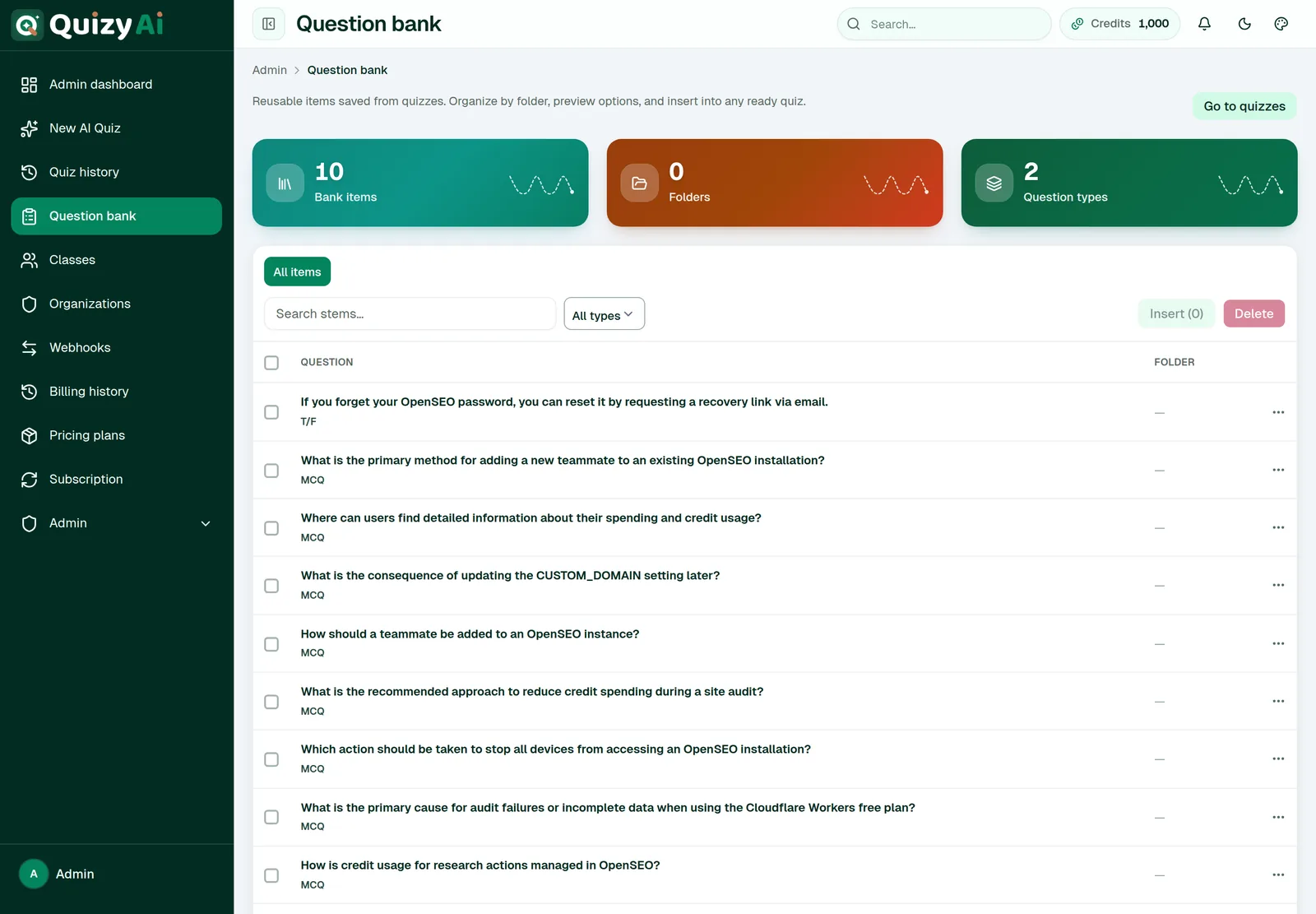
The bank lives at Question bank in the sidebar (/quizzes/bank), 24 items a page.
Finding a question
Folder chips across the top — All items plus one chip per folder you've used.
Search stems… — matches the question text. Press Enter to apply.
Type and standard filters.
Tidying up
Use the row menu → Edit tags, standards, folder. Folders are just a text label: type Unit 3 on a handful of items and a Unit 3 chip appears.
!
Only tags, folder and standards can be edited in the bank. To change the question text, options or answer, insert the item into a quiz and edit it there. Also note that Remove from bank deletes immediately, with no confirmation prompt.
Reusing items in a quiz
Select the items
Tick the checkbox on each row you want.
Press Insert (n)
Pick a destination
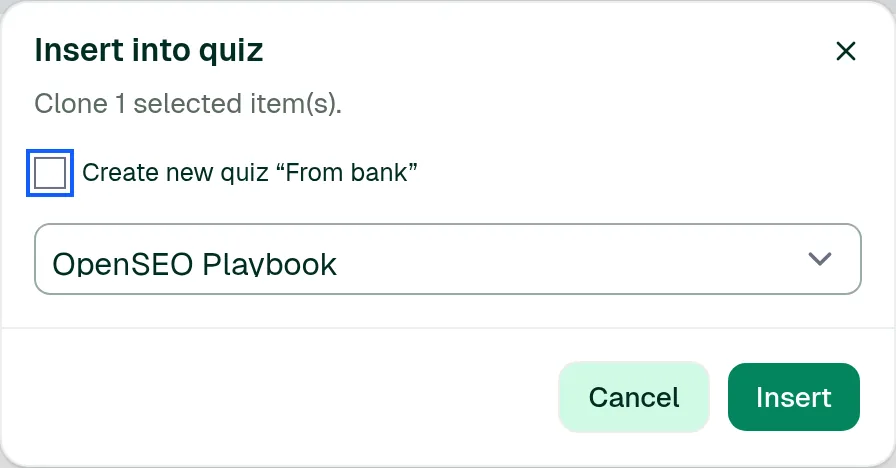
Either tick Create new quiz “From bank”, or choose one of your existing finished quizzes from the list.
Press Insert
The items are cloned — your bank copy stays put — and appended to the end of the target quiz, which then opens.
To clear out several at once, select them and press Delete; that one does ask you to confirm.
app.quizyai.com/quizzes/bank
SHOT 23
Question bank: Bank items / Folders / Question types tiles, folder chips, search and filters, the item table with a couple of rows selected so Insert (n) is active
Save as screenshots/23-bank.png · 1440×950 · needs at least 5 saved items across 2 folders
Folders, tags and standards keep a growing bank usable.app.quizyai.com/quizzes/bank — Insert into quiz
SHOT 24
The Insert into quiz dialog: “Clone n selected item(s).”, the Create new quiz “From bank” checkbox, the quiz selector
Save as screenshots/24-bank-insert.png · 700×500
Insert clones into an existing quiz or starts a new one.app.quizyai.com/quizzes/bank — Preview
SHOT 25
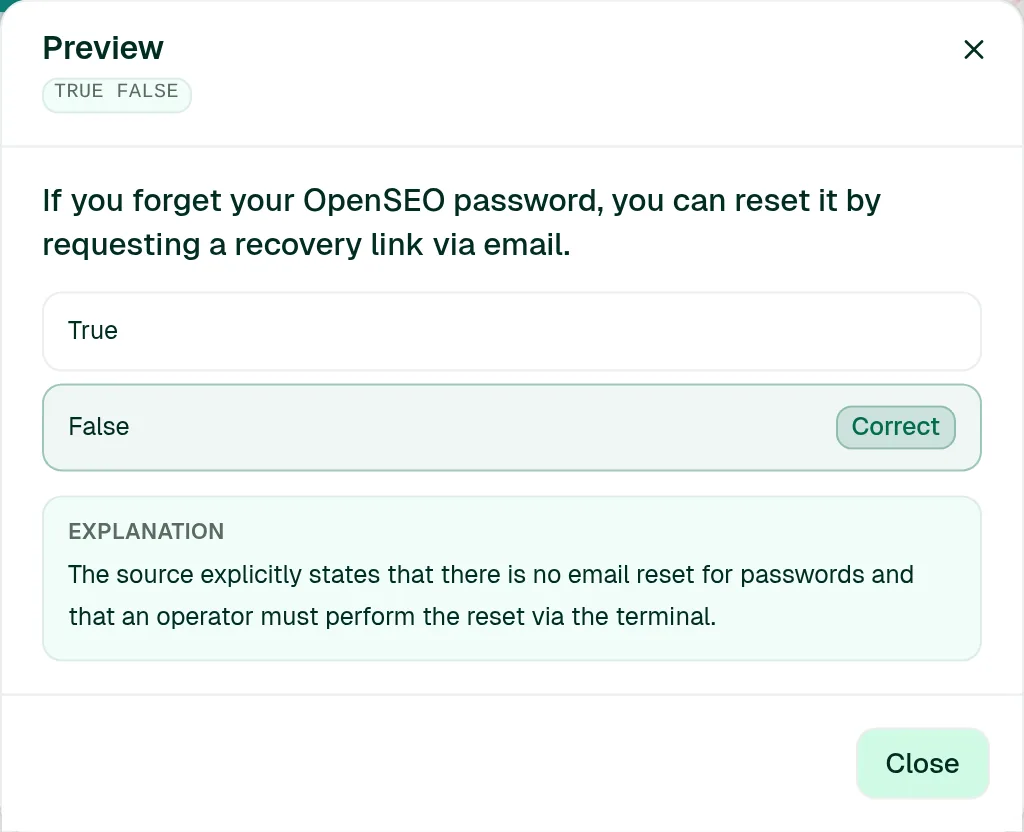
The Preview dialog: question text, options with the Correct badge, Explanation block
Save as screenshots/25-bank-preview.png · 700×550
Preview before inserting, so you don't have to remember what a stem was.
Share & deliver
One quiz, several delivery channels. They all read the same Response settings.
Share & deliver6 min read
Response settings
Set these once per quiz and they apply to the share link, the website embed, classes, live sessions and Google Forms. Open them with Response settings on the quiz page.
Respondent details
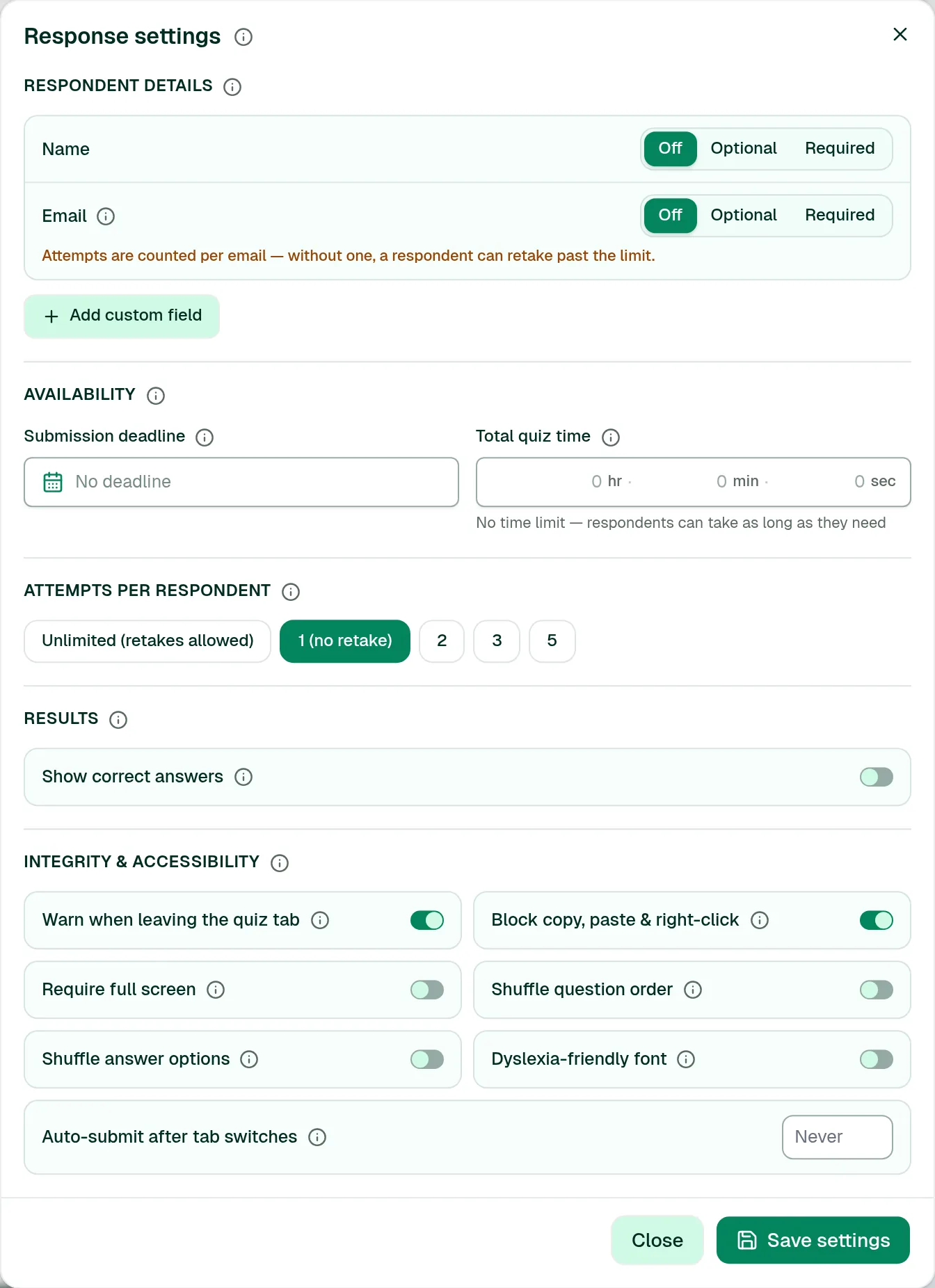
Decide what people are asked before they start. Name and Email each have three modes: Off, Optional and Required. You can add up to 10 custom fields — for example a Student ID — choosing from Text, Number, Email, Phone, Date, Link (URL) or Dropdown, and marking each required or not.
!
Attempt limits on share links and embeds are counted per email address. If you cap attempts but don't require an email, the same person can simply come back and retake it. Set Email to Required whenever the attempt limit matters.
Availability
Submission deadline — stored and shown in UTC. After it passes, the quiz shows “This quiz is closed” and the questions aren't even sent to the browser.
Total quiz time — set in hours, minutes and seconds. The timer starts when the respondent presses Start, and answers are submitted automatically when it runs out.
Availability applies to share links, embeds and classes. A class due date overrides the deadline. Neither applies to Google Forms or live sessions.
Attempts per respondent
Unlimited (retakes allowed), 1 (no retake), 2, 3 or 5. Counted per email on share links and embeds, and per student account in classes.
Results
Show correct answers is off by default: respondents see their score and which questions they got right or wrong, but not the answers. Turn it on for revision quizzes, where seeing the correct answer and explanation is the point.
Integrity & accessibility
Option
Effect
Warn when leaving the quiz tab
Shows a warning if the respondent switches away.
Auto-submit after tab switches
Submits the attempt after a set number of tab switches (0–50). Needs the warning above turned on.
Block copy, paste & right-click
Makes casual copying of questions harder.
Require full screen
Asks the browser to go full screen for the attempt.
Shuffle question order
Each respondent gets the questions in a different order.
Shuffle answer options
Each respondent gets the options in a different order.
Dyslexia-friendly font
Renders the quiz in a more readable typeface.
Tab switches, copy/paste attempts and full-screen exits are recorded with each attempt, so you can see them afterwards.
i
These are deterrents, not proctoring. They raise the effort needed to cheat on a casual quiz; they don't make a high-stakes exam tamper-proof. There is also no password protection on quizzes — use a deadline, an attempt limit and required email instead.
Press Save settings when you're done. If you opened this dialog on the way to creating a share link, Skip — keep current settings carries on without saving changes.
app.quizyai.com/quizzes/{id} — Response settings
SHOT 26
The full Response settings dialog — scroll so Respondent details, Availability and Attempts per respondent are all in frame
Save as screenshots/26-response-settings.png · 900×1100 · add one custom field first so that row is visible
One dialog, used by every delivery channel.
Share & deliver3 min read
Share a public link
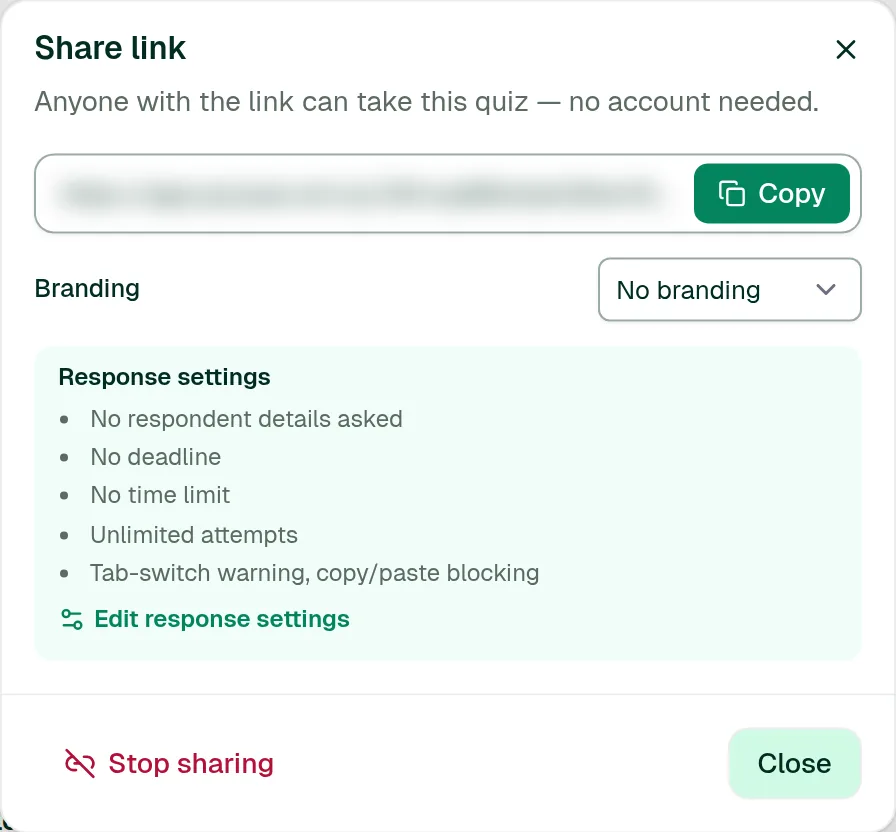
The quickest way to get a quiz in front of people. Anyone with the link can take it — no account needed.
Press Share → Public share link
Response settings open first so you can confirm what respondents will be asked. Press Save settings, or Skip — keep current settings.
Press Create & copy link
Your link is generated and copied in one go. It looks like app.quizyai.com/q/{token}.
Send it out
Email, chat, an LMS announcement, a QR code — anywhere a URL works.
What respondents see
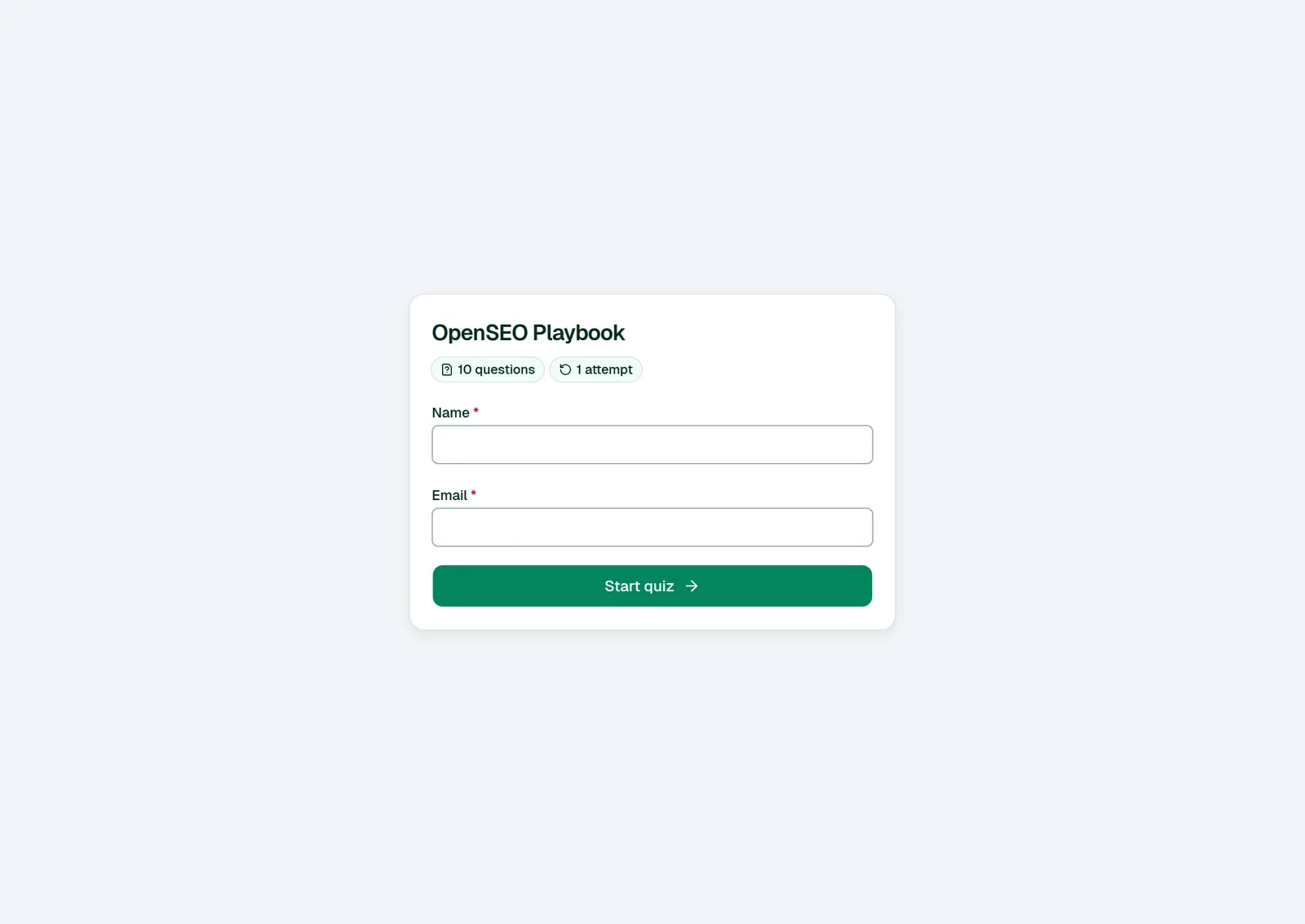
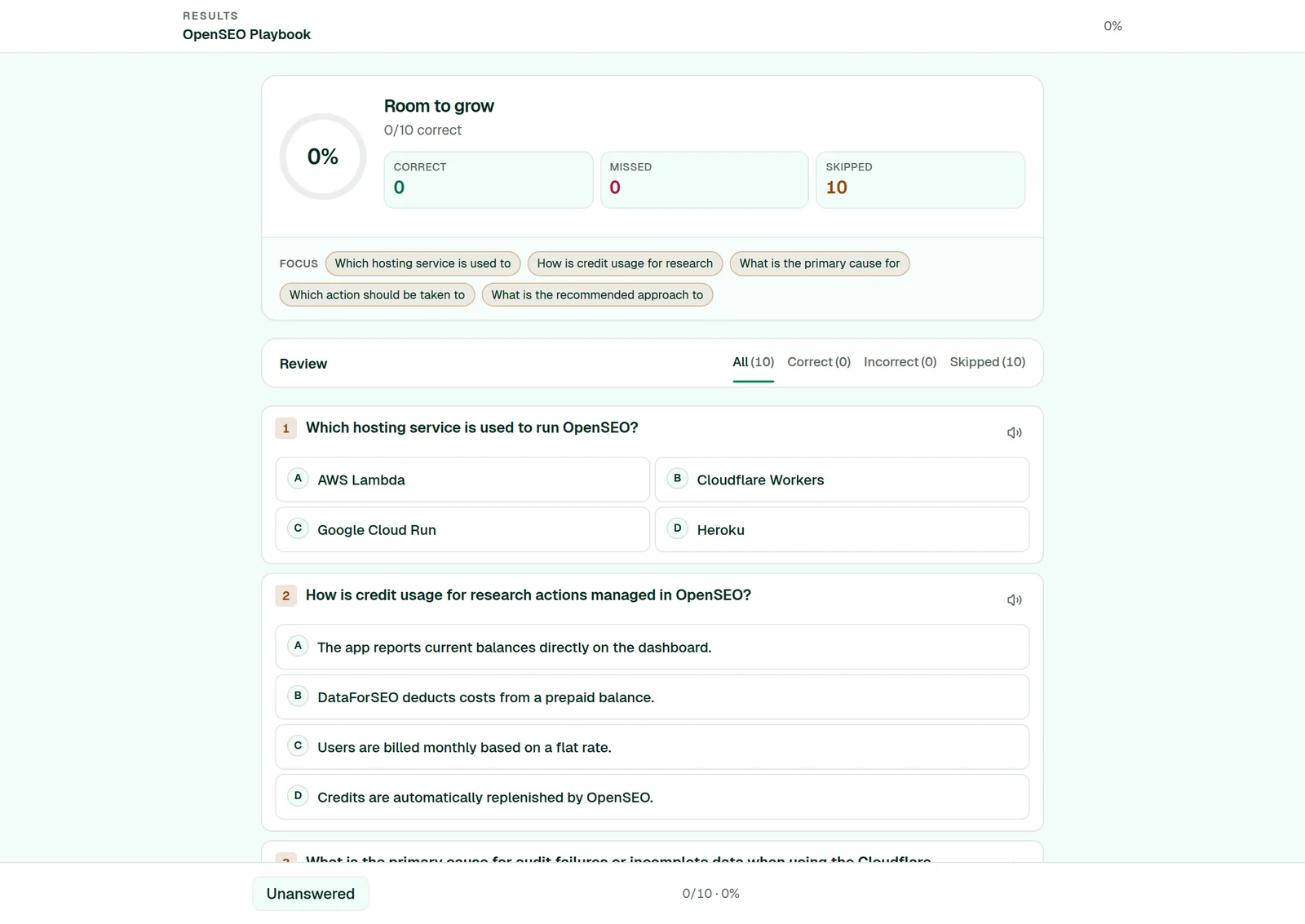
If you ask for a name, email, custom fields, a time limit, a deadline or an attempt limit, they get a start screen first — quiz title, pills showing the question count, time limit, deadline and attempts remaining, then the fields, then Start quiz. If you ask for none of those, they go straight into the first question. Afterwards they see their score, which questions they got right or wrong, and a Retake button if they have attempts left.
Turning sharing off
✕
Stop sharing is permanent for that URL. It kills the link and every website embed using it. Turning sharing back on mints a brand-new link — the old one never works again. If you only want to pause access, set a submission deadline instead.
Adding your own branding
If you belong to an organization that allows it, the share dialog has a Branding selector. Pick your organization and the quiz page carries its logo, name and colour. More on branding →
app.quizyai.com/quizzes/{id} — Share link
SHOT 27
The Share link dialog with sharing ON: the URL field, Copy, the Branding select, the Response settings summary and Stop sharing
Save as screenshots/27-share-dialog.png · 800×700 · blur the token in the URL
The summary block restates what respondents will be asked.app.quizyai.com/q/{token}
SHOT 28
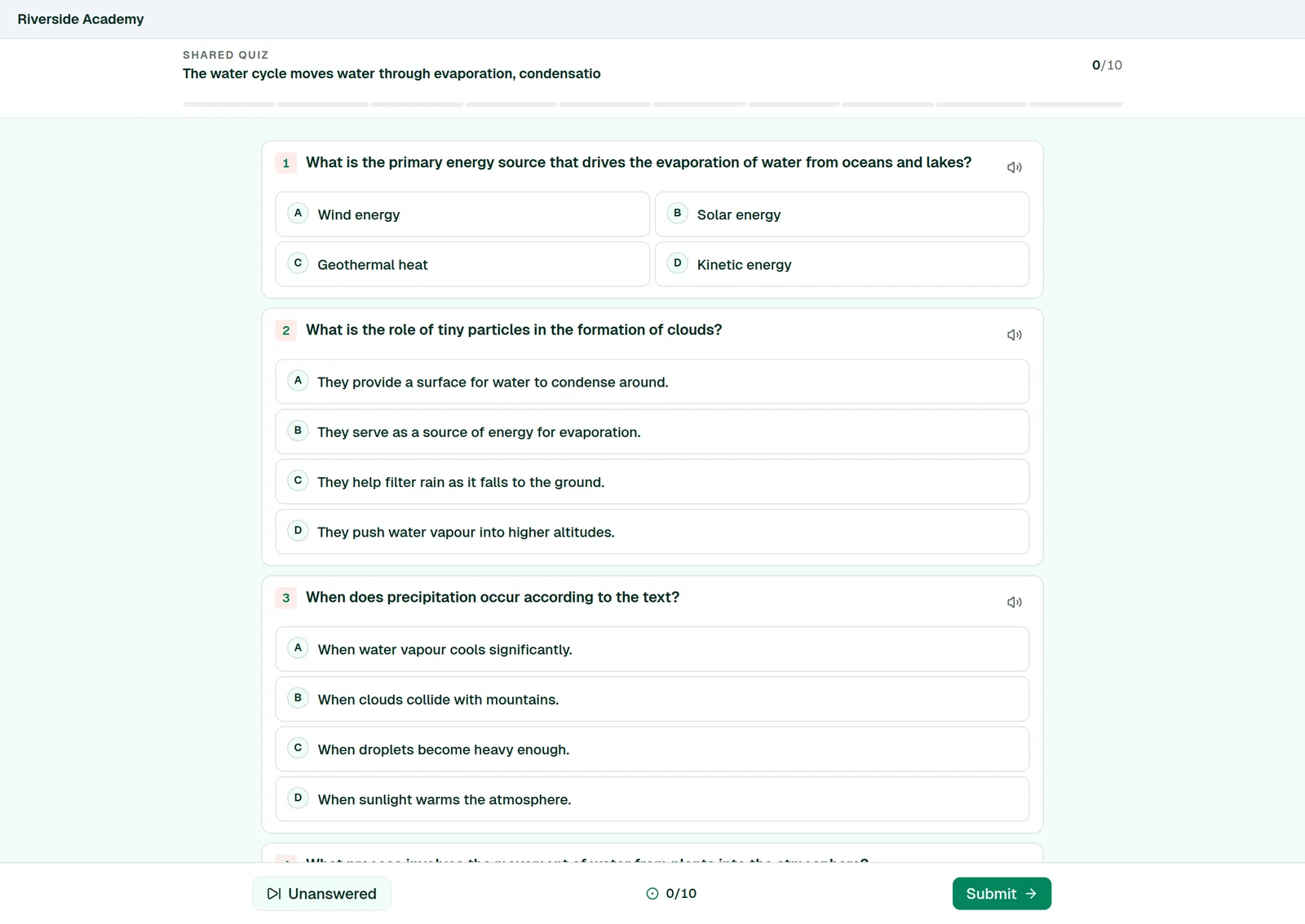
The learner start screen: title, the pills (questions / time limit / attempts), Name and Email fields, Start quiz
Save as screenshots/28-public-start.png · 1200×800 · open in a private window; set Name+Email to Required and a time limit first
What your learners actually land on.app.quizyai.com/q/{token} — results
SHOT 29
The results screen after submitting: score, per-question right/wrong, Retake
Save as screenshots/29-public-result.png · 1200×800 · take the quiz yourself in a private window
Turn on “Show correct answers” if you want the answers visible here too.
Share & deliver5 min read
Embed a quiz on your website
Put a quiz inside one of your own pages. People answer it there, and the responses come back to Quizyai.
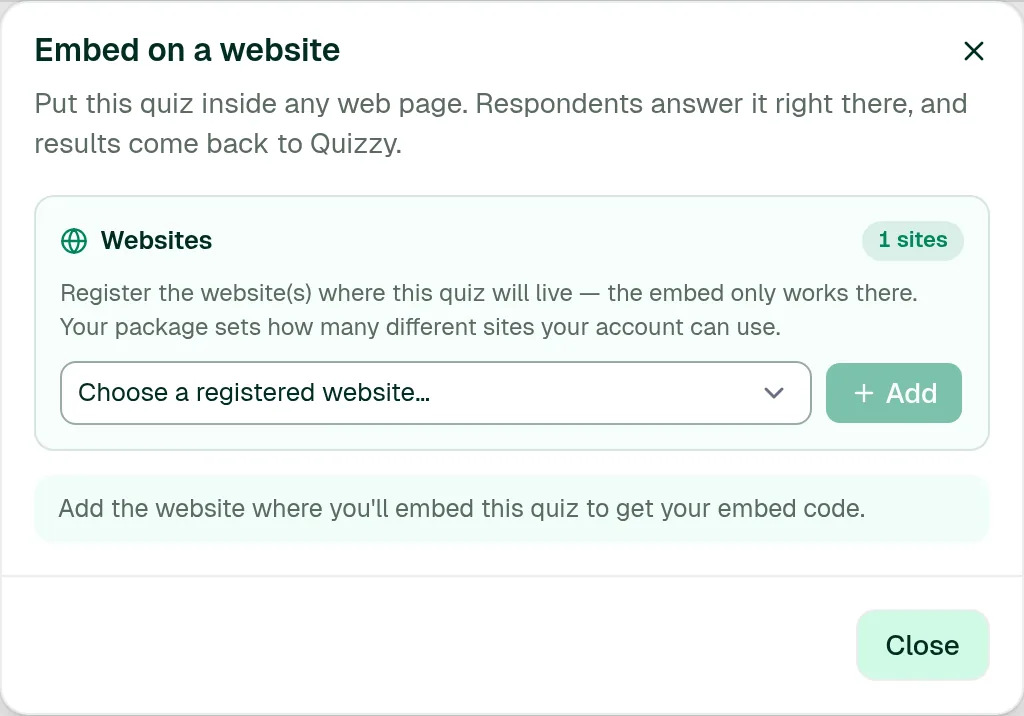
Press Share → Embed on a website
Embedding uses the quiz's public link. If sharing is off you'll be offered Enable embedding, which switches it on without changing anything else.
Register the website
Under Websites, type the address where the quiz will live — for example https://quizyai.com — and press Add. No embed code appears until you add at least one site.
Choose a height
480px, 640px or 800px. 640 suits most quizzes.
Copy the embed code
Press Copy embed code. Use Preview first if you want to see it in place.
Paste it into your page
See the table below for where that is in your platform.
Add a Custom HTML block and paste the code into it.
Elementor
Drag in the HTML widget.
Google Sites
Insert → Embed → Embed code.
Moodle, Canvas, other LMS
Switch the editor to its HTML (source) view, then paste.
Why you have to register the website
The allowlist stops other people embedding your quiz on their sites. Two things enforce it: requests coming from an unregistered site are refused with “This quiz is not registered for embedding on this website.”, and the page sends a browser-level policy that only permits framing on the sites you listed.
How many different sites your account can register is set by your plan. Registering a site you've already used elsewhere doesn't consume another slot, and if you register no sites at all, the embed will work anywhere — which is why the dialog asks you to add one.
!
The quiz embed is a fixed height — it does not grow to fit its content. Pick the height that suits your longest question, and give the iframe room. Quizzes scroll inside the frame if they need to.
✓
Want visitors to make their own quizzes on your site rather than take yours? That's the free generator embed, which is a different snippet and does auto-resize. Ask support for the generator embed code.
app.quizyai.com/quizzes/{id} — Embed on a website
SHOT 30
The Embed on a website dialog with one site registered, the Height picker, the code box and “Where to paste it”
Save as screenshots/30-embed.png · 900×1000 · blur the token in the code
The code only appears once a website is registered.Your own site — the embed in place
SHOT 31
The embedded quiz running on a real page of your site, with your own header above it
Save as screenshots/31-embed-live.png · 1440×900 · shoot the published page, not the preview
Shows people what the result looks like on a real site.
Share & deliver4 min read
Run a live session
Everyone answers the same question at the same time, on their own phone, with a leaderboard on the big screen.
Press Live on the quiz page
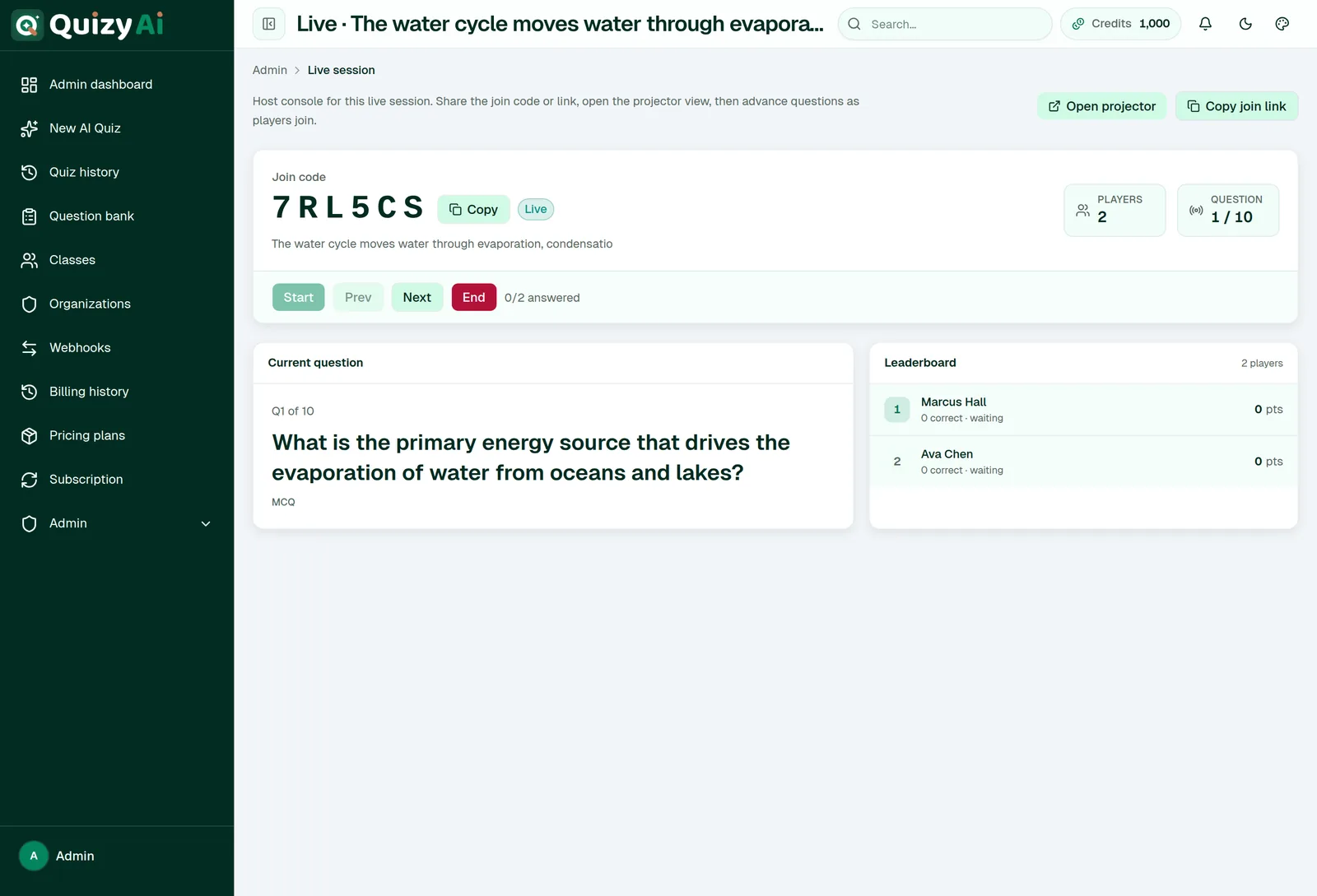
A session is created with a 6-character join code and the host console opens.
Get people in
Press Copy join link and send it, or read the Join code out. Players land on a page asking for a display name.
Put the questions on the big screen
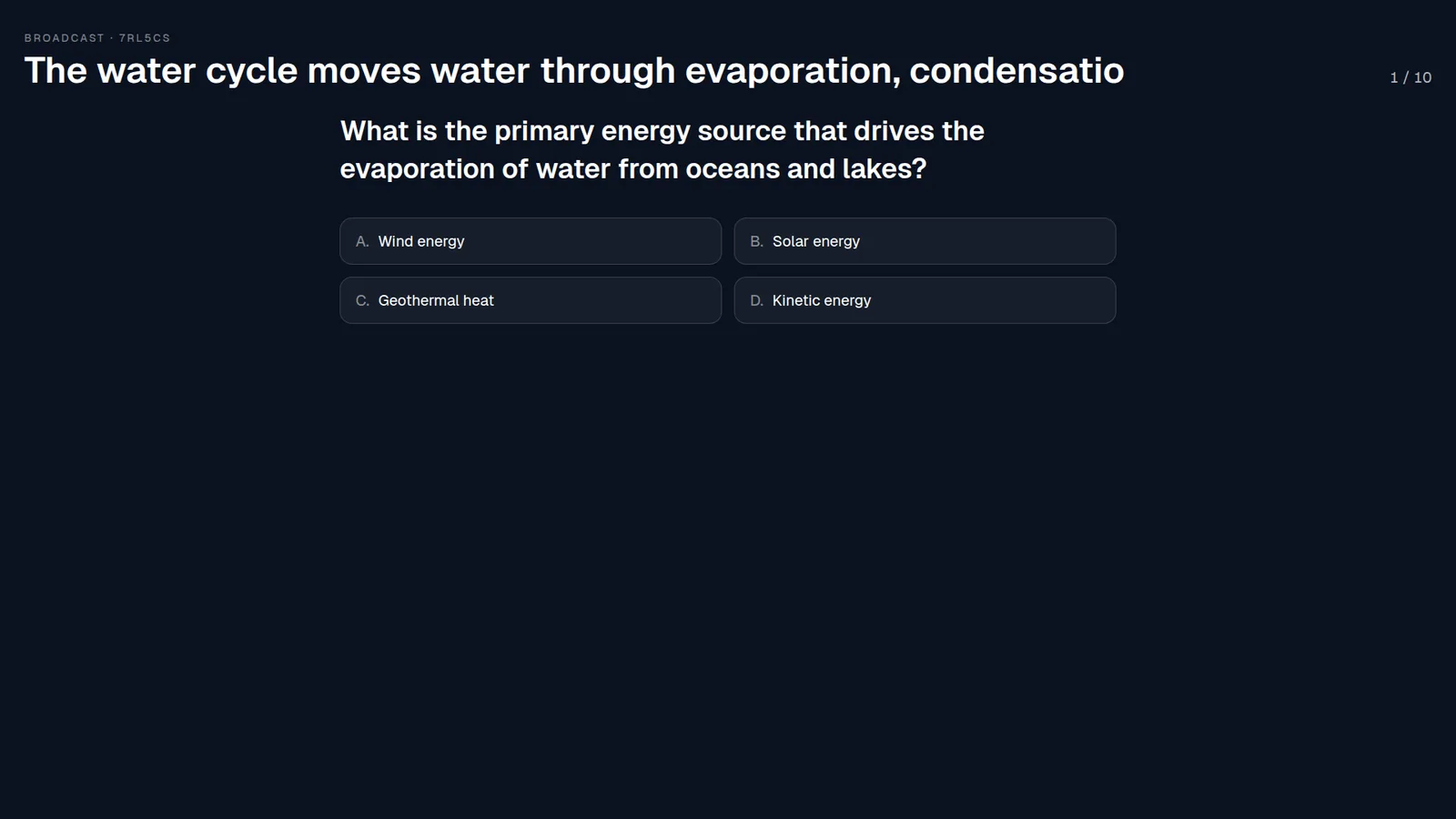
Press Open projector for a dark full-screen view showing the current question and its options, lettered A–D.
Press Start
The first question goes live. Players answer on their own devices.
Move through the quiz
Use Next and Prev. When everyone has answered, the session advances by itself after about two seconds. Press End to finish.
What each side sees
Host console
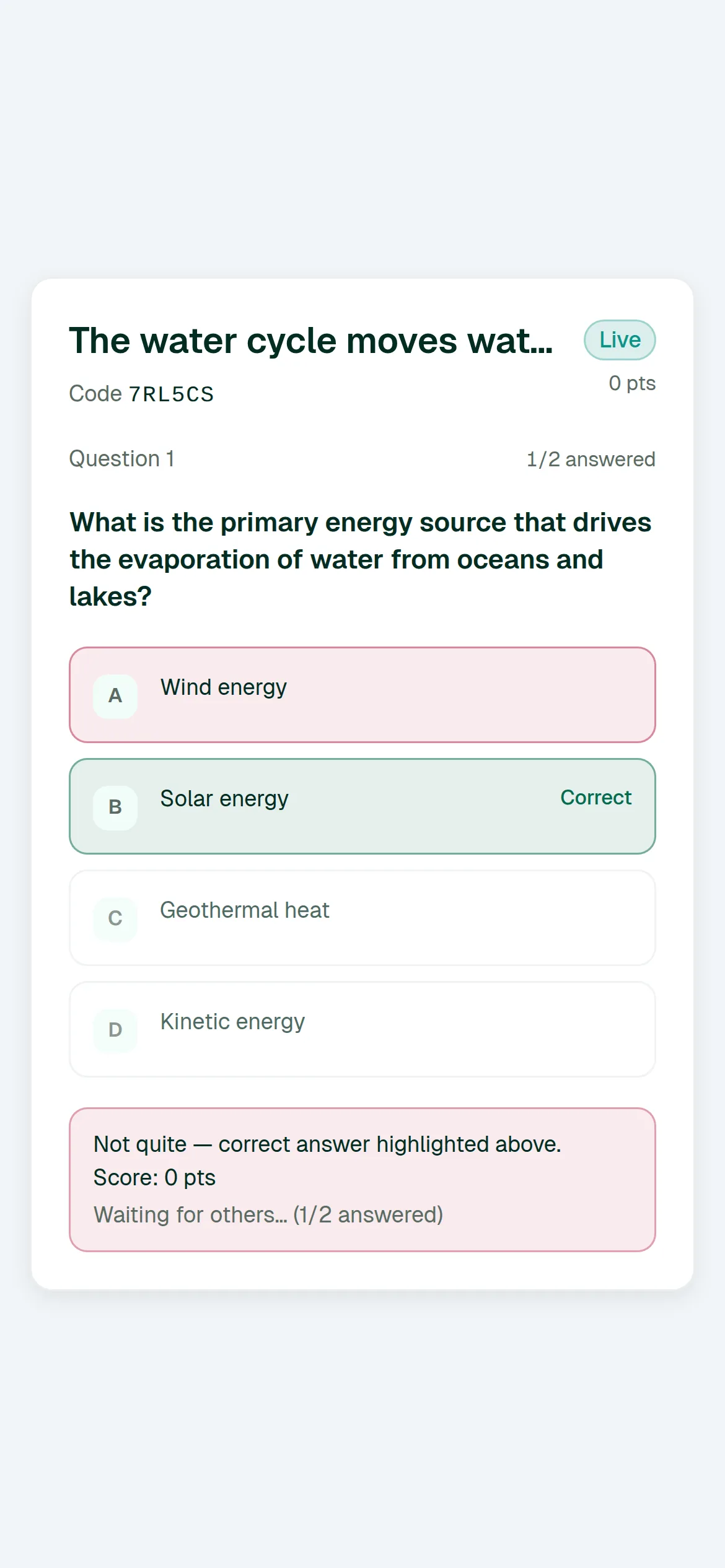
Player's phone
Join code and copy buttons
Display-name prompt, then a lobby
Players and Question counters
The question with tappable options
The current question and how many have answered
After answering: the correct answer highlighted, “Correct!” or “Not quite”, and their score
A live leaderboard with points and correct counts
At the end: “Session ended” and their final score
Scoring
100 points per correct answer. One answer per question — no changing your mind. Essay and Matching questions are recorded but not auto-graded, so they score zero; leave them out of a quiz you plan to run live.
!
There's no “enter your code here” landing page yet, so players need the actual join link. Use Copy join link and put it in the chat, or write the full address on the board: app.quizyai.com/live/join/YOURCODE.
i
Live sessions ignore the deadline, time limit and attempt settings — the host controls the pace. Players are asked for a display name; email and custom fields are only requested if your Response settings ask for them.
app.quizyai.com/live/sessions/{id}/host
SHOT 32
Host console mid-session: Join code block, Players / Question tiles, Start / Prev / Next / End bar, Current question panel, Leaderboard with 2–3 players
Save as screenshots/32-live-host.png · 1440×950 · join from two phones or browser profiles first
Run the room from here; the projector view goes on the screen.app.quizyai.com/live/join/{CODE}
SHOT 33
Player view on a phone: the question, tappable lettered options, score, and the answer-reveal banner
Save as screenshots/33-live-player.png · 390×844 (phone) · use device emulation
Shoot this one at phone width — that's how players see it.app.quizyai.com/live/sessions/{id}/broadcast
SHOT 34
The projector / broadcast screen with the code, the big question and options A–D
Save as screenshots/34-live-projector.png · 1920×1080 · full screen
Built for a projector, so it stays legible from the back of a room.
Share & deliver2 min read
Certificates
Quizzes taken through a public share link or embed can issue a certificate of completion automatically.
When someone submits an attempt through a share link and scores at or above the pass mark (70%), a certificate is created for them. It's a PDF headed Certificate of Completion, carrying the quiz title, the respondent's name, their score as a percentage, a unique 12-character code and the issue date.
Each certificate lives at its own address — app.quizyai.com/certificates/{code} — which downloads the PDF. The link needs no sign-in, so a learner can keep it, forward it, or hand it to an employer for checking.
!
Certificates are issued in the background today, and there's no screen yet for turning them off, changing the pass mark, or handing a learner their link automatically. If you need certificates as part of your workflow, talk to support and we'll retrieve the codes for your quiz.
i
Only share-link and embed attempts issue certificates. Class assignments and live sessions don't. The certificate carries no logo or organization branding.
Classes
A roster, a join code and assignments — for when the same group takes quiz after quiz.
Classes3 min read
Create a class and invite students
Classes live under Classes in the sidebar. Use one when you want to assign several quizzes to the same people and track who finished what.
Press Create class
Give it a name. If you belong to an organization you can attach it, or leave it as an independent class.
Open the class
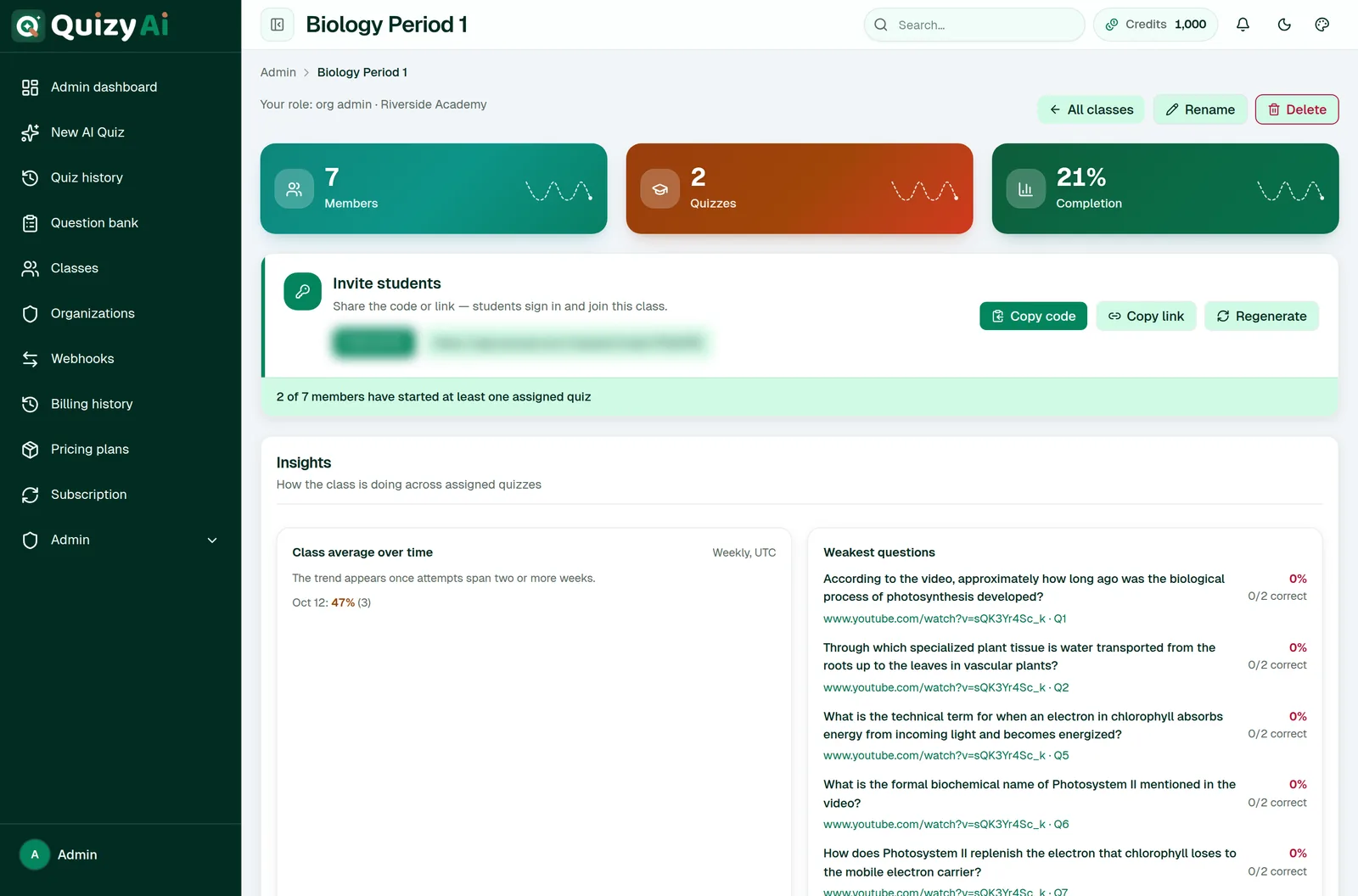
You'll land on the class page with Members, Quizzes and Completion metrics.
Share the join details
In the Invite students card, press Copy link and send it out, or read out the 6-character code for students to type in themselves.
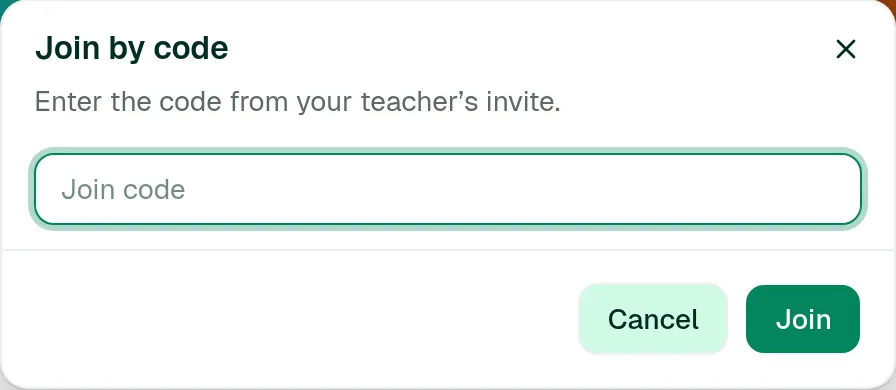
Students who follow the link get the join dialog with the code already filled in — they sign in, and they're in the class.
If a code gets out
Press Regenerate in the Invite students card. A new code is issued and the old one stops working. Students already in the class stay in.
!
Classes need a Quizyai account on the student's side. For anyone who shouldn't have to sign up, use a public share link instead.
app.quizyai.com/classes/{id}
SHOT 35
Teacher's class page: Members / Quizzes / Completion tiles and the Invite students card with code, join link, Copy code, Copy link, Regenerate
Save as screenshots/35-class-invite.png · 1440×900 · a class with 3+ members looks far better than an empty one
Everything needed to get a class started is in one card.app.quizyai.com/classes — Join by code
SHOT 36
The Join by code dialog as a student sees it
Save as screenshots/36-class-join.png · 650×400 · sign in as a student account
Students can also paste the code here if they lost the link.
Classes3 min read
Assign quizzes and track completion
Assign any finished quiz to a class, optionally with a due date, and watch the roster fill in.
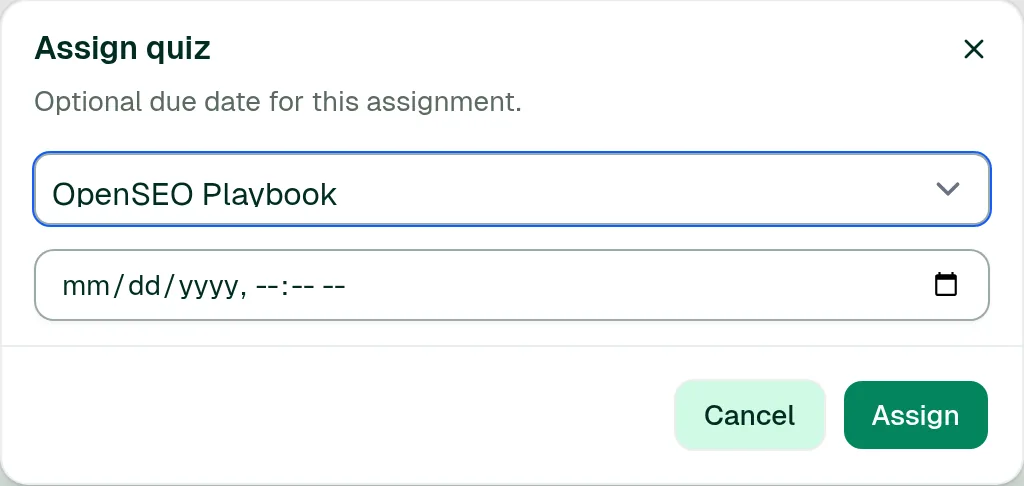
Open the class and press Assign quiz
Pick the quiz
The list shows your finished quizzes. A quiz that's still generating or has failed won't appear.
Set a due date (optional)
A class due date overrides any submission deadline in the quiz's Response settings.
Press Assign
Students see it on their class page straight away.
Seeing how it's going
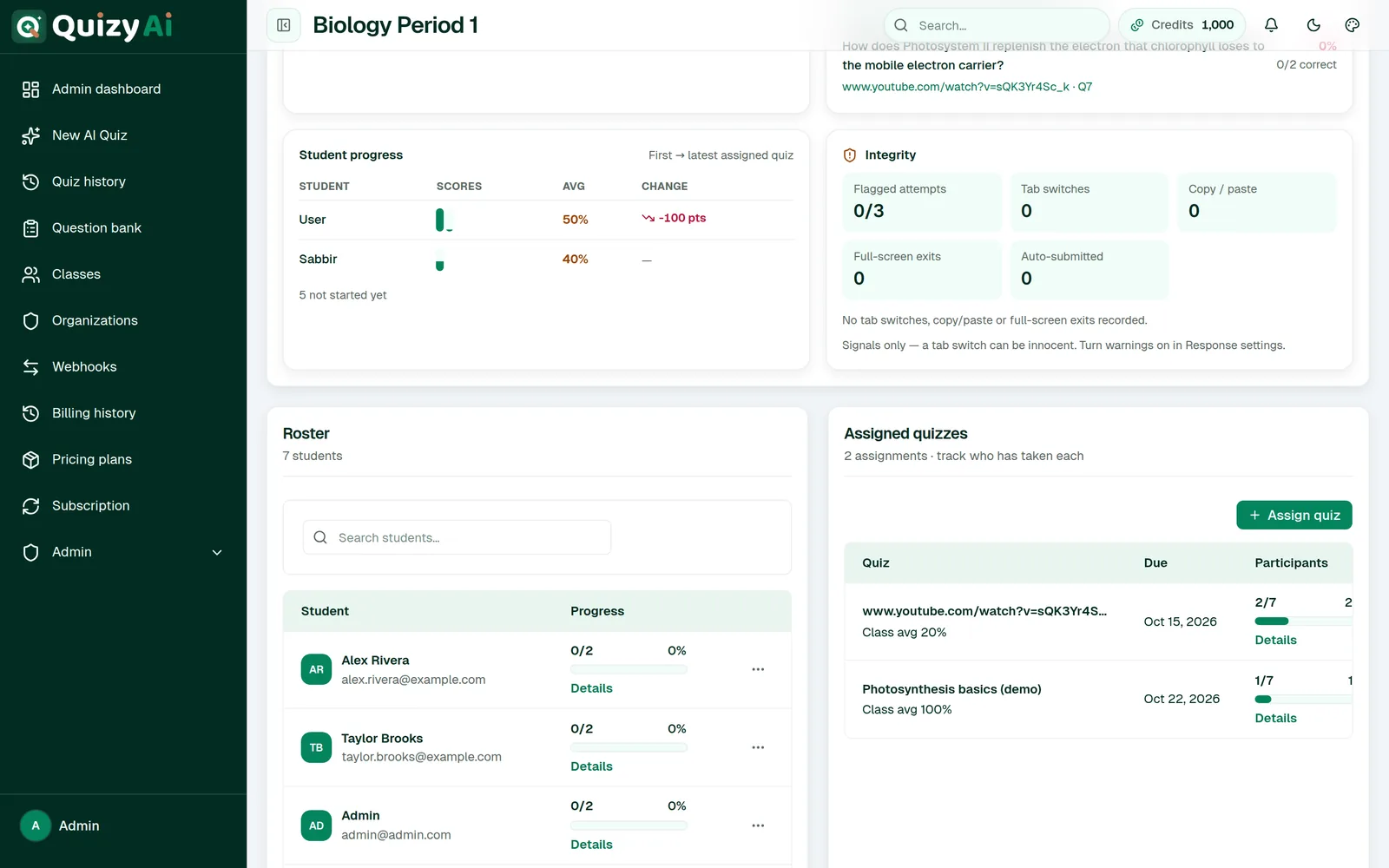
Completion at the top of the class page is the share of students who have started at least one assigned quiz.
View participants on an assignment row shows who has taken that specific quiz.
The Roster section lists every student; opening one shows their progress per quiz.
The class insights block adds trends, per-student progress and the questions your class finds hardest.
Unassign removes a quiz from the class. To remove a student, use the action on their roster row.
✓
Attempt limits in classes are counted per student account, not per email — so a student can't get extra goes by switching address.
app.quizyai.com/classes/{id} — Assign quiz
SHOT 37
The Assign quiz dialog: quiz selector and the optional due date
Save as screenshots/37-class-assign.png · 650×450
The due date is optional and overrides the quiz deadline.app.quizyai.com/classes/{id} — roster
SHOT 38
The Roster and Assigned quizzes sections with a few students and two assignments
Save as screenshots/38-class-roster.png · 1440×800 · use test student names, not real ones
Use placeholder student names in any screenshot you publish.
Classes2 min read
What students see
Share this article with your students — it's the whole student experience in one page.
Join the class
Open the link your teacher sent, or go to Classes → Join by code and type the 6-character code. You'll need to sign in or create a free account.
Open the class
You'll see Assigned quizzes — each one with its due date, or “No due date”.
Press Take quiz
If your teacher asked for details or set a time limit, you'll get a start screen first. The timer begins when you press Start.
Submit
You'll see your score and which questions you got right. Whether the correct answers are shown is up to your teacher.
Students don't see the roster, the class metrics or the invite card — only their own assigned quizzes.
i
Missed the deadline? The quiz shows “This quiz is closed” along with when it was due. Ask your teacher to extend the due date.
app.quizyai.com/classes/{id} — student view
SHOT 39
Student's class page: “Assigned quizzes”, due dates, Take quiz chips — no roster, no metrics
Save as screenshots/39-class-student.png · 1200×700 · sign in as a student test account
Deliberately sparse — students only see what they have to do.
Results & exports
See who answered what, find the questions that aren't working, and take your quiz anywhere else you need it.
Results & exports4 min read
View responses
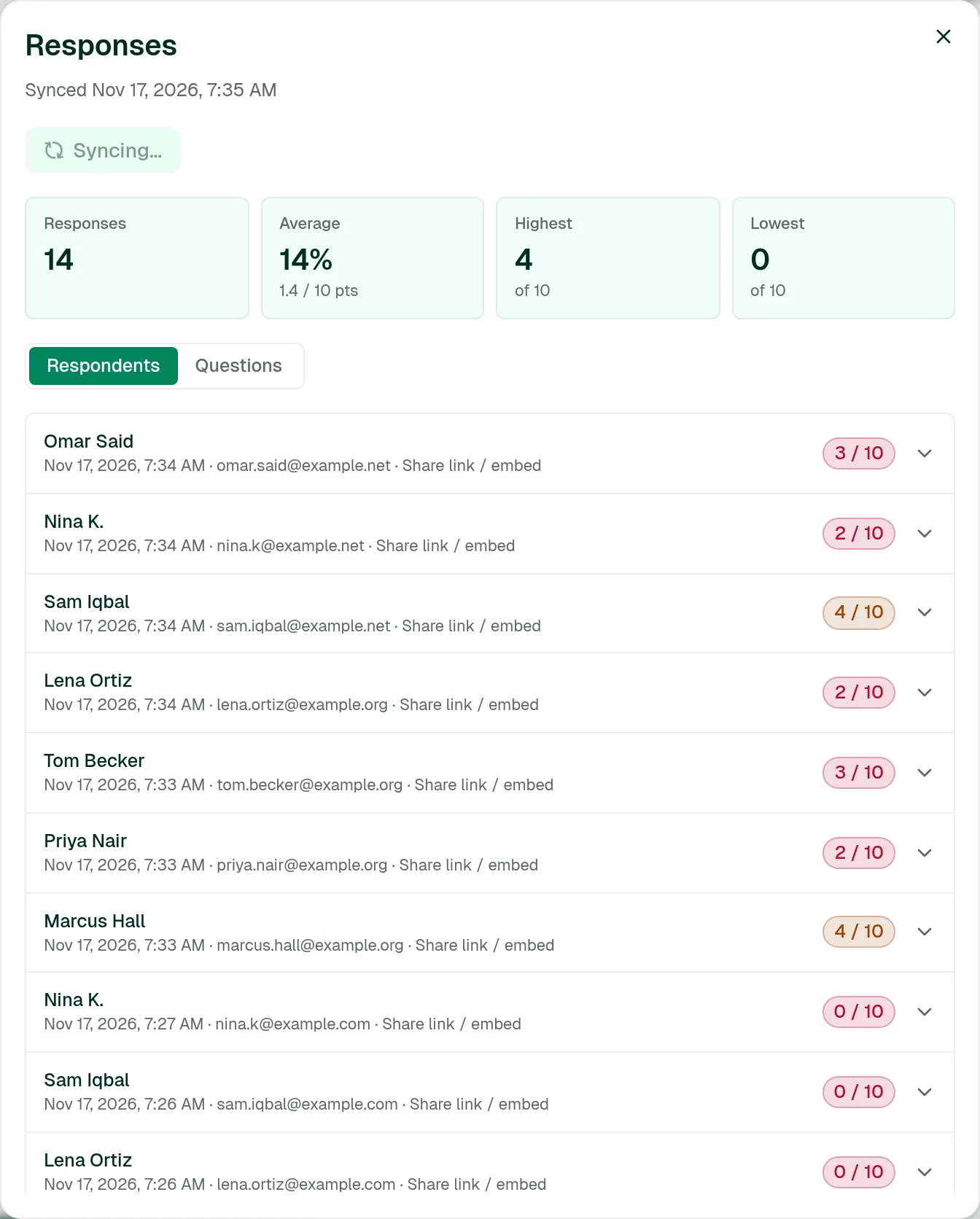
The Responses button on the quiz page carries a count badge and opens every submission you've received.
Responses gathers attempts from your share link, your website embed, your classes, signed-in respondents, and your own practice runs. Press Refresh to pull in anything new.
The summary cards
Responses, Average (as a percentage), Highest and Lowest. Scoring is one point per question.
Respondents view
One row per submission, showing the name (or email, or “Respondent #n” if you asked for neither), when it was submitted, where it came from, and a colour-coded score badge — green from 70%, amber from 40%, red below.
Expand a row to see any custom field answers plus every question with what they answered, a tick, a cross or an empty circle, and the correct answer printed underneath anything they got wrong.
Source label
Means
Share link / embed
Came through your public link or website embed.
Signed in
A Quizyai account — usually a class student.
You (practice)
Your own run-through on the quiz page.
Questions view
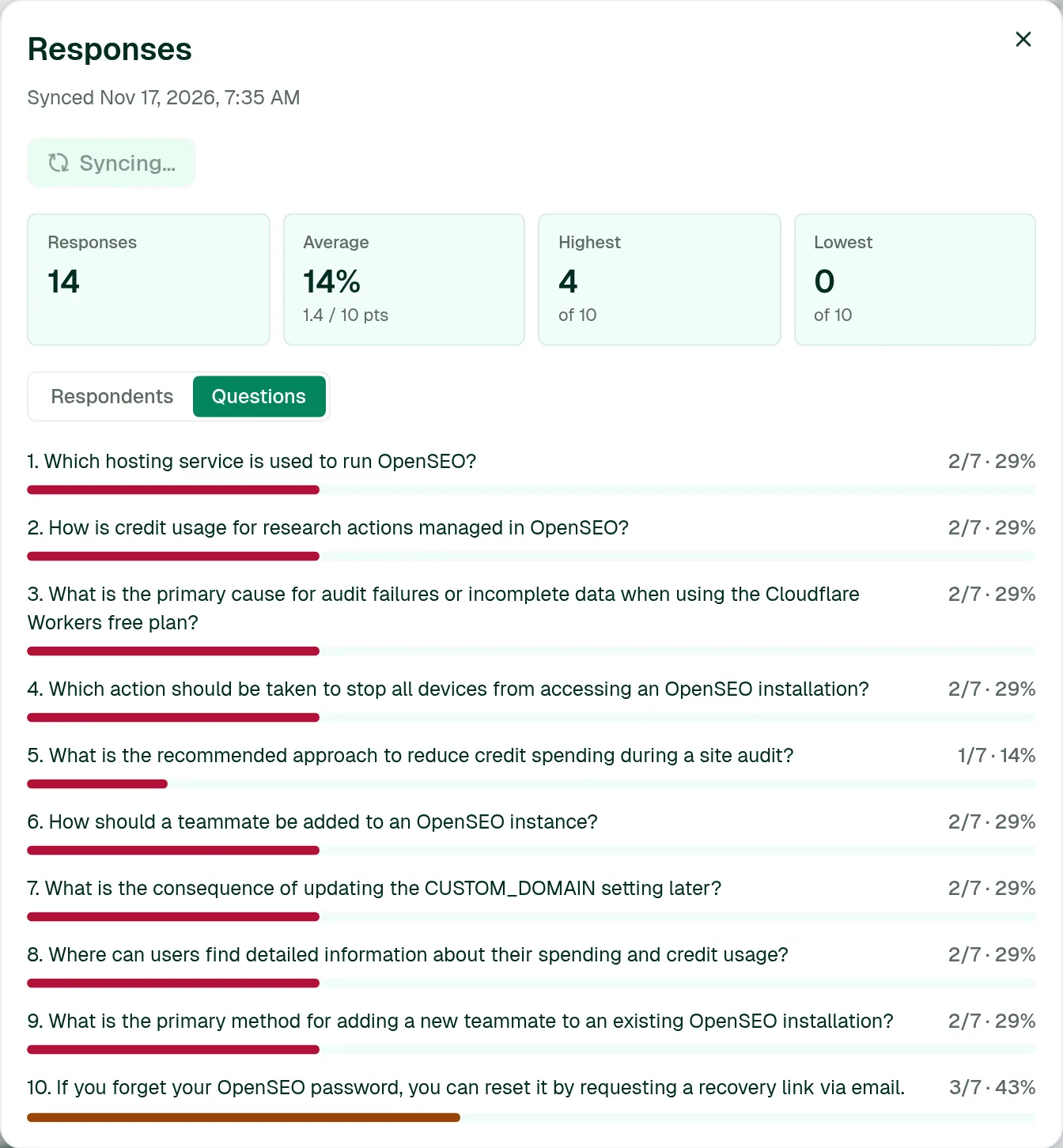
Flips it around: one row per question with how many got it right out of how many answered, as a percentage and a bar. This is the fastest way to spot a question everyone fails.
i
The list shows your most recent 500 responses, though the count badge reflects the true total. Written answers (short answer and essay) are scored by AI on shared attempts; an essay counts as correct from a score of 0.5, and anything with no answer key shows as Not graded.
app.quizyai.com/quizzes/{id} — Responses
SHOT 40
Responses dialog, Respondents view: the Responses / Average / Highest / Lowest cards and 4–5 respondent rows with score badges
Save as screenshots/40-responses.png · 900×800 · use test respondent names and emails
Collect a few test attempts before shooting this — an empty state teaches nothing.app.quizyai.com/quizzes/{id} — Responses, Questions view
SHOT 41
The Questions tab with per-question percentage bars, ideally including one low-scoring question
Save as screenshots/41-responses-questions.png · 900×700
Proper psychometrics for your quiz: which questions are too easy, too hard, or simply broken. Open it from More actions (…) → Analysis.
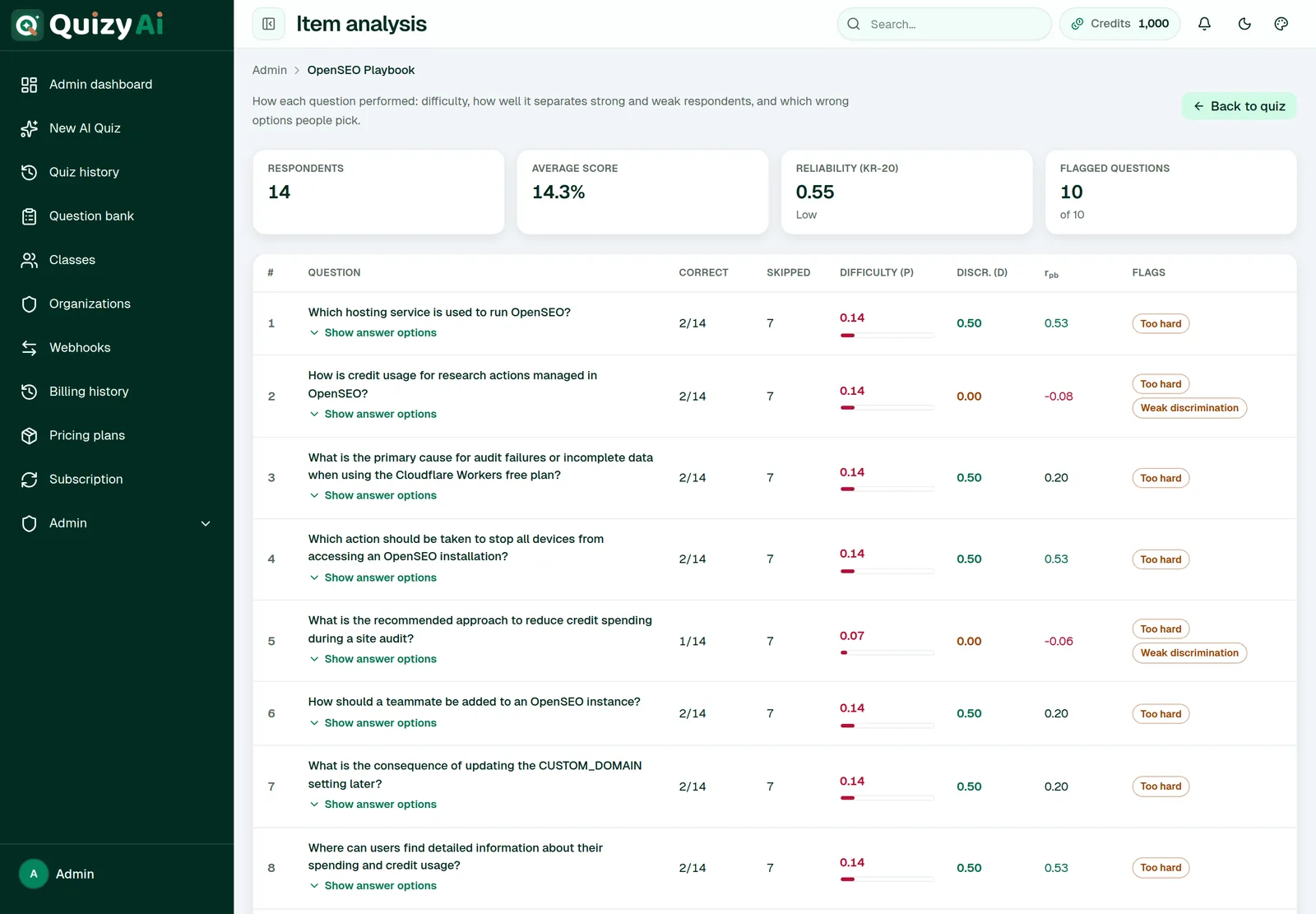
The summary tiles
Tile
What it tells you
Respondents
How many attempts the analysis is based on.
Average score
Mean score across all attempts.
Reliability (KR-20)
How consistently the quiz measures one thing. Rated Good from 0.8, Acceptable from 0.6, otherwise Low.
Flagged questions
How many questions tripped one of the checks below.
The per-question columns
Column
Meaning
Healthy range
Correct
How many got it right, out of how many attempted it.
—
Skipped
How many left it blank. A high number often means confusing wording.
Low
Difficulty (p)
The proportion answering correctly. Higher means easier.
0.3 – 0.8
Discr. (D)
Whether strong respondents do better on it than weak ones — top 27% minus bottom 27%.
0.4+ excellent, 0.2–0.4 acceptable
r_pb
Point-biserial correlation — the same idea, computed across everyone.
Positive
The flags, and what to do about each
Flag
Means
Do this
Too easy
90%+ got it right.
Fine as a warm-up; it isn't discriminating between people.
Too hard
20% or fewer got it right.
Check it's actually covered in your material, and that the wording is clear.
Weak discrimination
Strong and weak respondents do about equally well.
Usually ambiguous wording or a distractor that's arguably right.
Check answer key
Negative discrimination — your strongest respondents got it wrong more often.
Treat this as a likely wrong answer key and re-read the question carefully.
Distractor analysis
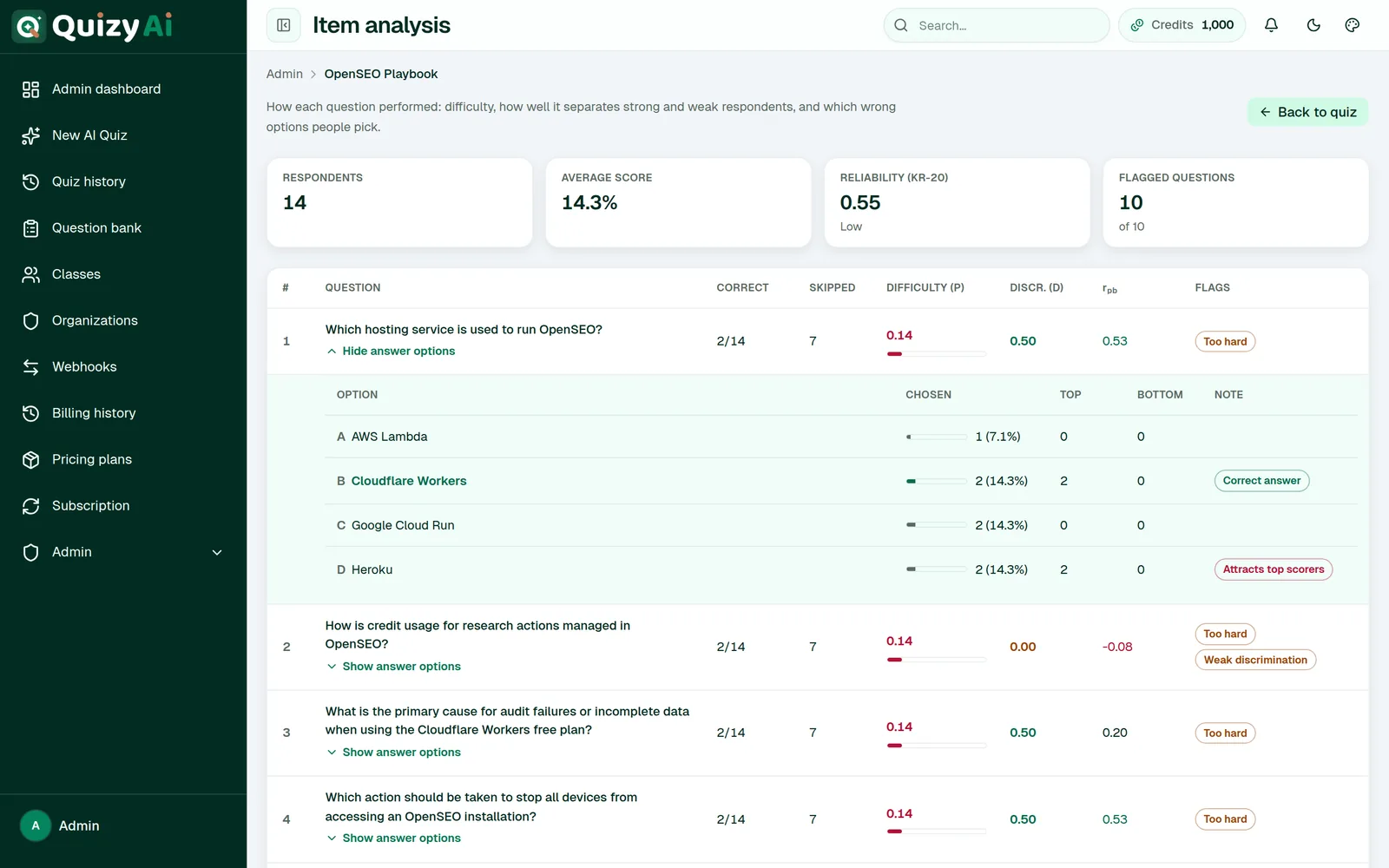
Expand a multiple-choice, multiple-answers or true/false row with Show answer options to see how often each option was picked, split by top and bottom scorers. Two notes to watch for:
Never chosen — a wrong option nobody picks is doing no work. Replace it with a more plausible one.
Attracts top scorers — a wrong option your best respondents keep choosing. Often it's ambiguous, or actually correct.
!
Difficulty and distractor counts appear as soon as you have attempts, but discrimination, r_pb and KR-20 need at least 5 attempts — until then they show as dashes with the notice “Discrimination and reliability appear after 5 attempts.” With fewer than about 20 attempts, treat all of it as indicative rather than conclusive.
app.quizyai.com/quizzes/{id}/analysis
SHOT 42
Item analysis: the four tiles and the question table with Difficulty (p), Discr. (D), r_pb and at least one Flags badge
Save as screenshots/42-analysis.png · 1440×950 · needs 5+ attempts or the columns are empty
Collect at least five attempts before capturing this page.app.quizyai.com/quizzes/{id}/analysis — expanded row
SHOT 43
One row expanded: the distractor table with Option / Chosen / Top / Bottom / Note and a Never chosen or Attracts top scorers note
Save as screenshots/43-distractors.png · 1100×600
Distractor stats are where a quiz actually gets better.
Results & exports1 min read
Practice misses
Replays just the questions you got wrong or skipped on your last attempt.
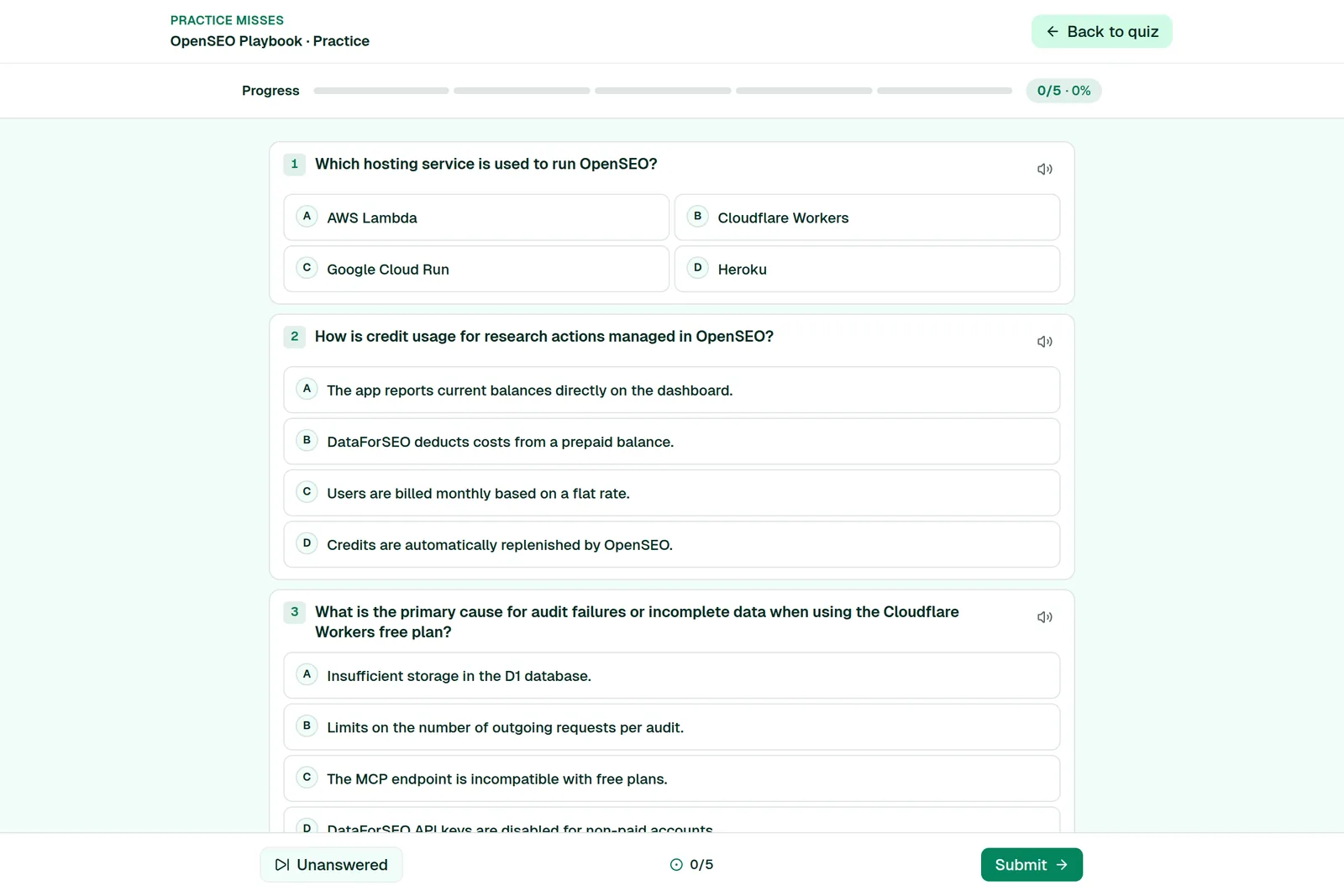
Open More actions (…) → Practice misses. The page is built from your most recent attempt, so take the quiz first — otherwise you'll see “Nothing to practice” with the hint “Take the quiz once — missed items appear here.” If you got everything right, it falls back to the first five questions.
Practice is available to the quiz owner and to students the quiz has been assigned to, so you can point a class at it after an assignment.
app.quizyai.com/quizzes/{id}/practice
SHOT 44
The Practice misses screen with the header kicker and a replayed question
Save as screenshots/44-practice.png · 1200×700 · take the quiz and miss 2–3 questions first
Built from your latest attempt, recalculated each visit.
Results & exports5 min read
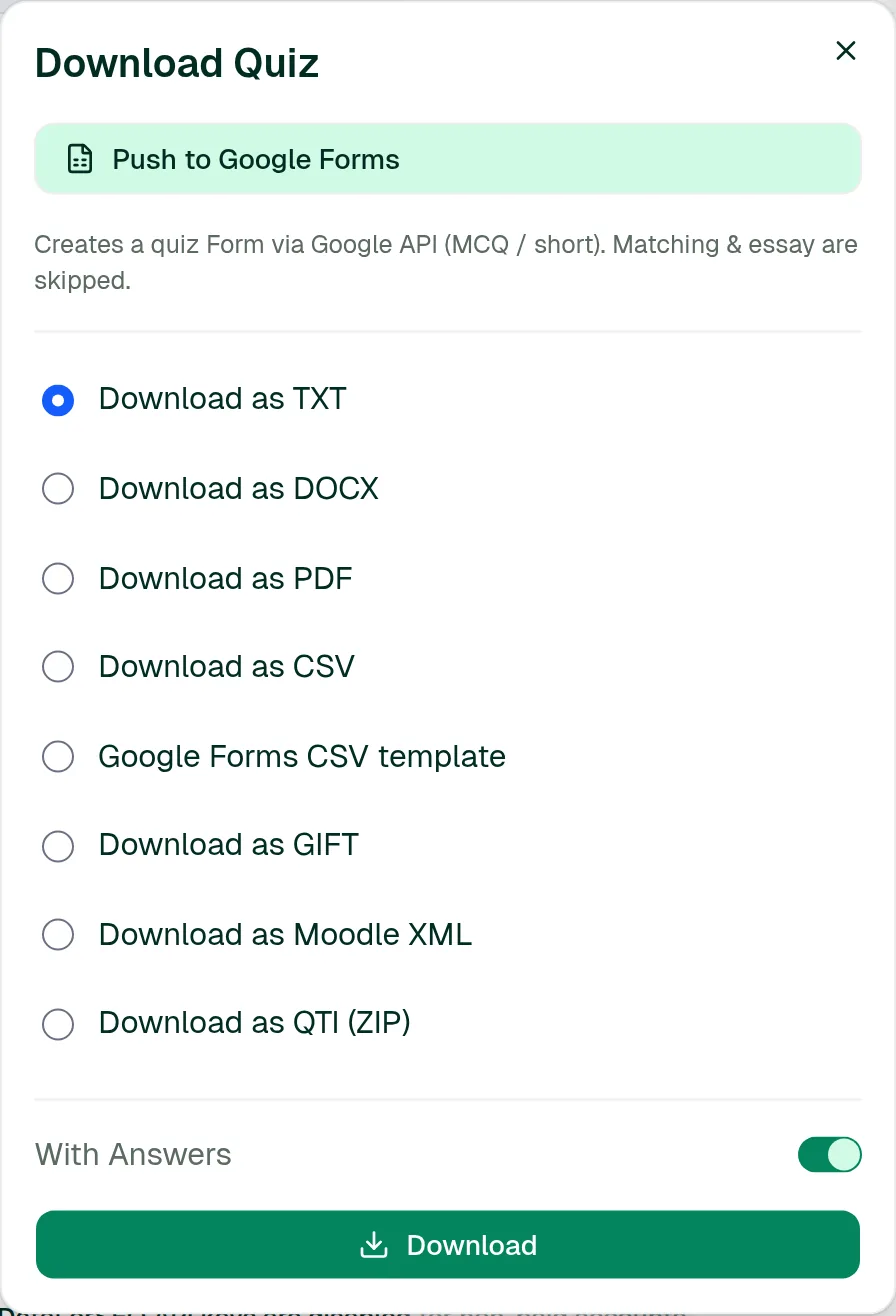
Download and export your quiz
Eight formats, from a printable PDF to an LMS import package. Press Download on the quiz page or on any row in Quiz history.
Choose
For
Contains
Download as TXT
Quick copy-paste into anything
Questions, options, and answers plus explanations when “With Answers” is on
Questions, answers, and explanations as general feedback
Download as QTI (ZIP)
Any LMS that imports QTI 2.1
Questions, answers, and explanations as feedback
The “With Answers” toggle
On by default. Turn it off to produce a clean question paper with no answer key — handy for printing a test.
!
The toggle only affects TXT, DOCX, PDF and CSV. GIFT, Moodle XML, QTI and the Google Forms template always include answers, because the formats are built for import and are meaningless without them. Never hand a student the GIFT, Moodle, QTI or Forms CSV file.
Picking the right one for an LMS
Moodle — Moodle XML keeps your explanations as feedback, so prefer it over GIFT.
Canvas, Blackboard and other QTI-capable systems — use the QTI ZIP.
Google Forms — use Create a Google Form rather than the CSV; it builds a real graded form directly.
The answer column holds option letters (such as A,C) for choice questions, or the accepted text answers separated by | for typed ones.
i
File exports are available on every plan. Exporting is only possible once a quiz has finished generating. If a download fails you'll be returned to the page with “Could not export this quiz as …” — try another format and tell support.
app.quizyai.com/quizzes/{id} — Download Quiz
SHOT 45
The Download Quiz dialog: the Push to Google Forms button, all eight format options, the With Answers toggle and Download
Save as screenshots/45-download.png · 750×800
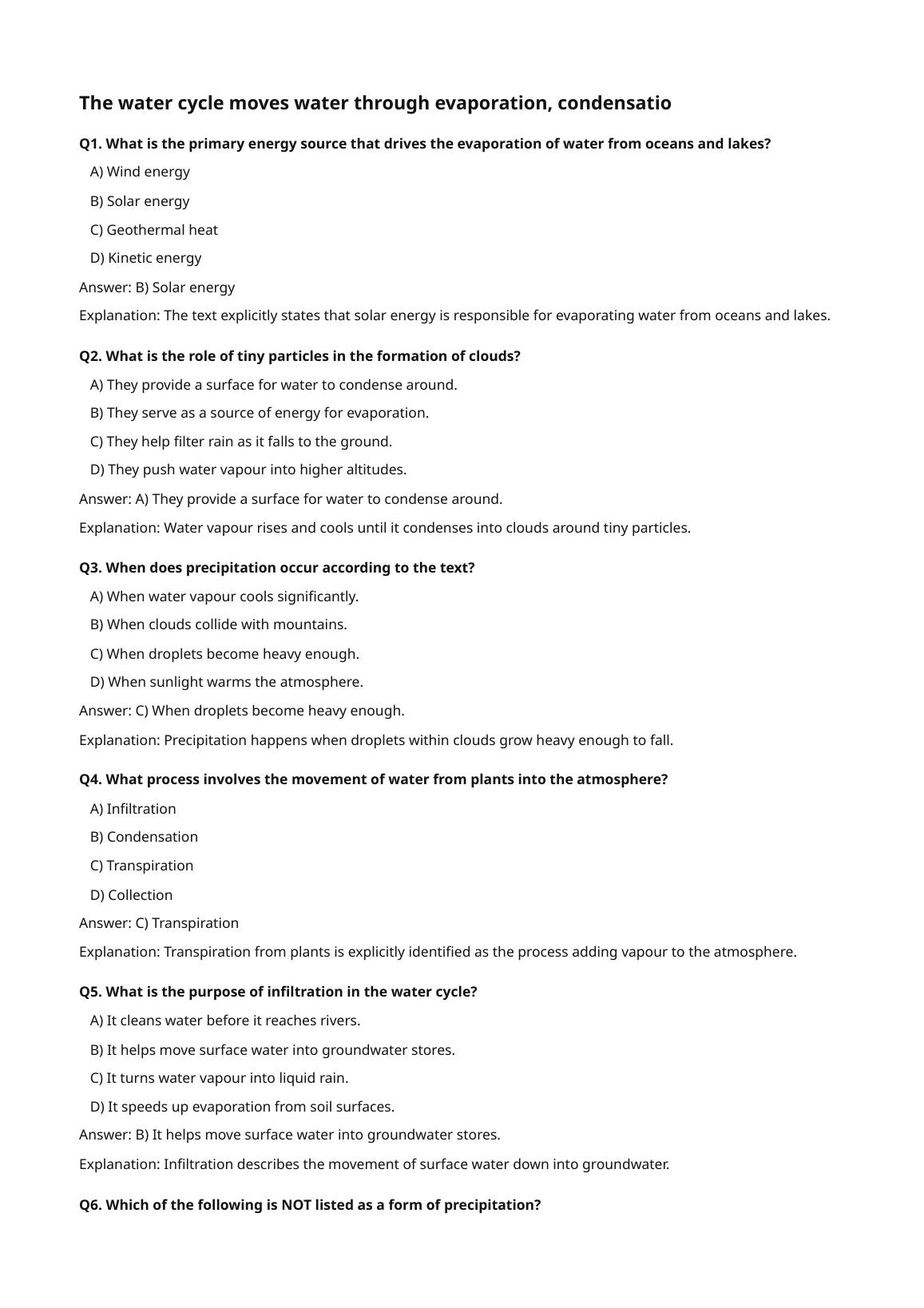
All eight formats in one dialog.A downloaded PDF
SHOT 46
A page of the exported PDF, showing numbered questions, lettered options and the Answer / Explanation lines
Save as screenshots/46-pdf.png · export with answers on, then screenshot the opened PDF
Shows people exactly what they'll get before they download.
Results & exports4 min read
Create a Google Form
Builds a real, graded Google Form in your own Drive from your quiz questions — then shows its responses back inside Quizyai.
Connect Google once
Press Share → Create Google Form. If you haven't connected yet you'll see Connect Google; approve access and come back. The same grant covers Drive import.
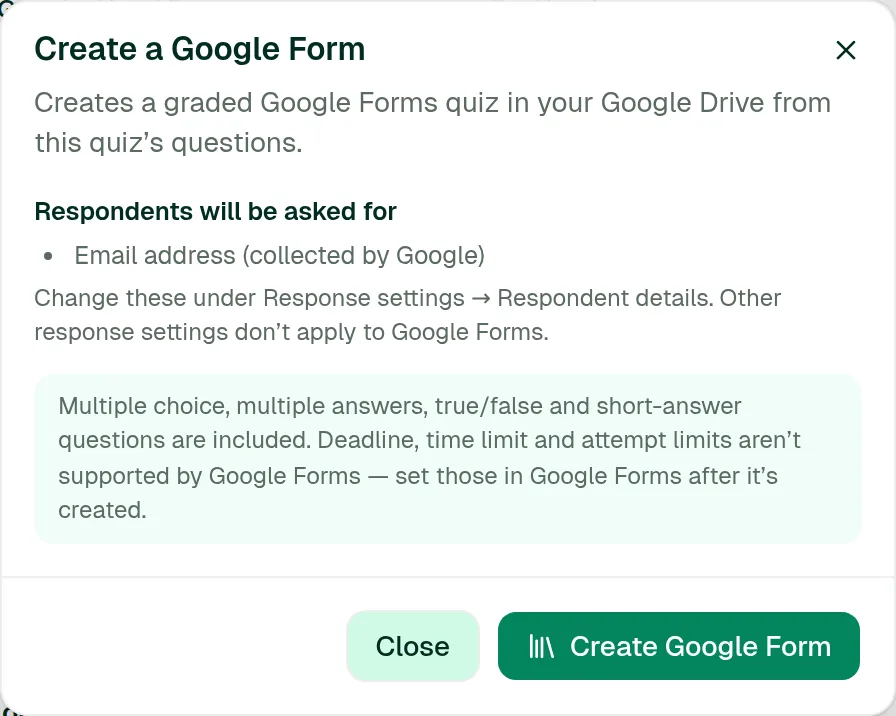
Check what respondents will be asked
The dialog lists the respondent fields it will add, taken from your Response settings.
Press Create Google Form
Open and finish it in Google
Use Open form to edit it in Google Forms, or Copy respondent link to send it out.
What comes across
Travels
Doesn't travel
Multiple choice and True / false (as radio questions)
Essay and Matching questions — skipped
Multiple answers (as checkboxes)
Explanations
Short answer and Fill in the blank
Question images
Correct answers, 1 point per question
Deadline, time limit and attempt limits
Your respondent detail fields
Integrity options
You'll get a confirmation like “Pushed 8 question(s) to Google Forms.”, plus a note if anything was skipped. Set deadlines and response limits in Google Forms itself afterwards.
Seeing Google Form responses in Quizyai
Once a form is linked, the Responses dialog grows a second tab, Google Form, next to Quizzy. It shows live submissions from the form, with Copy form link and Open in Google Forms alongside.
!
Pushing again creates a brand-new form rather than updating the old one, and Quizyai then tracks the new one. If you've already collected responses, edit the existing form in Google instead of pushing again.
app.quizyai.com/quizzes/{id} — Create a Google Form
SHOT 47
The Create a Google Form dialog: “Respondents will be asked for” list, the limits notice, Create Google Form
Save as screenshots/47-google-forms.png · 800×700
The dialog states its own limits before you commit.
Organizations
For schools, departments and teams — shared classes, controlled permissions, and your own branding on shared quizzes.
Organizations3 min read
Create an organization and invite members
An organization groups people and classes together, so colleagues can teach the same classes and see the same results.
Press Create organization
Go to Organizations in the sidebar and give it a name.
Invite people
In the Invite a member card, enter an email address, optionally a name, and pick a role. An invitation email goes out unless you turn that off.
They sign in
Access is granted the moment they sign in with that address — there's no invite code to enter. If they don't have an account yet, they create one with the same email.
The members table shows each person's role, status and when they were added, with a search box for larger teams. Resend invite is there for anything that got lost.
Seats
Your plan sets how many members you can have. When you're full you'll see “All {N} seats are in use. Remove a member or upgrade the owner's plan to add more.”
Handing over the organization
Transfer ownership makes another member the owner and demotes you to Admin. Only members who have actually signed in can become owner. Deleting the organization and transferring ownership are always owner-only.
app.quizyai.com/organizations/{id}
SHOT 48
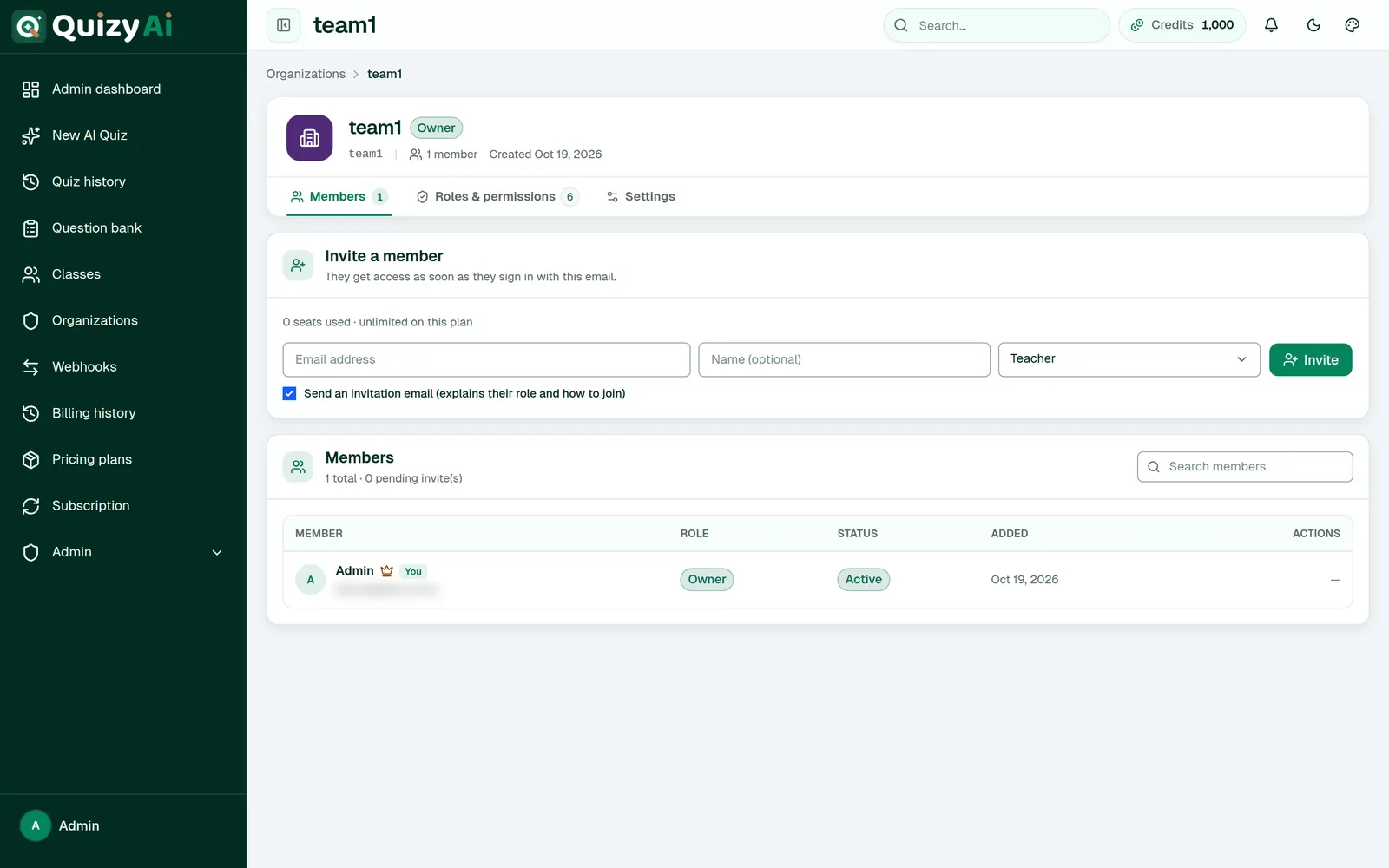
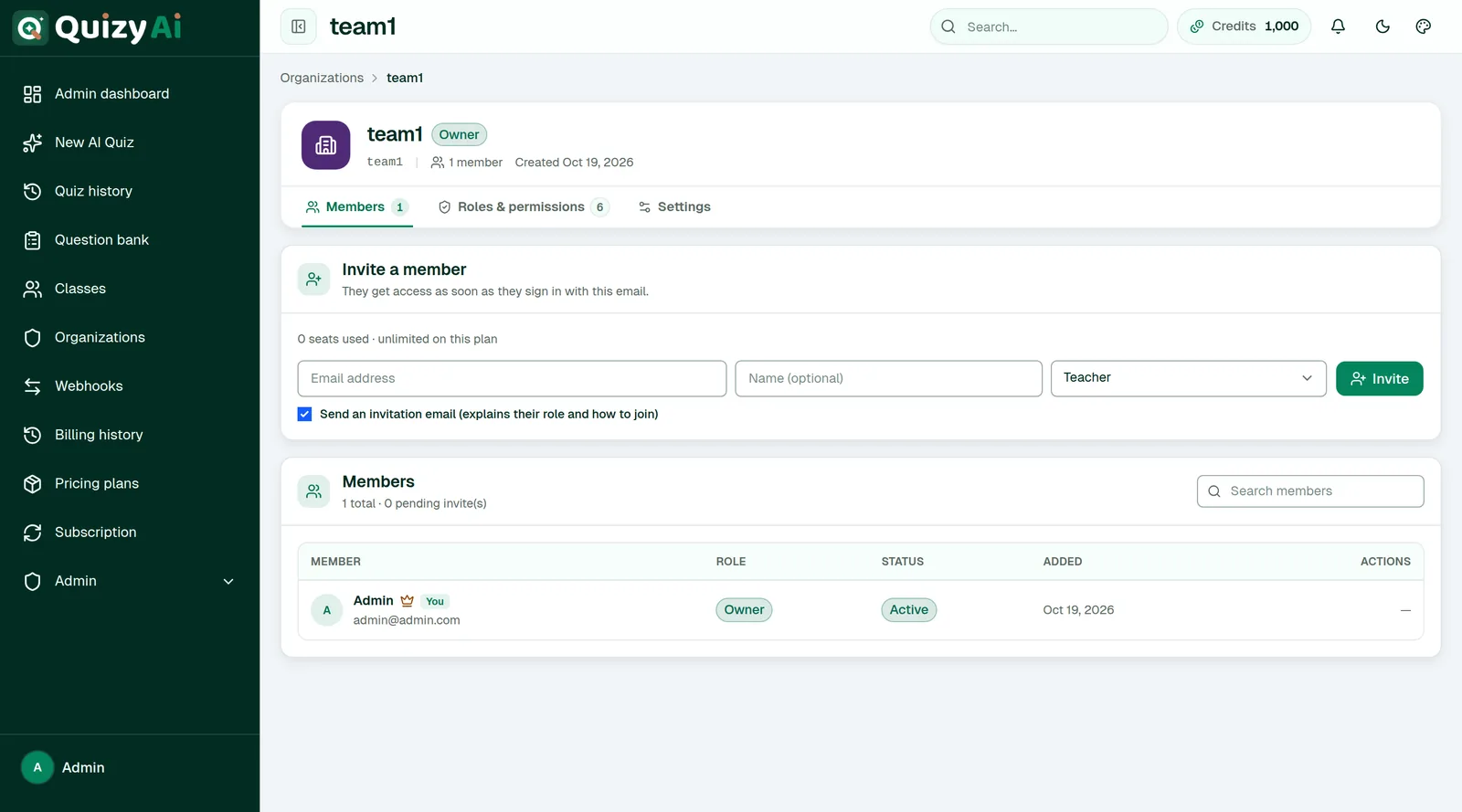
The Invite a member card plus the members table (Member / Role / Status / Added / Actions)
Save as screenshots/48-org-members.png · 1440×800 · use test members, not colleagues' real addresses
Invite by email; access follows the address.
Organizations4 min read
Roles and permissions
Six built-in roles cover most teams. If none fits, build your own from the permission list.
Role
Can do
Owner
Full control, including deleting the organization and transferring ownership.
Admin
Runs the organization: members, roles, settings and all classes.
Editor
Manages content: creates, edits and deletes any class, brands shared quizzes, sees results.
Teacher
Creates and teaches classes, brands shared quizzes, sees results.
Student
Takes quizzes assigned in the organization's classes.
Viewer
Read-only access to class results.
The permissions a custom role can grant
Group
Permission
Allows
Members & roles
Invite members
Add people by email.
Manage members
Change roles and remove members.
Manage roles
Create, edit and delete roles.
Settings
Edit organization
Rename the organization and edit its branding.
Classes
Create classes
Start new classes.
Manage all classes
Rename, assign quizzes and manage students in any organization class.
Delete classes
Remove classes.
Quizzes & results
Brand shared quizzes
Put the organization's logo and colour on shared quizzes.
View results
See results of the organization's classes, read-only.
Use Create role to make one — for example a “Department head” who can view results and manage all classes but not touch members. The What each role can do matrix on the page shows every role against every permission at a glance.
i
Built-in roles can't be renamed or deleted, and Owner always has every permission. Deleting a custom role asks which role to move its members to, so nobody is left without one.
app.quizyai.com/organizations/{id} — Roles
SHOT 49
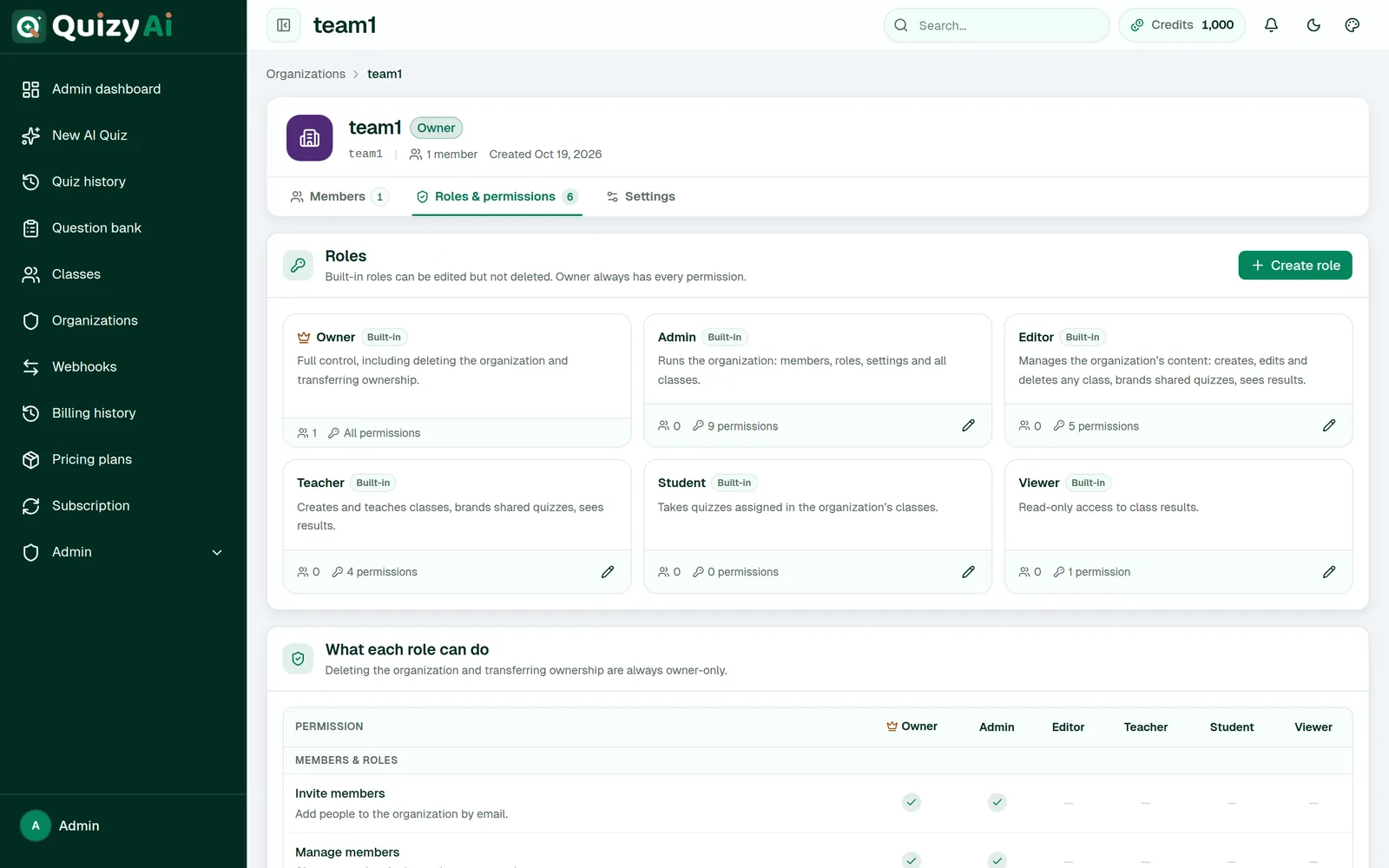
The What each role can do permission matrix
Save as screenshots/49-org-roles.png · 1440×800
The matrix is the quickest way to answer “who can do what”.
Organizations3 min read
Branding and white-label
Put your own name, logo and colour on the quizzes your learners see.
Open your organization and find the General & branding card. A live preview sits beside the form as you type.
Field
Where it shows
Organization name
Internal only — how you see it in Quizyai.
Name shown on shared quizzes
In the header bar above a shared or embedded quiz.
Colour
Becomes the accent colour on the quiz page.
Logo URL
The logo in that header bar — and the browser tab icon when white-label is on.
Hide Quizzy branding (white-label)
Removes Quizyai's own branding so only yours shows, tab title and icon included.
Applying branding to a quiz
Branding isn't automatic. Open a quiz's Share → Public share link dialog and choose your organization in the Branding selector. That selector only lists organizations where your role includes Brand shared quizzes.
i
Your logo needs to be hosted somewhere public and pasted in as a URL — there's no logo upload here. White-label is a plan feature, and it's re-checked every time a learner opens a quiz, so it switches off by itself if a plan is downgraded.
app.quizyai.com/organizations/{id} — branding
SHOT 50
The General & branding card with a logo and colour filled in, next to the live Preview panel
Save as screenshots/50-org-branding.png · 1440×700 · fill in a real logo URL so the preview isn't empty
The preview shows exactly what learners will see.app.quizyai.com/q/{token} — branded
SHOT 51
A public quiz with branding applied — logo and name in the header bar, brand colour on the buttons
Save as screenshots/51-branded-quiz.png · 1200×800 · apply branding via the Share dialog first
The before/after of branding is the best argument for it.
Developers
Hook Quizyai into your own systems.
Developers5 min read
Webhooks
Get a signed HTTP callback when a quiz finishes generating, so your own system can react without polling.
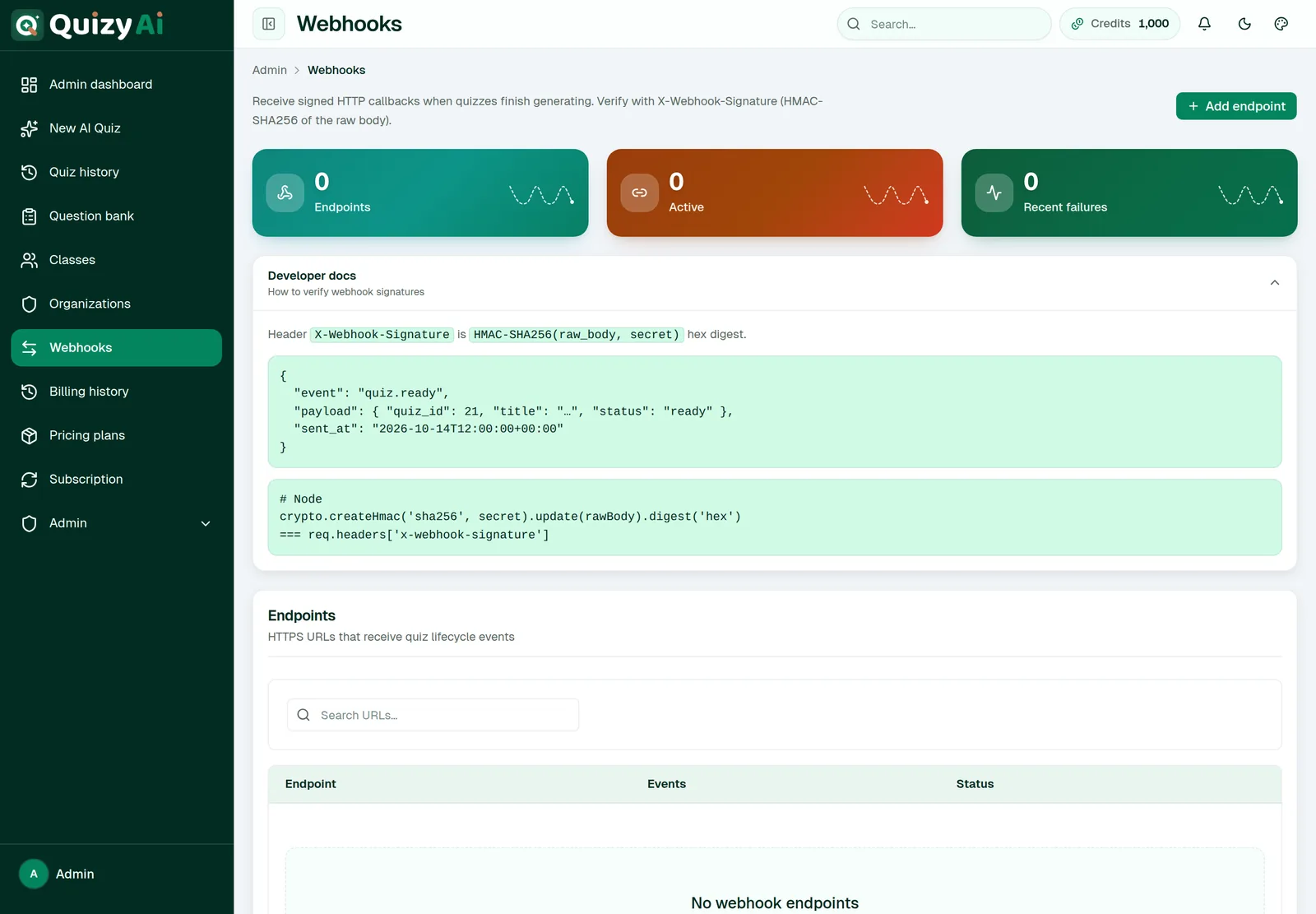
Press Add endpoint
Go to Webhooks in the sidebar, then enter an HTTPS URL that accepts a POST.
Choose the events
Both are ticked by default. Unticking everything falls back to quiz.ready.
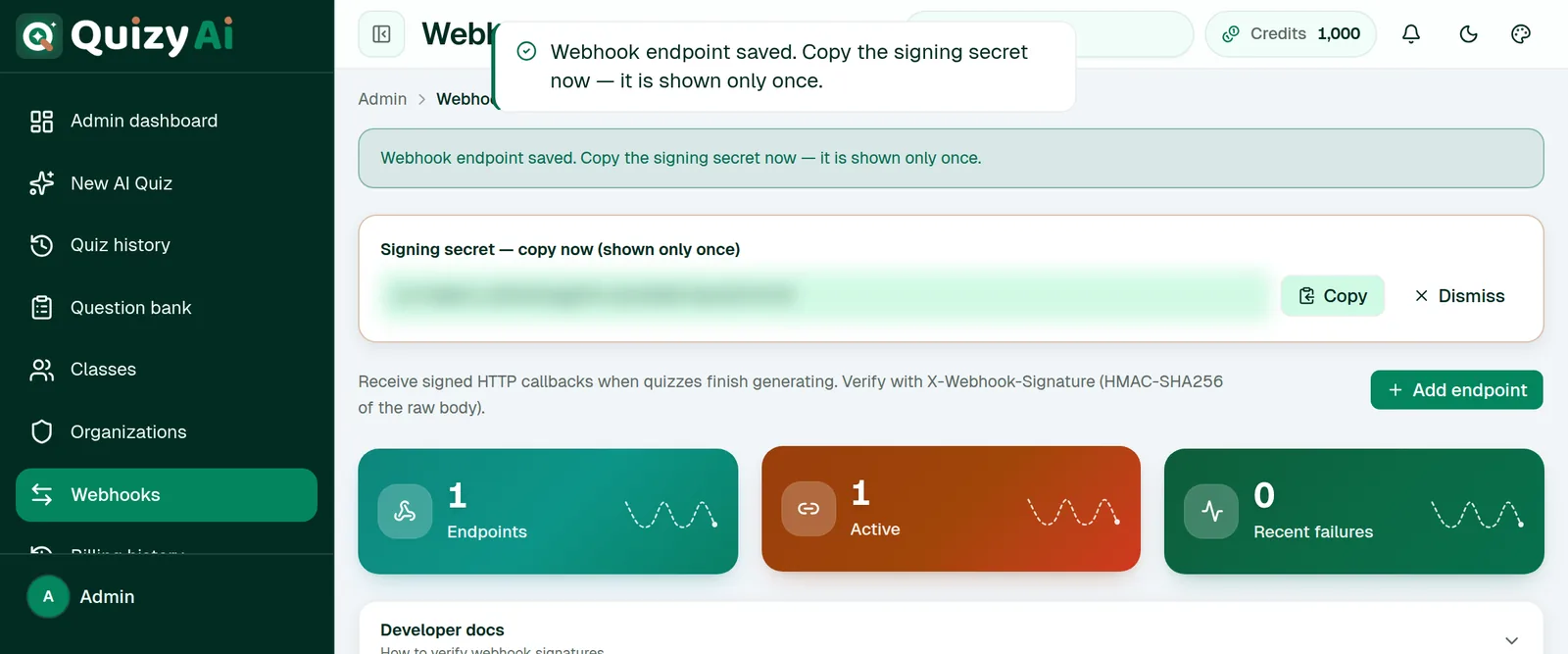
Copy the signing secret immediately
It appears once, in a banner headed “Signing secret — copy now (shown only once)”. Store it with your other secrets.
Send a test
Use the row menu → Test ping and confirm your endpoint returns a 2xx.
Every request carries X-Webhook-Signature: the hex HMAC-SHA256 of the raw request body using your signing secret. Compute it over the raw bytes before any JSON parsing or re-serialising, or it won't match.
// Node.js
const expected = crypto
  .createHmac('sha256', secret)
  .update(rawBody)          // the raw body, not JSON.stringify(parsed)
  .digest('hex');

if (crypto.timingSafeEqual(
      Buffer.from(expected),
      Buffer.from(req.headers['x-webhook-signature']))) {
  // trusted
}
There are no automatic retries. Each event is attempted once, with an 8-second timeout. If your endpoint is slow or down, that delivery is simply lost — the only retry is the manual Retry last delivery button. So: acknowledge fast with a 2xx and queue the real work, rather than processing inline.
i
Retry last delivery sends a fresh retry payload — it does not resend the original event body. Use it to prove connectivity, not to recover missed data.
Managing endpoints
The row menu offers Pause / Activate, Test ping, Retry last delivery, Rotate secret and Remove. Paused endpoints receive nothing. Rotating issues a new secret, shown once — update your verification before the next event arrives. The Recent deliveries table keeps the last 20 attempts across your endpoints, with the HTTP status and any error.
app.quizyai.com/webhooks
SHOT 52
Webhooks page: Endpoints / Active / Recent failures cards, the Endpoints table with one endpoint, and Recent deliveries with an OK row
Save as screenshots/52-webhooks.png · 1440×950 · use a webhook.site URL and send a test ping first
Deliveries are logged with their HTTP status, so you can debug from here.app.quizyai.com/webhooks — signing secret
SHOT 53
The “Signing secret — copy now (shown only once)” banner
Save as screenshots/53-webhook-secret.png · 800×250 · blur or overwrite the secret itself, then rotate it afterwards
Never publish a real secret — blur it, and rotate it after capturing.
Developers2 min read
LTI launch
An early, minimal way to open a Quizyai quiz from an LMS course page.
Configure an external tool in your LMS with:
Setting
Value
Launch URL
https://app.quizyai.com/lti/launch
Method
POST
Custom parameter
quiz_id=<numeric quiz id>
On launch, Quizyai enables public sharing for that quiz if needed and sends the learner straight to it. The quiz must exist and have finished generating. The numeric id is in the quiz page URL: /quizzes/21.
!
This is a functional stub, not a certified LTI 1.3 integration. There is no OIDC login flow, no signature or nonce verification, no deep linking, and no grade passback — scores stay in Quizyai and must be read from Responses. Because the launch isn't cryptographically verified, treat the resulting quiz link as public. Don't use it for graded assessment; for coursework, use classes or a share link posted in your LMS.
Billing & account
Plans, credits, invoices and your own settings.
Billing & account3 min read
Plans & checkout
Buy from the website before you have an account, or upgrade from inside the app.
Open the plans
Either the pricing page on the website, or Pricing plans in the sidebar once you're signed in.
Choose a billing period
Monthly, yearly or lifetime. Yearly plans carry a “Save n%” badge, and each plan shows the credits it includes.
Press Subscribe
You're taken to a secure Stripe checkout page. Quizyai never sees or stores your card details.
Come back
If you bought while signed in, your plan applies immediately. If you bought as a guest, check your email for the activation link — see Activate your account after a purchase.
Discount codes
Promotion codes are entered on the Stripe checkout page, not inside Quizyai — look for the promotion-code field there. If a code arrived as part of a link and isn't accepted, you'll see “Coupon code is invalid or has expired.”
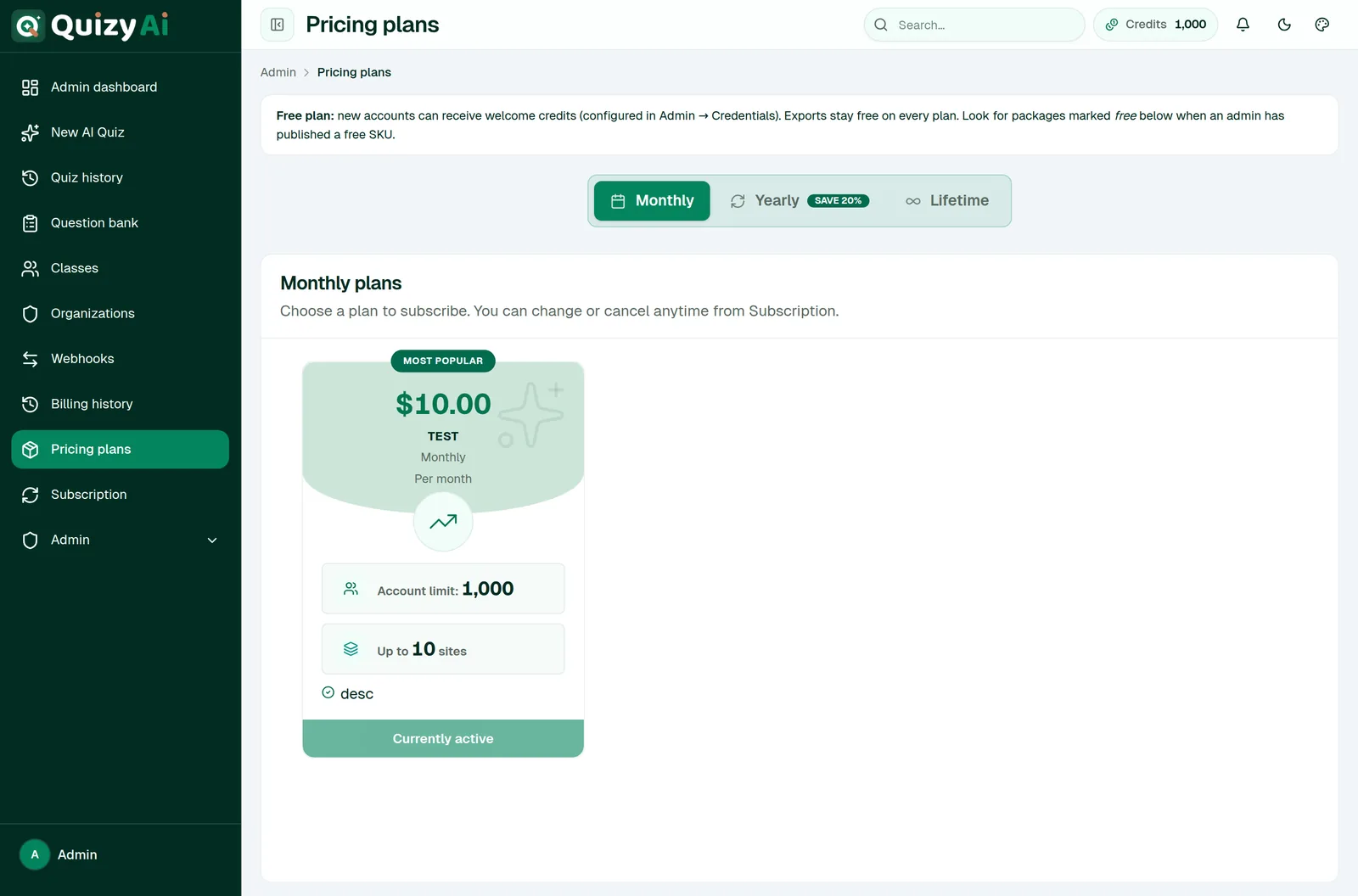
On the in-app plans page your current plan reads Currently active. A cancelled plan offers Resume subscription instead.
app.quizyai.com/dashboard/pricing-plans
SHOT 55
The plans page with the monthly/yearly toggle, plan cards, credit rows and one card marked Currently active
Save as screenshots/55-plans.png · 1440×900
Credits included are shown on each plan card.
Billing & account3 min read
Subscription & invoices
Your plan lives under Subscription; your paperwork lives under Billing history.
Subscription
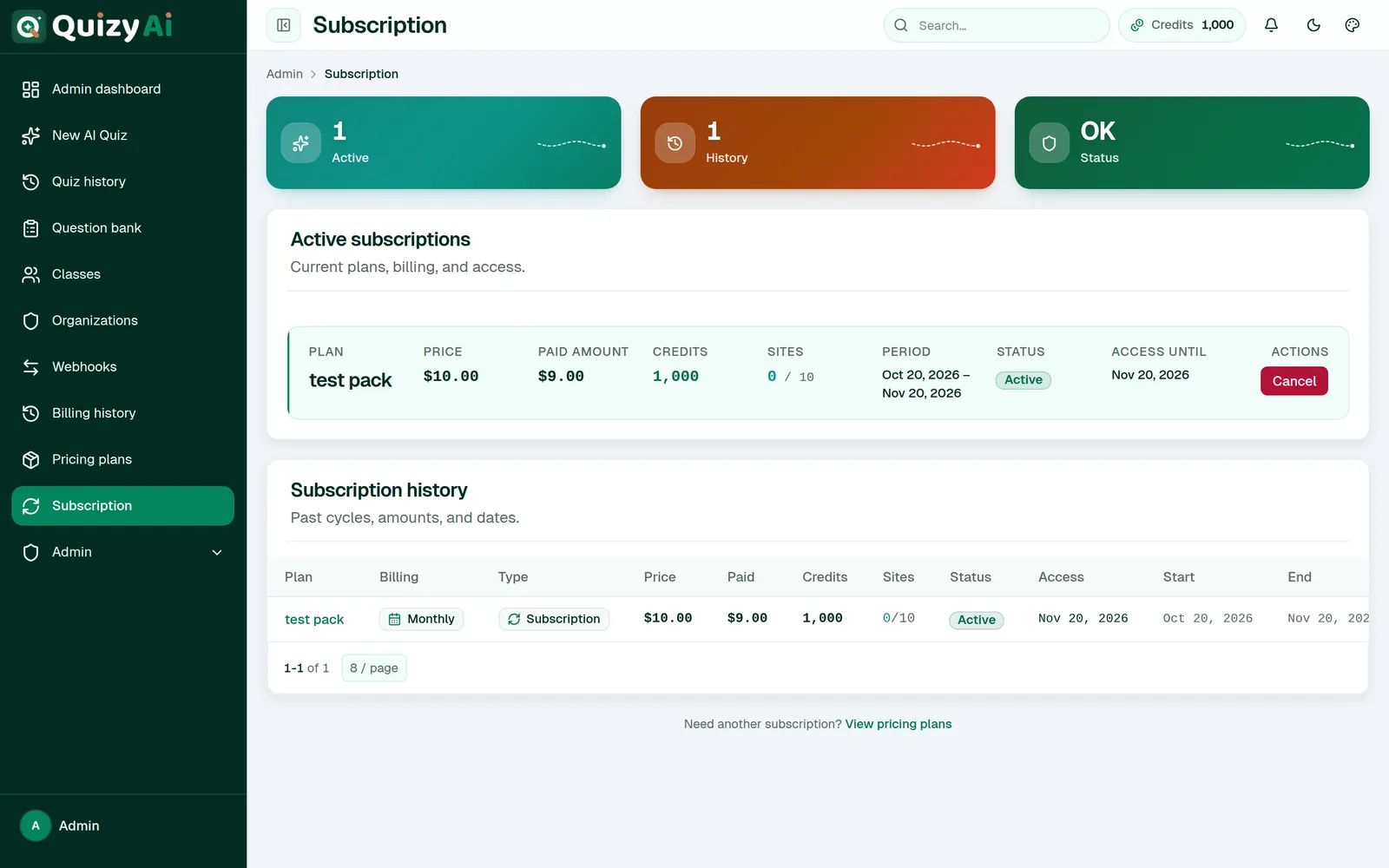
Shows each plan you hold with its price, what you paid, the credits it carries, how many websites you can register for embeds, the current period, its status and the date your access runs until. Below that is a paginated history of your subscriptions.
Cancelling
Press Cancel
Tell us why
A reason is required — it's the main way we learn what to fix.
Press Confirm cancel
Your plan is scheduled to end at the end of the current period, not immediately. You keep access until the “Access until” date.
Changed your mind before that date? Press Resume.
Invoices
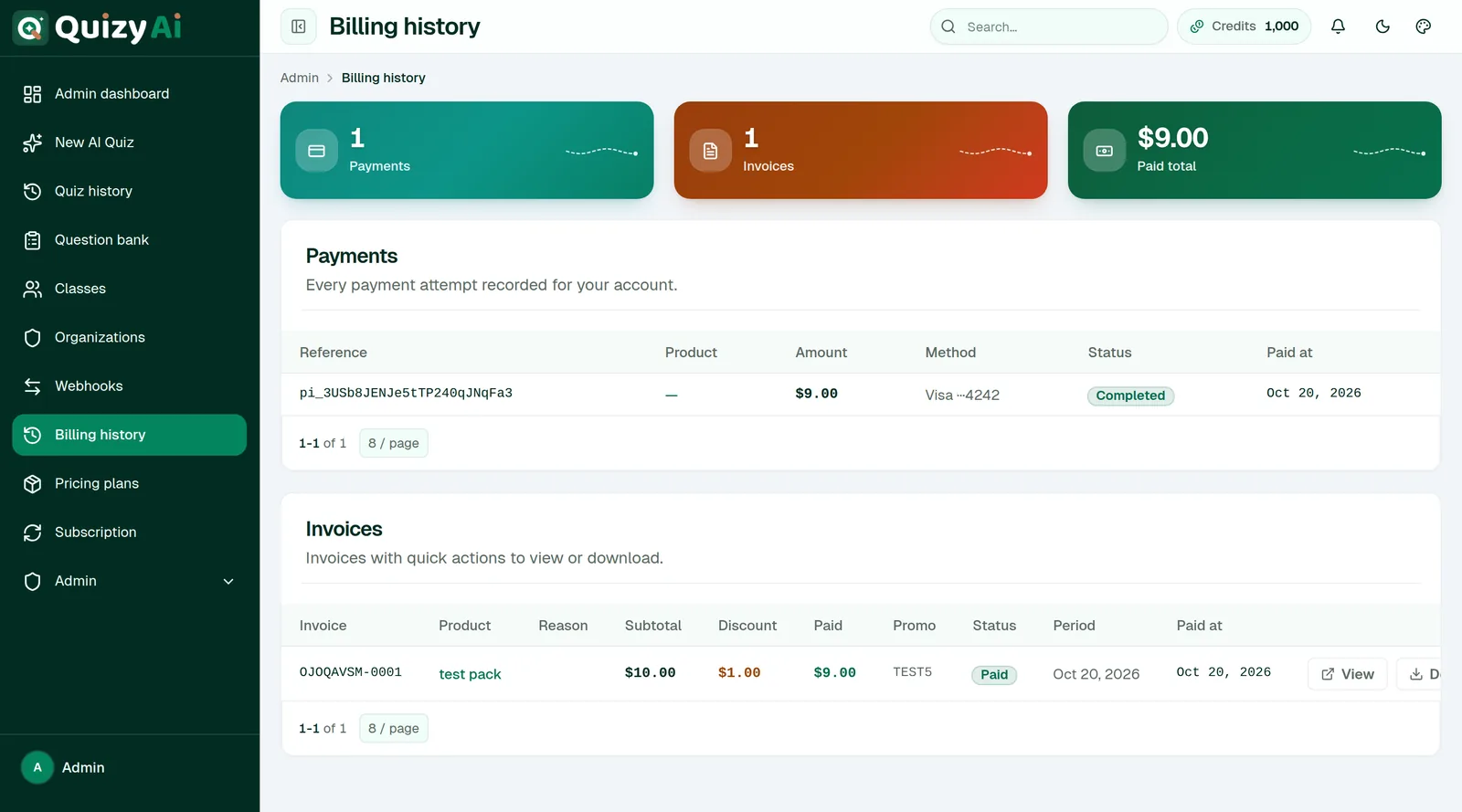
Open Billing history in the sidebar for your payments and invoices, each with View and Download.
i
To change the card on file or update billing details, contact support — there's no self-service payment-method screen in the app yet.
app.quizyai.com/subscription
SHOT 56
Subscription page: the Active / History / Status tiles and the plan detail rows (Plan, Price, Credits, Sites, Period, Access until) with Cancel
Save as screenshots/56-subscription.png · 1440×850 · blur the amount paid if it's a real account
Everything about your current plan on one page.app.quizyai.com/billing-history
SHOT 57
Billing history: the payments table and the invoices table with View / Download
Save as screenshots/57-billing.png · 1440×700 · blur real amounts and invoice numbers
Invoices are downloadable here, not on the subscription page.
Billing & account2 min read
Credits
Credits are what generating a quiz costs. Everything else — editing, sharing, embedding, exporting, classes, live sessions — is free.
Action
Costs
Generating a quiz
1 credit
Generating with AI-drawn pictures
1 extra credit
Retrying a failed quiz
1 credit (the original was refunded)
A failed or cancelled generation
Nothing — automatically refunded
Editing, sharing, embedding, exporting
Nothing
Where to see your balance
The Credits chip in the top bar — amber below 50, red at zero.
The Overview page, as “Credits remaining”.
Under the Generate button, as “1 credit per quiz · N left”.
On your Subscription page, per plan.
Running out
Generate Quiz is disabled with “You are out of credits. Upgrade your plan to generate more quizzes.” Upgrade, or buy a package, from Pricing plans.
i
If the top-bar chip shows credits but the Generate button still says you're out, tell support and we'll sort it — don't buy more on that basis.
Billing & account3 min read
Profile & preferences
All three settings pages hang off your avatar menu in the top right.
Profile
Upload or remove your avatar.
Change your name.
Change your password — current password, new, confirm.
Delete account, which requires your password to confirm.
!
Your email address can't be changed here — the field is read-only. Contact support to move an account to a new address. And deleting your account removes your quizzes along with it; export anything you want to keep first.
Preferences
Set your timezone — worth doing before you set any quiz deadlines — and turn email notifications on or off.
Appearance
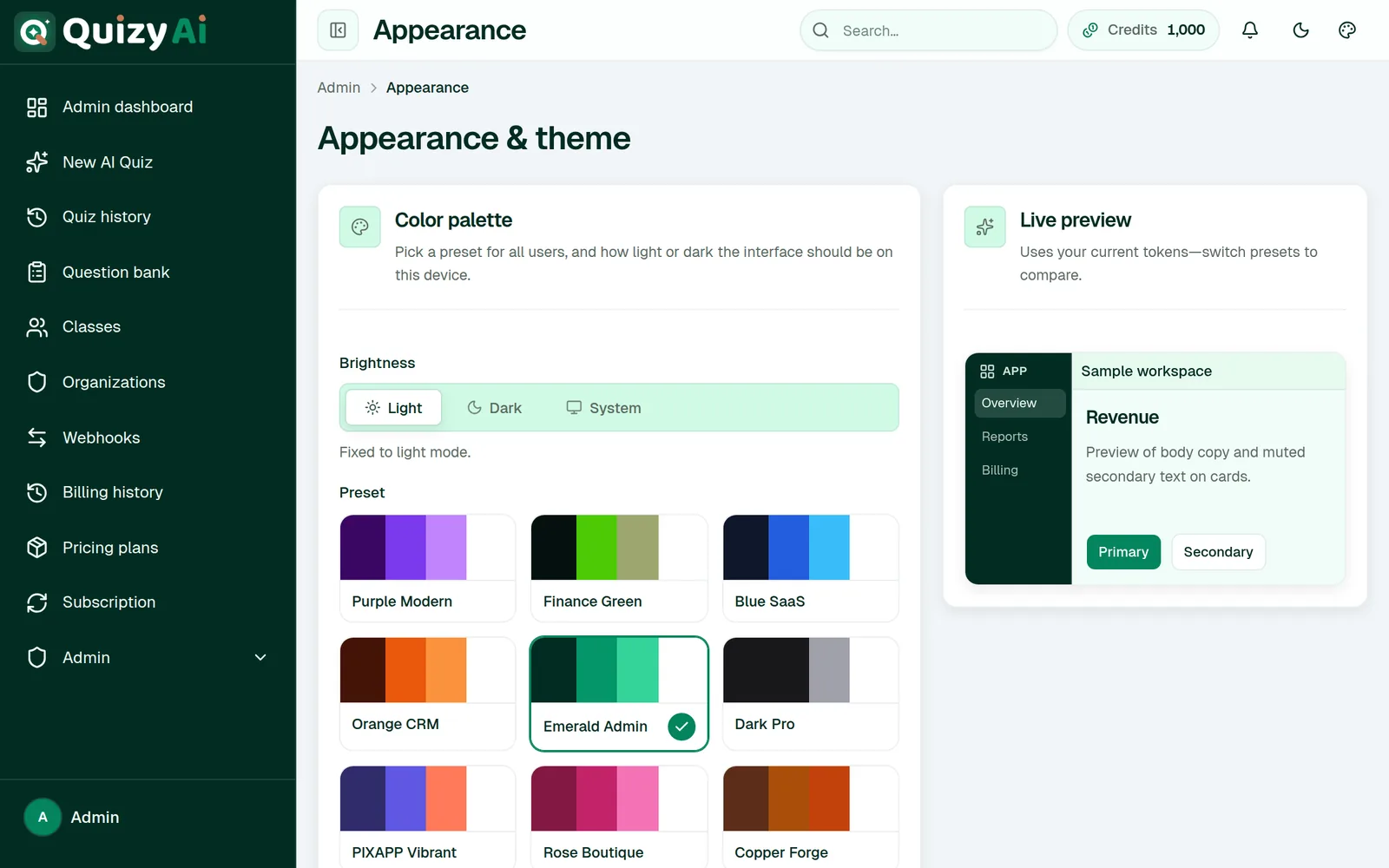
Brightness (Light, Dark or System) plus font size, spacing, corner radius and shadow depth. These are stored in your own browser, so they follow the device rather than the account, and they don't affect what your learners see.
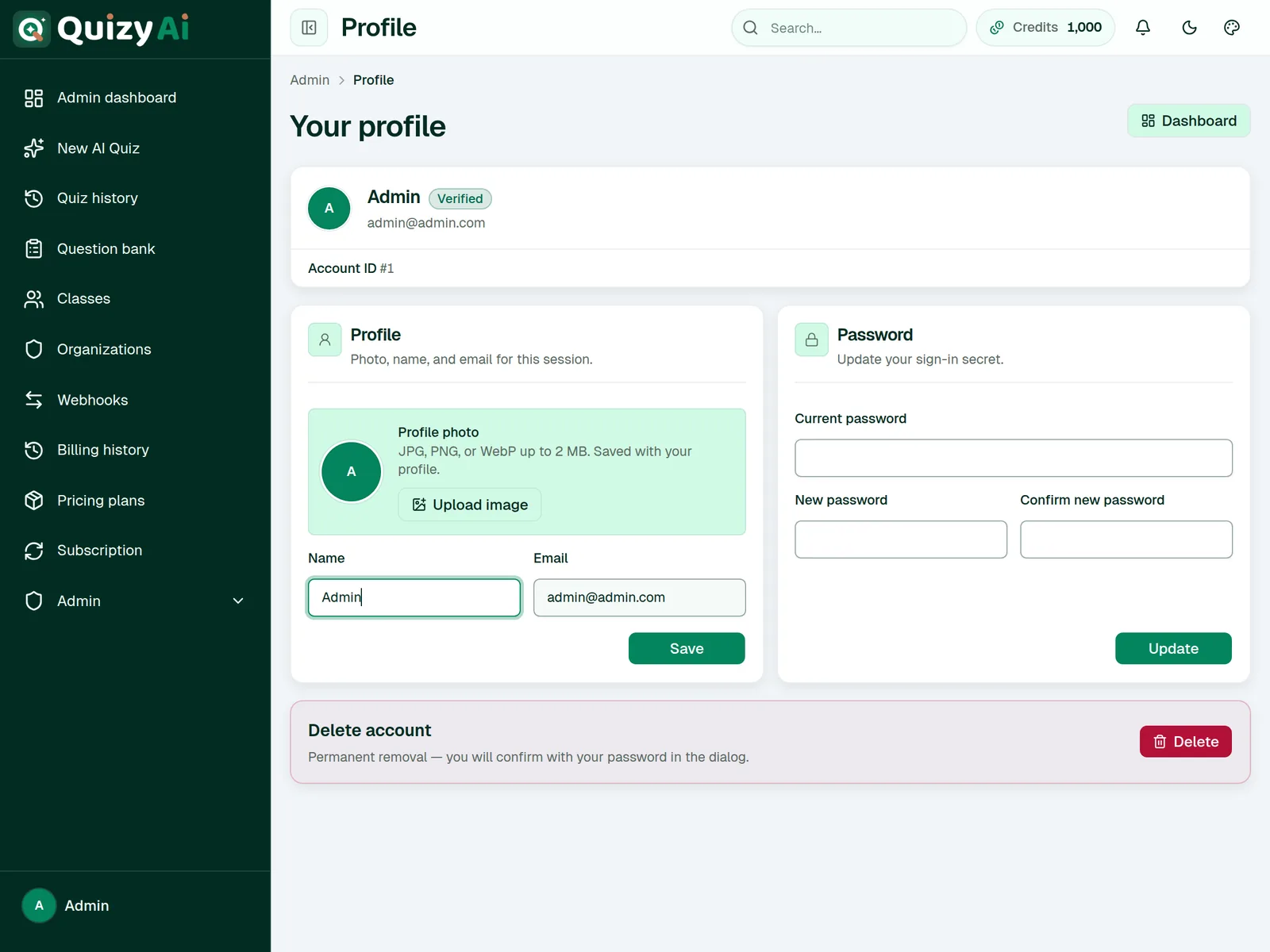
app.quizyai.com/admin/profile
SHOT 58
Profile page: avatar, Name, the read-only Email field with its note, and the password change fields
Save as screenshots/58-profile.png · 1100×850 · use a test account's email
Name and password here; email changes go through support.app.quizyai.com/admin/settings/appearance
SHOT 59
Appearance settings with the Light / Dark / System brightness control
Save as screenshots/59-appearance.png · 1100×700
Appearance is per-browser, not per-account.
Limits & troubleshooting
The numbers in one place, and what to do when something doesn't work.
Help2 min read
Limits at a glance
Sources
Limit
Signed in
Free tool
Document size
50 MB per file
20 MB
Files per quiz
Up to 10
1
Document length
No page limit
5 pages
Pasted text
200–200,000 characters
About 15,000 characters
Audio / video size
2 GB (500 MB recommended)
100 MB
Audio / video length
No hard cap (30 minutes recommended)
Any 3-minute window
Article link
Any public page
Any public page
Quizzes
Limit
Signed in
Free tool
Questions per quiz
1–100 (default 10)
Up to 10
Question types
All 7
4
Answer options
2–6 (default 4)
4
AI-drawn pictures
5 per quiz
Not available
Languages
135, plus Auto
135, plus Auto
Generations per hour
Limited by credits
10 per network
Quiz lifetime
Kept until you delete it
Link expires after 72 hours
Elsewhere
Limit
Value
Question image
5 MB — PNG, JPG, WEBP or GIF
Custom respondent fields
10 per quiz
Attempts per respondent
Unlimited, 1, 2, 3 or 5
Embed websites
Set by your plan
Organization seats
Set by your plan
Responses listed
Most recent 500 (count shows the true total)
Bank items per page
24
Curriculum standards
20 codes per question, 64 characters each
Webhook timeout
8 seconds, one attempt, no automatic retry
Live session scoring
100 points per correct answer
Certificate pass mark
70%
Help5 min read
Troubleshooting
Generation problems
Message
What it means
Do this
“The AI service is busy right now.”
The model provider is rate-limiting.
Wait a few minutes and press Retry. Your credit was refunded.
“The AI service is temporarily unavailable.”
An upstream outage.
Try again shortly. If it lasts more than an hour, tell us.
“We could not create enough grounded questions from that source.”
Not enough readable, quotable text — a scanned PDF, a slide deck of images, a very short source, or a video with no speech.
Use a text-based PDF, paste the text directly, or pick a clip with more talking.
“No readable text was found in this source.”
Nothing could be extracted at all.
If it's a scan, run OCR first, or paste the text.
“Quiz generation timed out.”
The source was too large or slow to process.
Shorten it — clip the video, or split a long document.
“Legacy .doc is not supported.”
An old Office format.
Save as .docx or .pptx and upload again.
“Could not download this video.”
The link isn't publicly reachable.
Check it opens in a private browser window. Private, unlisted-restricted and region-blocked videos can't be fetched — download it and upload the file instead.
“Paste at least 200 characters…”
Too little text to ground questions in.
Add more material.
Quality problems
Symptom
Usual cause
Fix
Questions are too easy or too vague
Difficulty left on Medium with a broad source.
Set Difficulty to Hard, set an Audience, and try an Analyze-heavy Bloom focus.
Questions cover the wrong part of the material
The source includes front matter, references or an unrelated section.
Paste only the relevant section, or clip the video.
Questions are in the wrong language
Auto followed a mixed-language source.
Set Language explicitly instead of Auto.
Fewer questions than you asked for
Questions that couldn't be grounded were discarded.
Normal and deliberate. Supply more material for more questions.
An answer key looks wrong
It happens.
Fix it in the editor. Once you have attempts, Item analysis flags suspect keys with Check answer key.
Sharing and embedding problems
Symptom
Fix
“This quiz is not registered for embedding on this website.”
Add that exact site in the embed dialog's Websites list. Guide →
The embed area is blank
Sharing is probably off. Reopen Embed on a website and press Enable embedding.
Your old share link stopped working
Stop sharing permanently kills a link. Create a new one and redistribute it.
The embedded quiz is cut off
The embed is a fixed height. Pick 800px, or raise the height in the snippet.
“This quiz is closed”
The deadline passed, or the class due date did. Clear or extend it in Response settings.
Respondents retake past the limit
Attempts are counted per email. Set Email to Required.
Players can't find the live session
There's no code-entry page — send the full join link from Copy join link.
Account problems
Symptom
Fix
You paid but can't sign in
Find the “Payment received” email and press Activate your account. Guide →
Every question is generated with a quote from your material, and questions whose quote can't be matched back are discarded. A second AI model from a different vendor then answers each one blind, and only matching answers earn the Verified badge. That catches most problems — but review before sending anything that matters. More →
Can I edit the questions?
Yes — question text, options, answer key, explanation and standards, plus reordering and deleting. Guide → Matching questions are the one exception: their pairs can't be edited yet.
What happens if generation fails?
Your credit is refunded automatically, and the quiz card gets a Retry button that re-runs the same source and settings. Cancelling mid-run refunds you too.
Can I use this with Moodle or Canvas?
Yes, by export. Use Moodle XML for Moodle (it keeps your explanations as feedback) or the QTI ZIP for Canvas and other QTI-capable systems. Guide → The LTI launch is an early stub with no grade passback, so for graded work prefer an export or a share link posted in your course.
How do I stop people sharing my quiz link around?
There's no password option. Require an email address and set an attempt limit, add a submission deadline, and for website use register only your own domains so the embed won't run anywhere else. Response settings →
Can I quiz on a YouTube video I don't own?
Technically any public video works. Whether you should is a copyright and fair-use question that depends on your jurisdiction and how you use the result — that's your call to make, not something we can advise on.
Is there a free plan?
There's a free tool that needs no account at all: up to 5 pages or a 3-minute clip, 10 questions, 10 goes an hour. Editing, sharing and tracking need an account. Plans →
How many questions should I ask for?
Roughly 2–3 good questions per page of dense material. Ask for 50 questions from a 5-page handout and you'll get repetition — or fewer than you asked for, because weak questions are discarded rather than padded out.
Can two people work on the same quizzes?
Quizzes belong to the account that made them. An organization lets colleagues share classes, see results and use shared branding, but it doesn't yet give two people edit access to the same quiz.
What languages are supported?
135, plus Auto, which follows whatever your source is written in. You can also generate in a different language from your source — upload English notes and set the output to Spanish.
Where do I see who took my quiz?
Responses on the quiz page, which collects share link, embed, class and signed-in attempts in one place. Guide → For question-level diagnostics, use Item analysis.